

The status line
The bar at the top says where the analysis is:- Not analyzed yet: nothing has been sent for analysis.
- Analyzing statements: a run is in progress. The tab refreshes on its own and tells you when it’s done.
- Analysis complete: with how many statements across how many banks, and a pill per bank account showing months you have against months required, for example Chase ••1234: 3/3.
- Analysis failed: try again with Analyze new or Re-analyze all.
- Analyze statements sends every statement on the deal. After a first run it becomes Analyze new (N), which sends only statements not analyzed yet.
- Re-analyze all redoes every statement from scratch and replaces the current result. Use it only when the result is wrong or the statements changed. It warns you first: statements analyzed in the last few weeks are re-analyzed at no cost, older ones are billed again.
- Full scorecard opens the full bank statement scorecard, when one is available.
- Basic / Advanced switches the view. See Basic vs Advanced.
If there’s no Analyze button and the bar says Bank statement analysis isn’t set up for your account yet., analysis hasn’t been set up for your account. See Bank statement analysis.
The summary strip
Six numbers across all analyzed statements:
Statements that couldn’t be read are left out of these totals rather than counted as zero.
Two banners can appear under the strip:
- Recovery activity detected, in red, when money went to a collections or recovery company. A merchant paying a collector has usually defaulted somewhere.
- Transfers reference N accounts not in this deal, in amber: the merchant moves money to or from a bank account you don’t have statements for. The banner names each account with the number and total of transfers. Request statements opens a document request so you can ask for them.
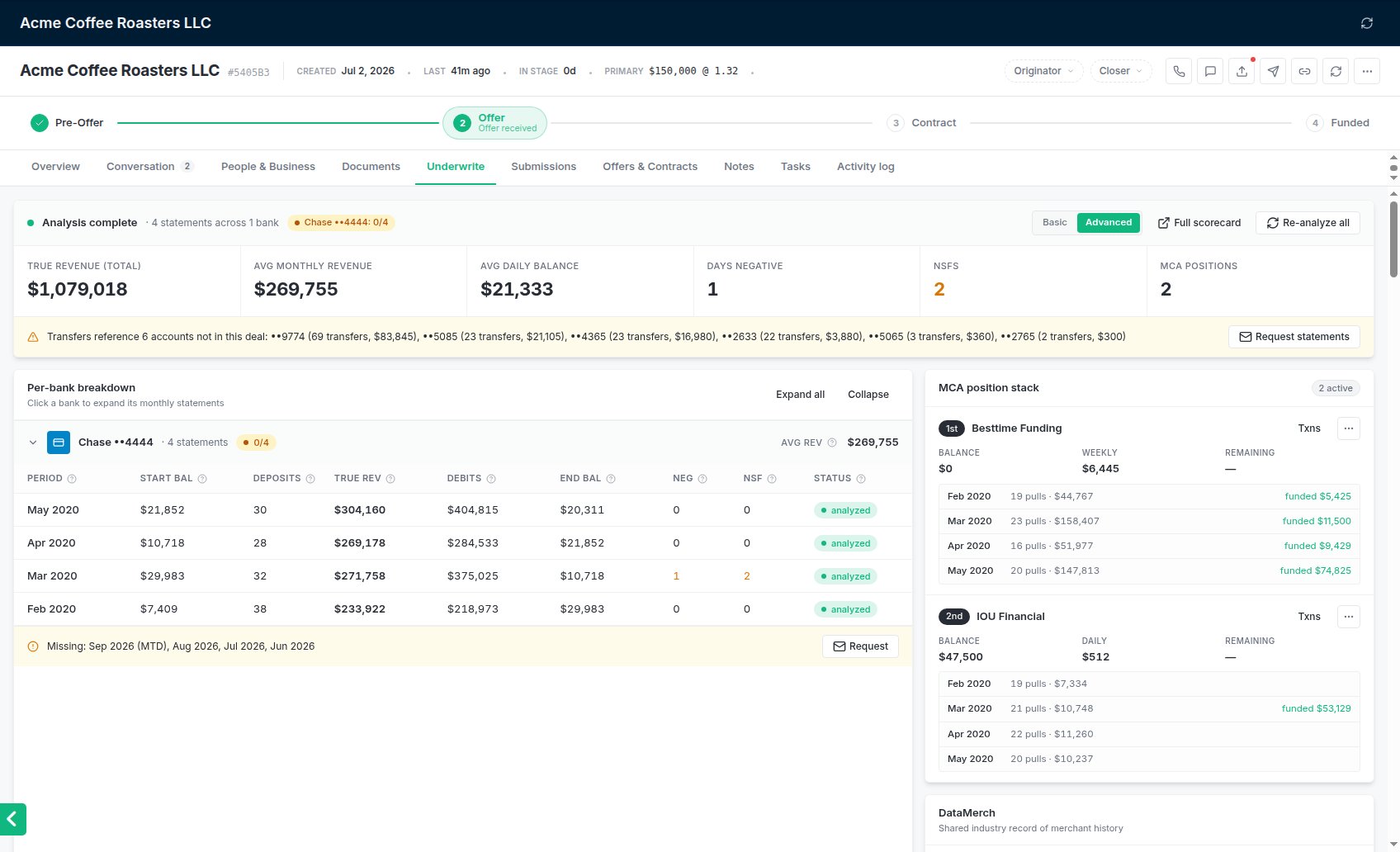
The Underwrite tab after analysis: the strip, the per-bank breakdown, the position stack and the DataMerch card.
Per-bank breakdown
One section per bank account, with the account’s last four digits, its statement count, a coverage pill (for example 2/3) and its average true revenue. Click a bank to open or close it; Expand all and Collapse do all of them. Inside, one row per statement month: Period, Start bal, Deposits (how many deposits counted as revenue), True rev, Debits, End bal, Neg (negative days), NSF and Status. Hover the ? beside a column header for what it means. Negative days and NSFs turn amber when there are any. When months are missing for an account, an amber line says Missing: with the months, and Request opens a document request. How many months are required is set in Settings → General → Preferences. See Uploading bank statements.MCA position stack
The existing advances found in the statements, numbered in order (1st, 2nd, …). Each shows the funder, the Balance, the payment and how often it’s taken, and the estimated Remaining term. The pill at the top counts open positions and turns red at three or more.- Txns lists the payments behind a position.
- … → Edit changes the funder, balance, payment or frequency, when the merchant tells you something the statements don’t show. … → Remove takes a position off the stack.
- A position the statements show as paid off is marked Paid off per statements · not counted as a position.