

Connecting and changing the DataMerch settings needs Settings access (admins, or a role that includes it). Anyone who can edit deals can run a check.
Connect your account
1
Get your credentials
Sign in to your DataMerch account. The authentication token and authentication key are both under API access.
2
Open Settings → Integrations
On the DataMerch card, click Connect.
3
Enter them and test
Paste the Authentication token and Authentication key, then click Connect & test. The app stores them encrypted and checks they work. They’re never shown again.
4
Choose automatic checks
Check every new deal automatically is on by default. See Automatic checks.
5
Pro plan (optional)
Turn on DataMerch Pro plan only if your DataMerch account is on Pro. See DataMerch Pro.
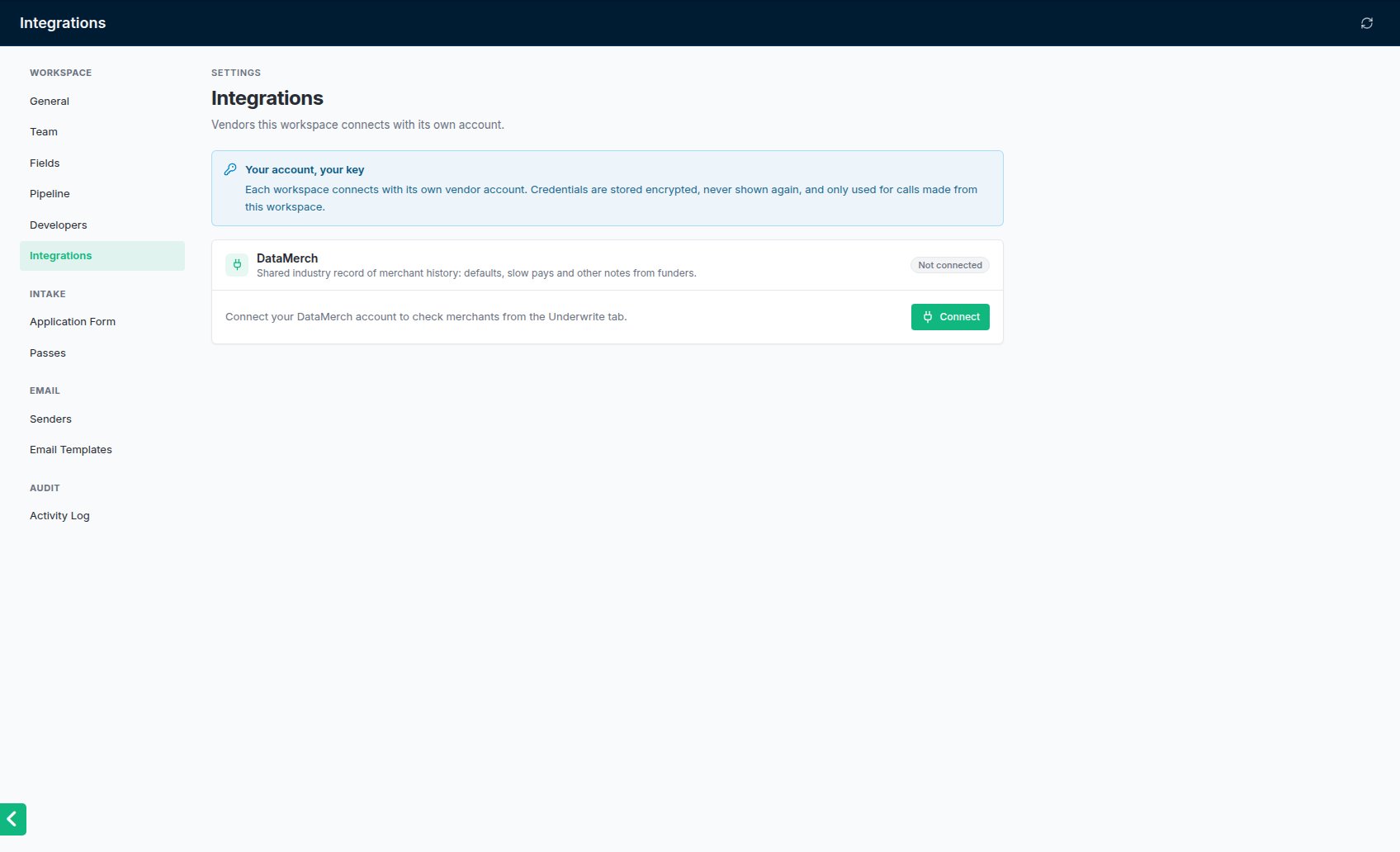
Settings → Integrations before DataMerch is connected.
Managing the connection
Once connected, the card shows a status: Connected, Saved (not verified yet), Off or Error.- Test checks the stored credentials still work.
- Replace enters new credentials (Replace & test).
- Disconnect deletes the credentials. Checks already on deals are kept.
- The switch in the card header turns DataMerch off without forgetting the credentials. No checks run while it’s off.
- If DataMerch rejects a call, the card shows Last call failed with the reason until the next call succeeds.
Automatic checks
With Check every new deal automatically on, a check runs on your DataMerch account:- when a deal is created with an EIN or legal name on file, from any source (created in the app, the application form, the API), and
- when an EIN is first added to a business (the business’s latest deal is checked).
Checking a merchant on a deal
The DataMerch card is on the deal’s Underwrite tab.1
Check
Click Check DataMerch. The app looks the business up by the 9-digit EIN on file, or by legal name when there’s no EIN. With an EIN on file you can click By name instead. If the card says to add an EIN or legal name, add one to the business first.
2
Read the result
- Clear means DataMerch has nothing on file for that lookup.
- A match shows each merchant DataMerch returned, with its notes: category (such as Default or Slow Pay), date and text. Serious categories such as Default or Fraud are red, Slow Pay is amber, and satisfied or paid notes are green. A merchant can also be listed without notes.
- An EIN lookup is marked EIN match. A name lookup is marked Possible match: compare the city and state before you rely on it.
3
Check again when needed
Re-check asks DataMerch again. Otherwise, an identical check from the last 24 hours is reused instead of asking again. Search by name and Search by EIN switch how the business is looked up.
The DataMerch flag
When the newest successful check found notes, the merchant is flagged. The flag shows the most serious category, for example Default Account or Slow Pay, with a count when there are more. It appears:- next to the business name in the deal header, on the deals board and list, and on the business page and businesses list
- in the Submit to lenders window, as a warning. You can still send.
DataMerch Pro
With DataMerch Pro plan turned on, each check also shows:- who submitted each note: a broker (by name) or in-house
- the merchant’s search history: how many times it was looked up in DataMerch in the last 6 months, and how many in the last 30 days. Show dates lists them. Several recent searches usually mean the merchant is shopping for funding right now.
Common problems
There's no DataMerch card on the Underwrite tab
There's no DataMerch card on the Underwrite tab
The card only shows when DataMerch is connected and switched on. Someone with Settings access connects it, or turns its switch back on, under Settings → Integrations. People with that access see a line on the Underwrite tab naming what isn’t connected yet. A deal checked before DataMerch was disconnected or turned off still shows those results, read-only.
A check failed
A check failed
Read the reason on the card. If DataMerch rejected the credentials, ask someone with Settings access to click Test, and Replace them if they’ve changed in your DataMerch account.