

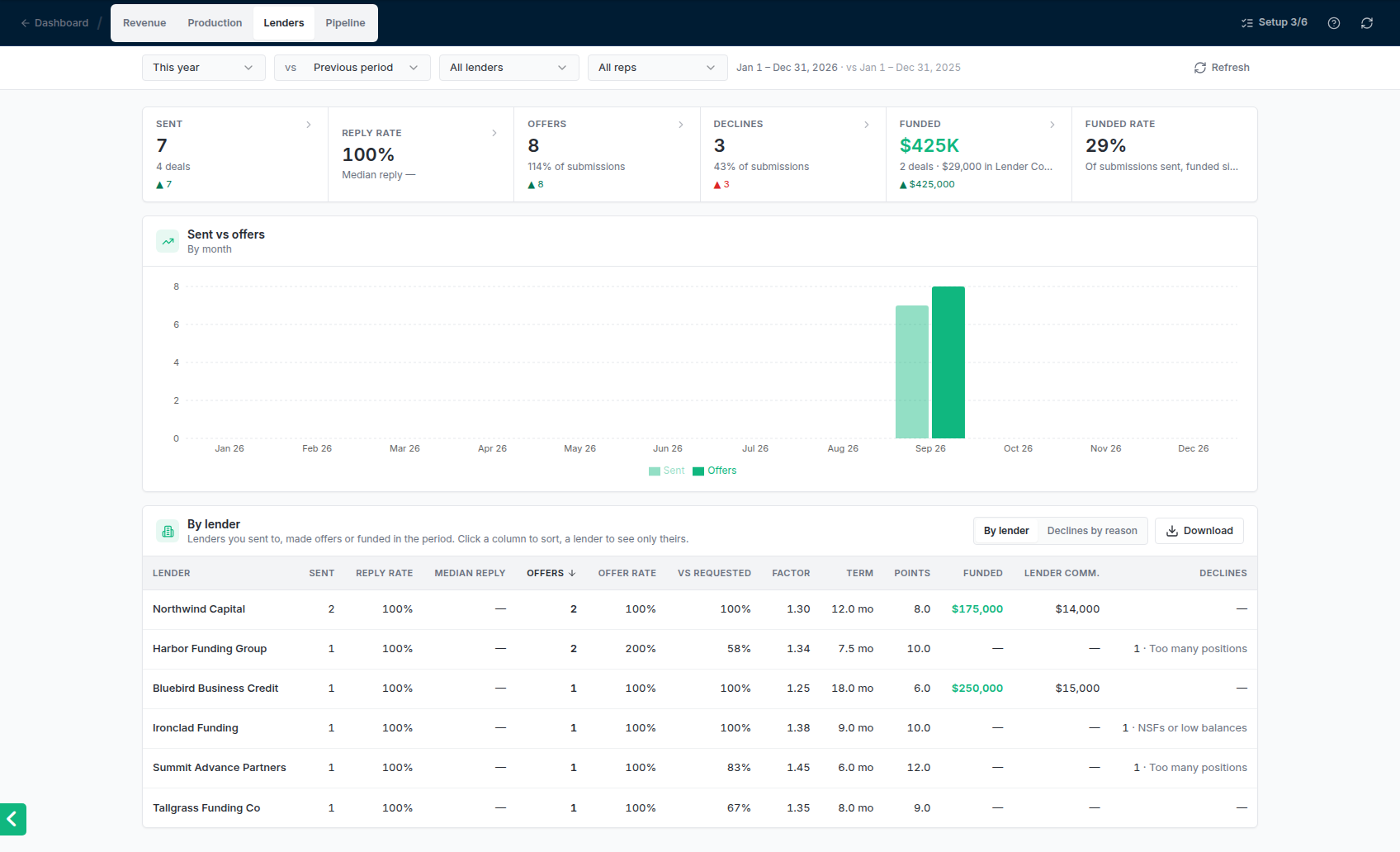
The Lenders report: the figures, sent vs offers over time, and the lender table.
The figures
Click a figure to list the submissions, offers or fundings behind it. The offers list shows each offer’s amount next to what was requested, with its factor, term and points.
By lender
One row per lender you sent to, got an offer from or were funded by in the period: Sent, Reply rate, Median reply, Offers, Offer rate, Vs requested (the average offer as a share of the amount requested), the average Factor, Term and Points, Funded, Lender Comm. (admins only) and Declines with the most common reason. Terms are averaged in months; daily terms are counted in business days.- Sort by clicking a column heading; click again to reverse it. Median reply and factor put the lowest first, everything else the highest. Lenders with no value sit last either way.
- Click a lender to narrow the whole report to that lender. All lenders goes back.
- Lenders you’ve made inactive still show, marked (inactive), when they had activity in the period.
Declines by reason
Switch the table to Declines by reason to see why lenders turned down what you sent in the period. Each reason shows how many declines it covers and its share, with chips for the lenders giving it.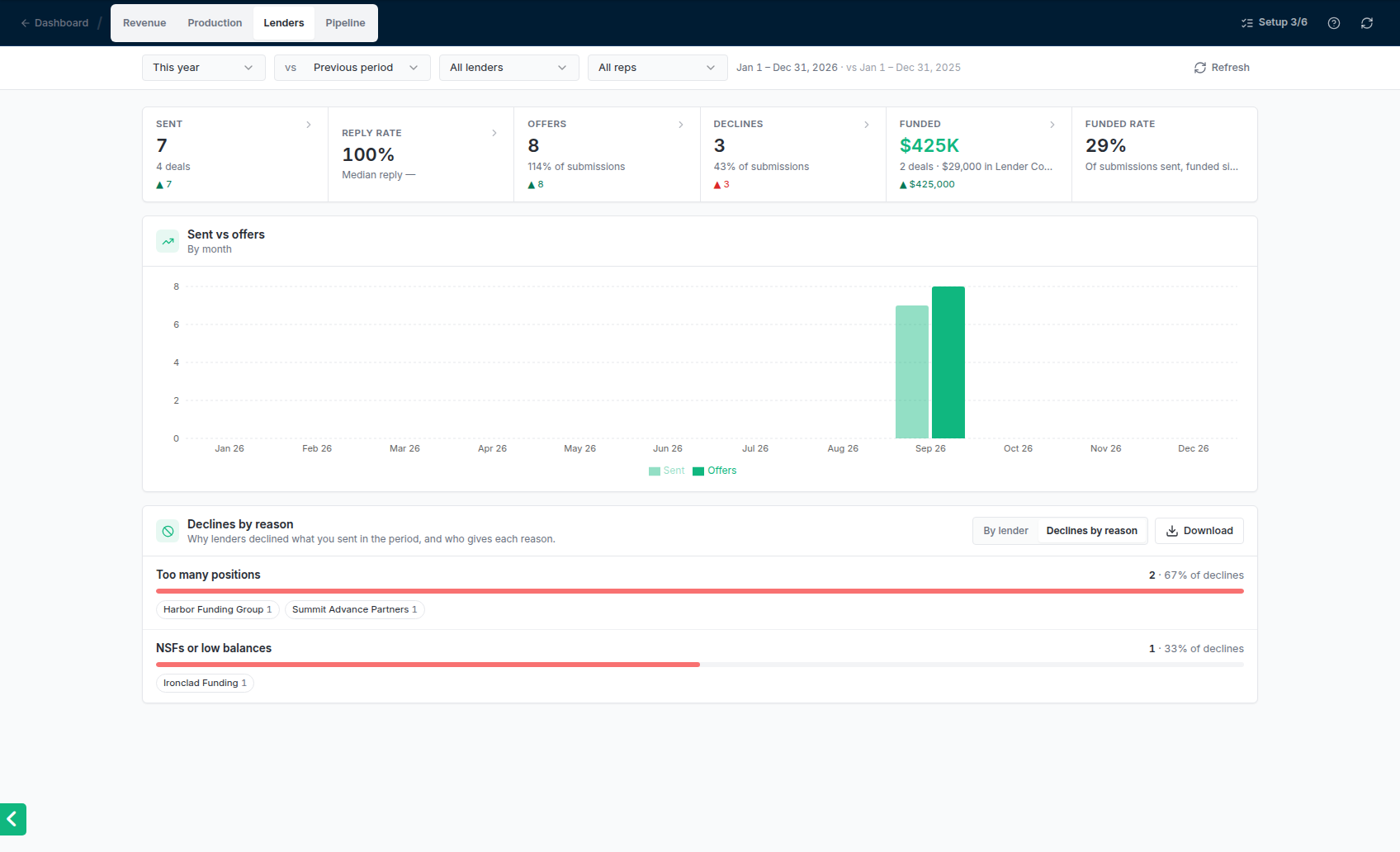
Declines by reason: each reason with its count and the lenders who gave it.
- Click a reason to list those declines. Hover over the reason in the list to read the lender’s own words.
- Click a lender’s chip to see only that lender’s declines for that reason.
- A lender’s decline email is read and filed under the reason it gives. A decline that doesn’t say why is filed as No reason given. See Replies and declines.
- Marking a submission declined yourself asks you to pick the reason, and you can paste what the lender said.
Common problems
Median reply shows —
Median reply shows —
No submission sent in the period has an answer yet, or the answers came with no reply time recorded.
A lender I submitted to isn't in the table
A lender I submitted to isn't in the table
The table lists lenders with a submission sent, an offer received or a funding in the period. Check the period at the top, and the Lender and Rep filters.