

Log an offer
1
Open Add Offer
Use any of these:
- Manual offer on the All offers card of the deal’s Offers & Contracts tab.
- Log offer in a submission’s ⋯ menu on the Submissions tab. The lender is filled in.
- Setting a submission’s status to approved on the Submissions tab.
- Add offer on the Offers page in the main menu. You pick the deal as well, from your deals that aren’t closed out or funded.
2
Fill in the terms
- Lender (required)
- Funding Amount (required)
- Factor Rate (required), for example 1.42
- Payment Frequency (required): Daily, Weekly, Bi-weekly or Monthly
- Term (required), in Days, Weeks or Months. The unit starts from the frequency (days for daily, weeks for weekly and bi-weekly, months for monthly); change it when the lender quoted another, for example 6 months paid daily.
- Points (optional), a whole number from 0 to 100
3
Click Add Offer
The offer appears in All offers with its lender, amount, factor, term, frequency, payment, payback, points and status.
An offer you log by hand is always added as a new offer. It never replaces the lender’s earlier offer, even if the terms changed. Offers read from lender emails and APIs do replace earlier terms; see Revised offers.
The primary offer
The primary offer is the one you’re working. It sits at the top of the tab, shows on the deal’s Overview, is the offer Request contract and Send to merchant act on, and is recommended to the merchant in the portal.- Set primary on a row (or Set as primary in its ⋯ menu) makes it the primary.
- Change primary under the primary card switches to another offer. Withdraw removes the primary without choosing another.
- Remove primary in the primary offer’s ⋯ menu does the same as Withdraw.
- An offer the merchant accepts in the portal becomes the primary automatically.
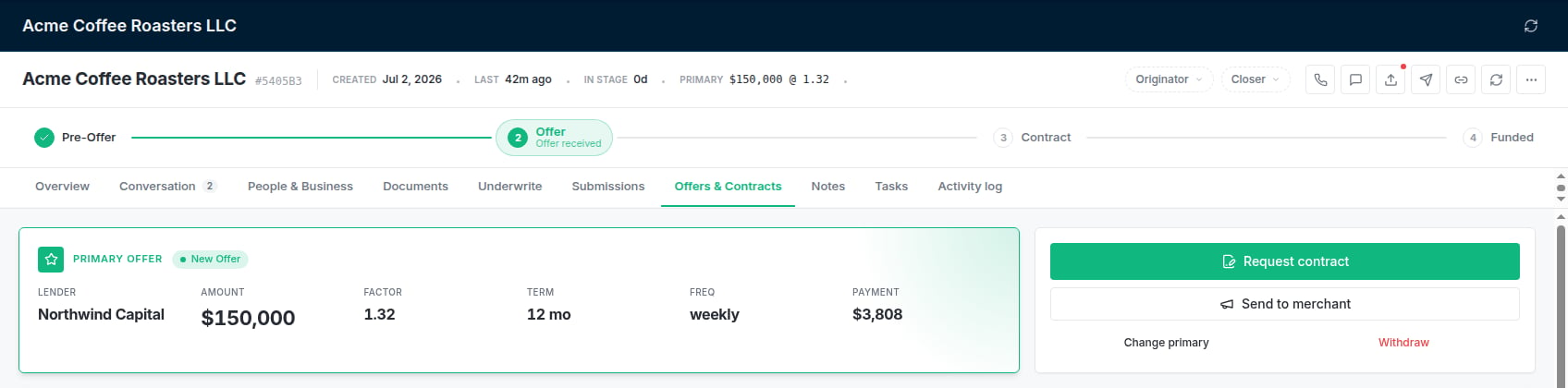
The primary offer, with Request contract and Send to merchant beside it.
Change an offer’s status
Click the status pill on an offer to move it through your offer stages. Some stages ask for more:- A stage for a merchant who turned the offer down asks for a Decline Reason, such as Terms Too Expensive or Found Better (Competitor), with optional notes.
- A stage for a deal that fell through asks for a failure reason, such as Merchant Backed Out or Lender Rescinded.
- Choosing funded opens the funding window instead, see Marking a deal funded.
Stips
When an offer is in a stage that tracks documents, a Document Checklist for that lender appears under the offers table.- Load Defaults fills an empty checklist with a default set of stips.
- + adds a stip by name. The ⋯ menu on a stip deletes it.
- Tick a stip when you’ve received it. The checklist shows how many are in, such as 3 of 5 received.
- When every stip is ticked, the app may offer to move the offer to the next stage.
Pitch the offer to the merchant
1
Open the pitch
Click Send to merchant beside the primary offer, or Pitch to merchant in any offer’s ⋯ menu.
2
Check the email
Pick the From mailbox, tick the merchant contacts under To (Merchant), and edit the Subject Line and Email Body. The text starts from your Pitch Offer template (Settings → Templates → Pitch Offer).
3
Send
The email includes a secure portal link, valid for 24 hours, where the merchant can review the offer and accept or decline it. The offer is shared to the portal at the same time and shows an In portal pill.
Edit or delete an offer
- Edit offer in the ⋯ menu changes the terms. Edits are recorded on the offer.
- Delete removes the offer. A funded offer can’t be deleted. To undo a funding, delete its advance first (under After funding, ⋯ → Delete; tick Also delete related records to remove its Lender Commissions and Rep Commissions too), then delete the offer.
- Deleting a lender’s newest revision brings back the terms it replaced, see Revised offers.
- When you delete a lender’s last offer on the deal, its submission goes back to Sent, so you can send it again. If the submission only existed because you logged the offer by hand, it’s removed.
What’s next
- A lender sent new terms: Revised offers
- Getting contracts from the lender and to the merchant: Contracts and signatures
- The deal funded: Marking a deal funded
Common problems
'Please fill in all required fields'
'Please fill in all required fields'
Funding Amount, Factor Rate and Term are all required, as is a lender. Points are optional.
Request contract and Send to merchant are greyed out
Request contract and Send to merchant are greyed out
There’s no primary offer. Click Set primary on the offer you’re working.
I can't change a funded offer's status
I can't change a funded offer's status
Once an offer is funded and its advance exists, its status is locked, and Mark as funded no longer appears in its menu.
The merchant can't see the offer in the portal
The merchant can't see the offer in the portal
Check the offer shows In portal. If the lender revised its terms since you shared it, the new terms aren’t shared automatically: share the new offer.