

Stages and phases
Your stages live under Settings → Pipeline. Every stage belongs to one of five phases, always in this order:
Funded and Dead always have exactly one stage each. In the other phases you can rename, reorder, recolour and add stages.
A new deal starts in the first stage of the Pre-offer phase (New app by default). See Creating a deal.
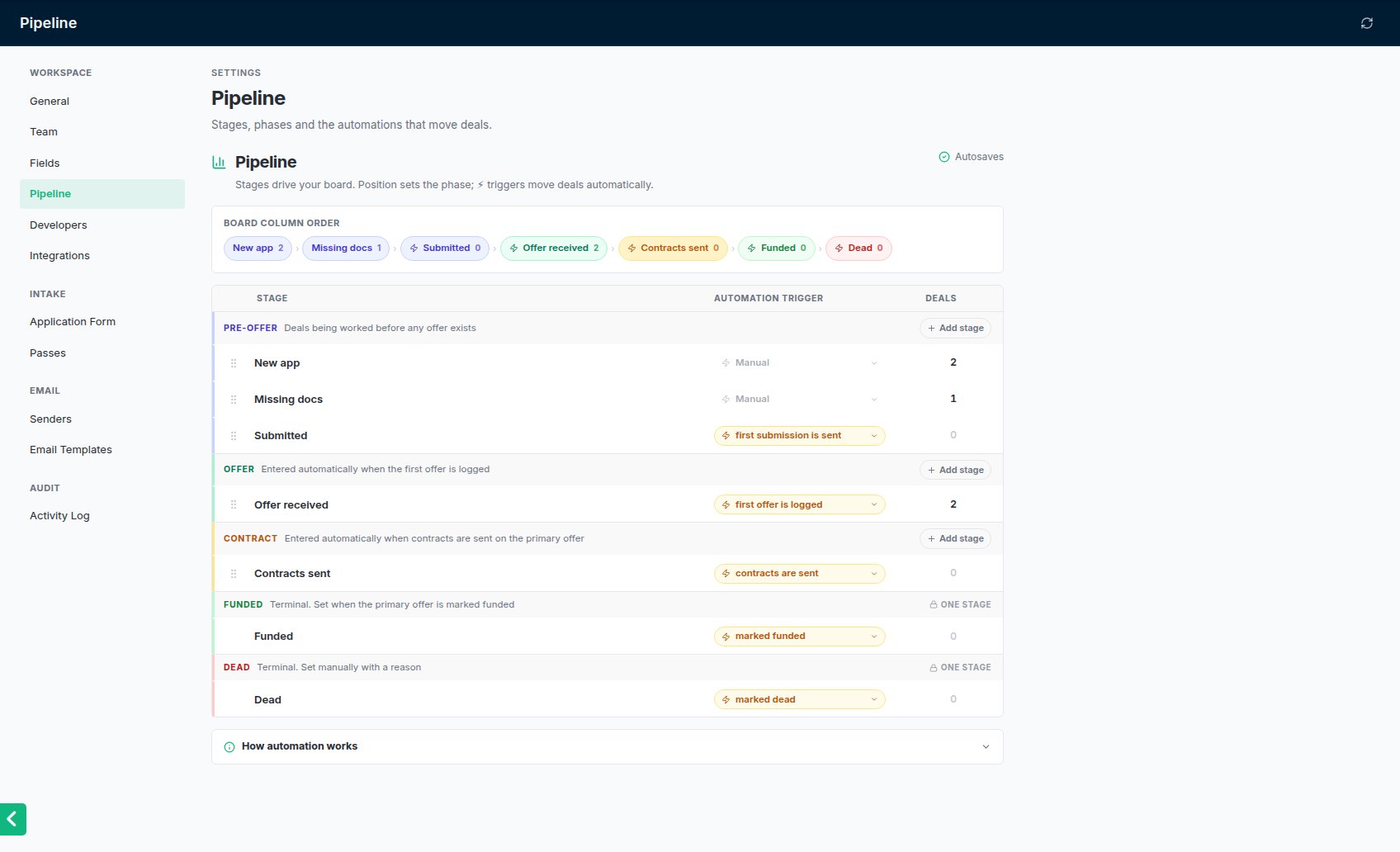
Settings → Pipeline: stages, their phase and colour, and the event that moves a deal into each.
Finding deals
The Deals page has two views: List and Board. The board has one column per stage, grouped by phase, with the primary offer on the card once there is one. The tabs across the top are saved lists: All deals, Active deals, My deals, Unassigned, Funded and Dead, plus any lists your team saves. What “All deals” covers depends on your role; see Record visibility. Search finds a deal by business, owner or document reference.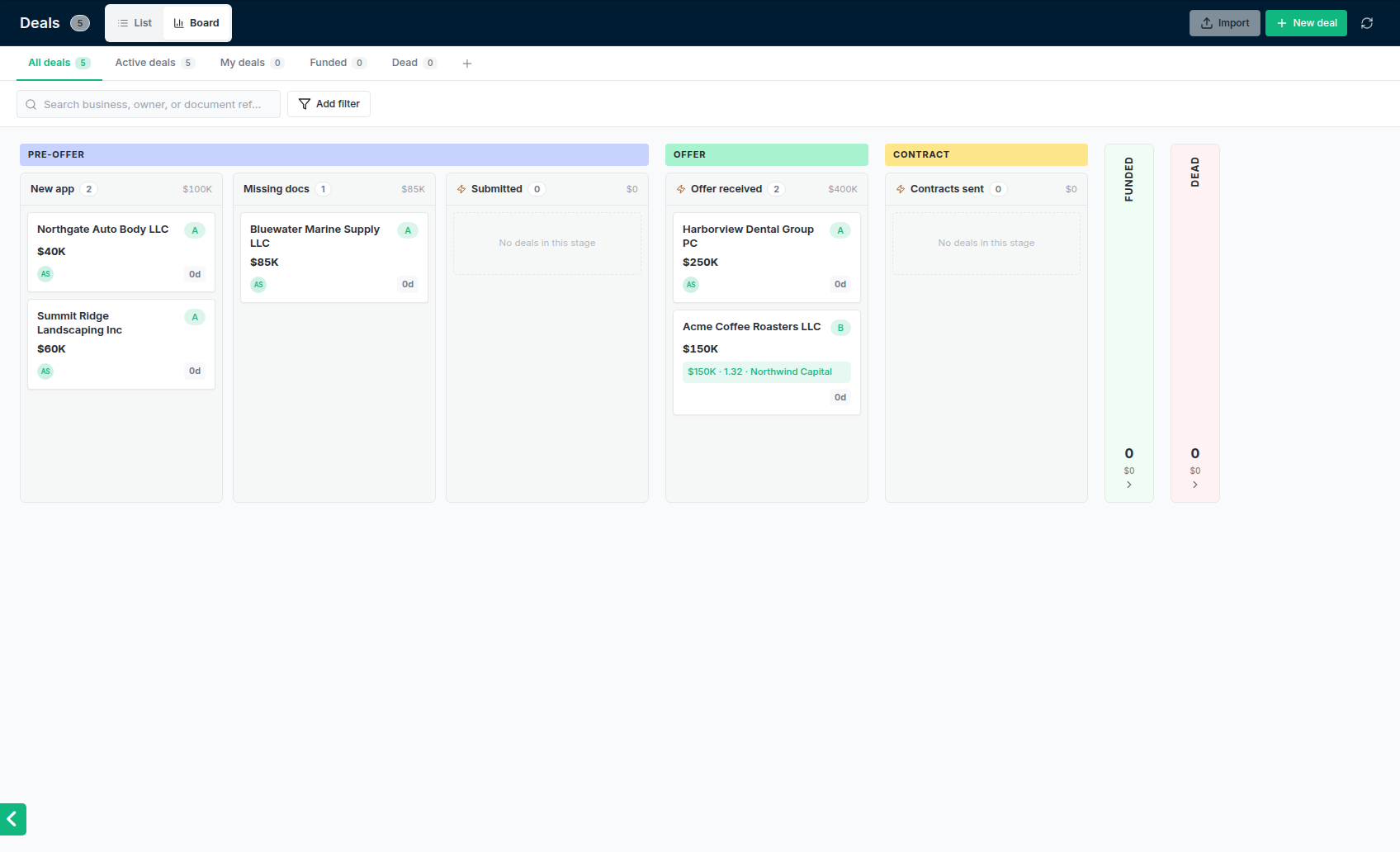
The board: one column per stage, grouped by phase, with the primary offer on the card once there is one.
Acting on several deals at once
In the List view, tick deals to open the action bar at the bottom of the page:- Assign rep sets the originator, the closer or both on every selected deal. Leave as is keeps each deal’s own. Reps can assign deals only to themselves, and managers only to their team.
- Export downloads the selected deals as a CSV.
- Delete deletes the selected deals for good. Deals that can’t be deleted are kept and listed with the reason (see Deleting a deal).
Moving a deal by hand
1
Pick the new stage
On the Board, drag the card to another column. Or open the deal and click the stage bar under the header, which opens Move stage.
2
Add a note if you want
Move stage has a Reason / note box. It’s optional, except when you move a deal to Dead.
3
Confirm
Click Move stage. A manual move can go forwards or backwards.
- Stages set by an event. A stage bound to an event such as first submission sent, first offer logged or contracts sent only receives deals from that event. On the board a drop is refused with Automated stage, and in Move stage the stage is greyed out with set by workflow. Do the thing itself (submit, log the offer, send contracts) and the deal moves on its own. See Pipeline stage events.
- Funded. A deal only reaches Funded when you mark an offer as funded, because that creates the advance. Dragging a card to Funded opens the deal and reminds you to do that. See Marking a deal funded.
- Dead always needs a reason. Dragging to Dead opens Mark as dead, where you pick a reason (such as Merchant unresponsive or Declined by all lenders) and can add a note. Moving a deal to Dead, by dragging or with Move stage, closes the deal out. Moving a closed-out deal to any other stage reopens it.
- A funded deal can’t go to Dead. Once a deal has an advance, the money went out, so Dead is greyed out in Move stage and a drop on Dead is refused.
The deal’s More menu (the … button in the header) also has Close out deal, which moves the deal to Dead, and Reopen deal for a deal that was closed out. Funded deals don’t have Close out deal. Reopening works out the right stage again from the deal’s submissions, offers and funding.
Who owns the deal
Each deal has an Originator (who brought it in) and a Closer (who is working it). Both show as chips in the deal header: click one to change it. Whoever creates a deal becomes its originator unless someone else is chosen. The merchant sees both names on the merchant portal. Emails the app sends automatically for a deal go from the closer’s mailbox, then the originator’s, then the mailbox of whoever created the deal, then the workspace default. See Default sender. If your workspace uses automatic passes (Settings → Passes), an approved deal the original rep doesn’t fund can pass to the next rep in the rotation.Deleting a deal
Delete deal is in the deal’s More menu (the … button), and Delete is in the list’s action bar. Both need the Delete permission on deals. Deleting is permanent: the deal’s documents, notes and history go with it. The business and its CRM contact stay. To protect your records, some deals can’t be deleted:- Funded deals, meaning any deal with an advance or a Lender or Rep Commission. Deleting would erase money records.
- Deals submitted to a lender, by email or by API, and deals with offers. The lender already has the file.
Tasks, notes and the activity log
These are tabs on the deal.- Tasks are follow-ups. Click New task, say what needs to happen, and optionally set a due date and an assignee. Tick a task to complete it. The tab badge counts open tasks.
- Notes are internal: the merchant never sees them. Tick Pin to top to keep one above the rest. You can edit, pin, unpin or delete a note later.
- Activity log is everything that happened on the deal: field changes, emails, submissions, offers, documents, stage moves and what the merchant did in the portal, with who did it and when. You can search it, filter by person and Export it. Entries are never edited or removed. This tab only shows for people whose role includes viewing logs.
Paper grade
Every deal gets a paper grade from A to D once its bank statements have been analyzed. Until then it has none. The grade starts from 100 points and loses points for NSFs, negative days, existing positions, short time in business, low monthly revenue, low average balance, a high share of revenue going to existing advances, recovery activity and, when known, a low credit score. 80 or more is A, 60 or more is B, 40 or more is C, anything lower is D. You see the grade on the deal list (and can filter by it), on the Submissions tab, and in lender matching, where lenders can say which grades they take. Hover the grade on the Submissions tab to see what cost it points. To set it yourself, open Matching inputs on the Submissions tab and pick a grade under Paper grade. A grade you set is marked manual and is never overwritten. Pick Computed to go back to the worked-out grade.Matching inputs
On the Submissions tab, the Matching inputs card holds facts the lender matching can’t read from documents. Click the arrow to open it:- Product: MCA, term loan, line of credit, equipment, factoring or reverse consolidation
- Desired term in months and Desired frequency (daily, weekly, bi-weekly, monthly)
- Paper grade override
- Bankruptcy (how many months ago) and Franchise (how many years)
- Prior MCA default, ACH reversals and Seasonal business