

Fill the form on a deal
1
Open the deal's Documents tab
Choose the Application folder. Next to Generate applications (or Regenerate applications) there’s a button for each of your lenders that takes its own form, such as BriteCap application. A warning sign on the button means some details the form asks for are missing.
2
Click the lender's button
The window lists anything the form will go out without, such as the EIN or an owner’s date of birth. Fill those in on People & Business first, or go ahead without them.
3
Click Fill and save
The filled form is saved in the Application folder as BriteCap application. Preview or download it like any document.
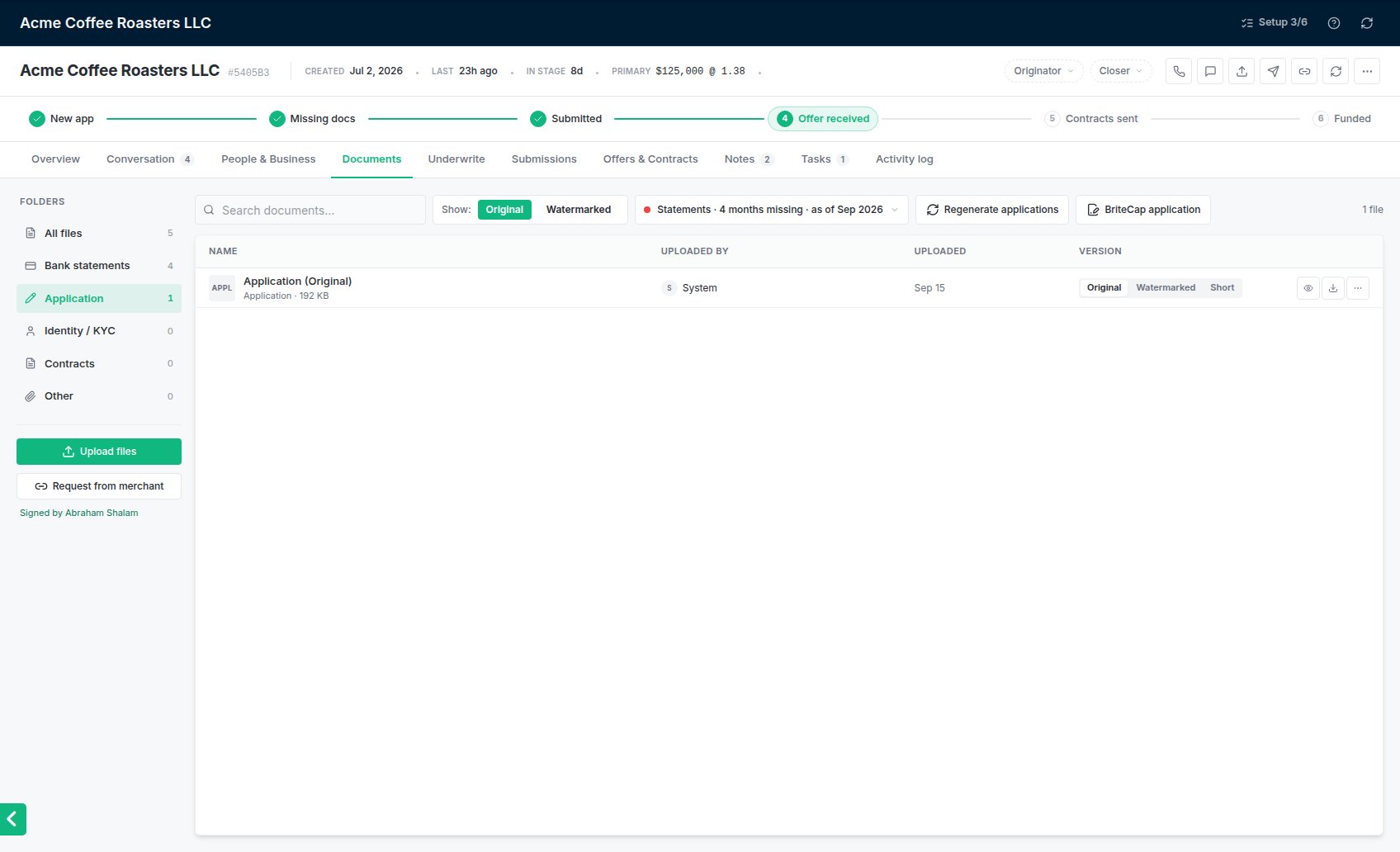
The Application folder on the Documents tab, with the BriteCap application button.
- From the deal: the amount requested and revenue; the business’s legal name, DBA, email, phone, address, industry, EIN, start date and entity type; and up to two owners with their name, home address, cell phone, ownership, date of birth and SSN. The primary owner is owner #1.
- Left blank: the signature, the date and the title. The owner signs the lender’s authorization themselves.
- Locked: the saved form can’t be edited. To change something, fix it on the deal and fill the form again.
- More than two owners: the form only has room for two. The window names the owners left off.
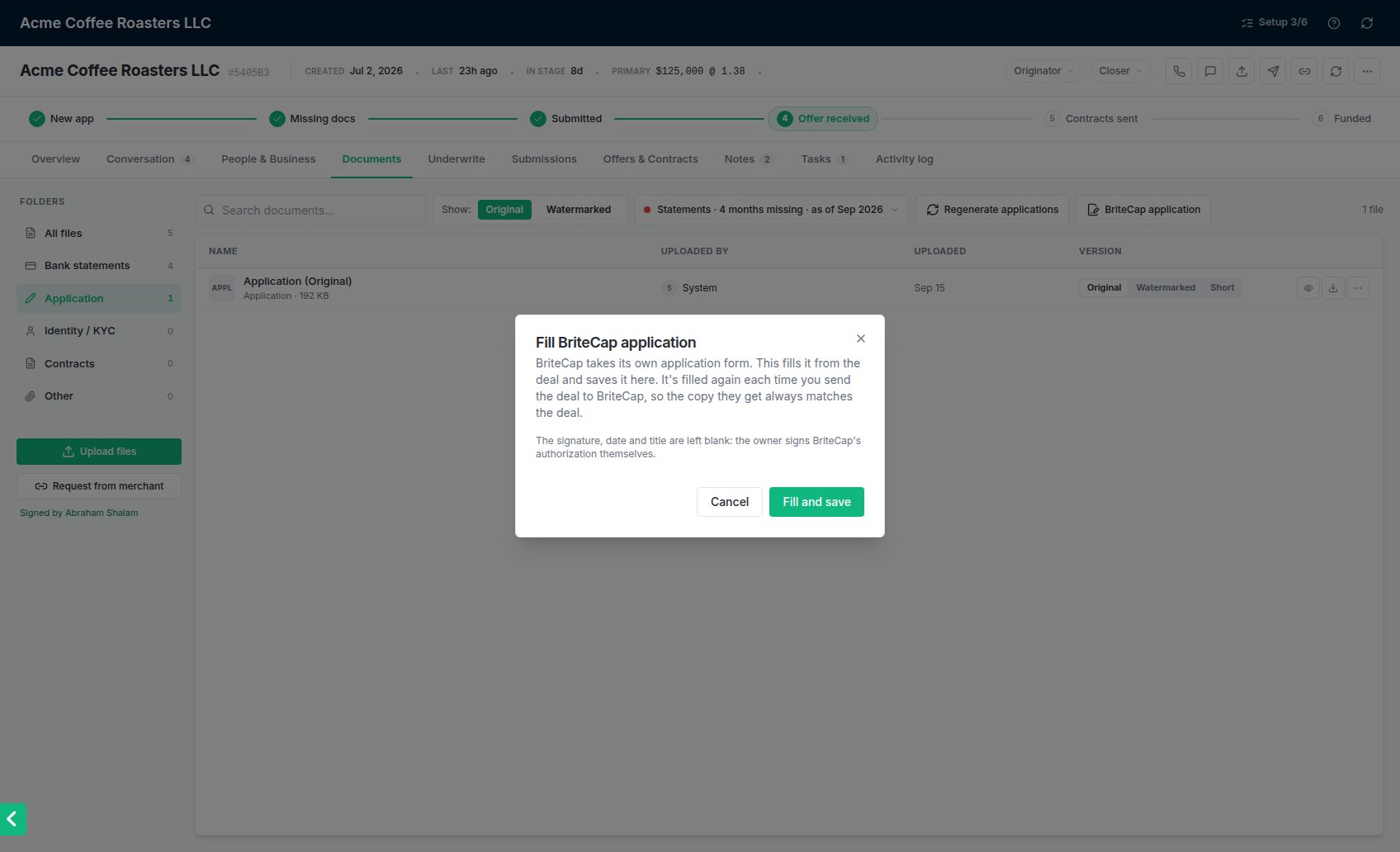
Filling BriteCap's form. When the deal is missing details the form asks for, they're listed here too.
Sending to that lender
You don’t have to fill the form before you send. Whenever the deal goes to BriteCap, the form is filled again from the deal as it is at that moment and attached to BriteCap’s email, so the copy BriteCap gets always matches the deal. The saved copy on the deal is updated too; there’s only ever one.- Only that lender gets it. Other lenders on the same send get your usual package. The form never appears in the attachment list, so it can’t be sent to anyone else by mistake.
- The send window tells you. A note under BriteCap says it also gets its own form, and lists any details it will go without. Missing details never stop the send.
- If the form can’t be filled, the send to that lender fails with the reason, and the other lenders still go out. Nothing goes to BriteCap without its form.
- Sending from an AI assistant or the API works the same way.
Common problems
A box on the form is blank
A box on the form is blank
The form fills from the deal. Add the missing detail on the deal’s People & Business tab and fill the form again, or just send: the form is filled fresh at every send.
Another lender wants its own form
Another lender wants its own form
Send the lender’s fillable PDF to support; see Getting help. Each lender’s form is set up once for everyone.