

Switching views
Use the Basic / Advanced switch in the status bar at the top of the Underwrite tab. Your choice sticks: the tab opens in the same view next time, on this browser. Switching never re-runs or re-bills an analysis.Basic
Basic is the everyday view. It shows:- the summary strip: true revenue, average monthly revenue, average daily balance, days negative, NSFs and open positions
- the recovery activity and undisclosed accounts banners, when they apply
- the per-bank breakdown, month by month, with missing months
- the MCA position stack
- the DataMerch and PACER cards
Advanced
Advanced keeps everything in Basic and adds:- Monthly history per position, in the position stack: payments pulled each month and when the advance was funded.
- Underwriting ratios: nine figures over the whole analyzed period, such as minimum monthly true revenue, recent true revenue, average monthly net revenue, average daily cash flow, total debt withdrawals, DTI percent, debt service coverage ratio, months since the last negative balance and average monthly deposit count. Hover a tile for what it means.
- Statement integrity: for each file, the name printed on the statement and whether it matches the applicant, plus checks such as Different name on statement, Personal account, Not reconciled, Balances invalid, Likely missing transactions, a fraud score, Scanned and Seen before. A file with no problems shows Clean. Hover a check for what it means.
- Collections activity: payments to recovery companies, month by month, when there are any.
- Transfers between accounts: money the business moves between its own accounts. Matched transfers have both sides on this deal. Unmatched ones point at an account you don’t have, marked not in deal when it’s one of the undisclosed accounts.
- Flagged transactions: the items behind the counts, grouped as NSF fees, overdraft fees, returned items, large transactions, repeating payments and discounted deposits (deposits not counted as revenue).
- Balances over time: a chart of the end-of-day balance per account, and a table of negative days, overdraft days and days that would have been negative without financing deposits.
- Transactions: every transaction the analysis read. Click Load transactions, then search and narrow by account, month, tag, or deposits and debits.
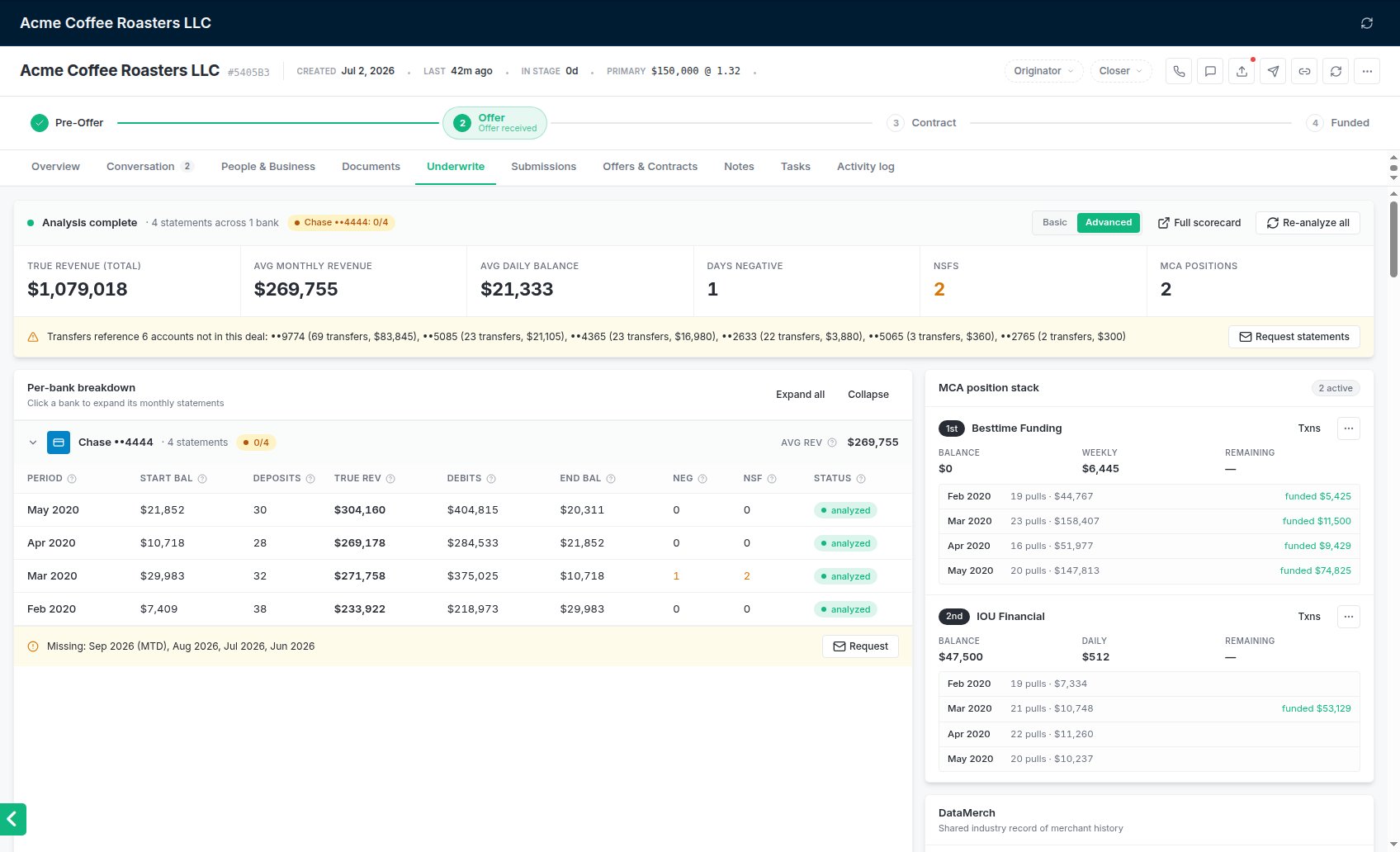
Advanced adds the monthly pulls behind each position, and below the fold the ratios, integrity checks and ledger.