

What the merchant sees
The portal carries your logo and colours from your branding settings, the business name, and who’s working their file: the deal’s Originator and Closer (or Originator & closer when it’s one person), with their email and phone. It has these tabs:- Status: where the deal stands (Application → Documents → Underwriting → Offers → Signing → Funded), what happens next, and a banner listing anything that needs the merchant’s attention. Past funded advances show underneath.
- Documents: every document you asked for, each with an upload button. See Requesting documents.
- Offers: offers you’ve shared, laid out side by side, with Accept and Decline.
- Signature: only appears when you’ve asked the owner to sign the application.
- Contracts: only appears once you’ve shared contracts, which the merchant downloads, signs and uploads back.
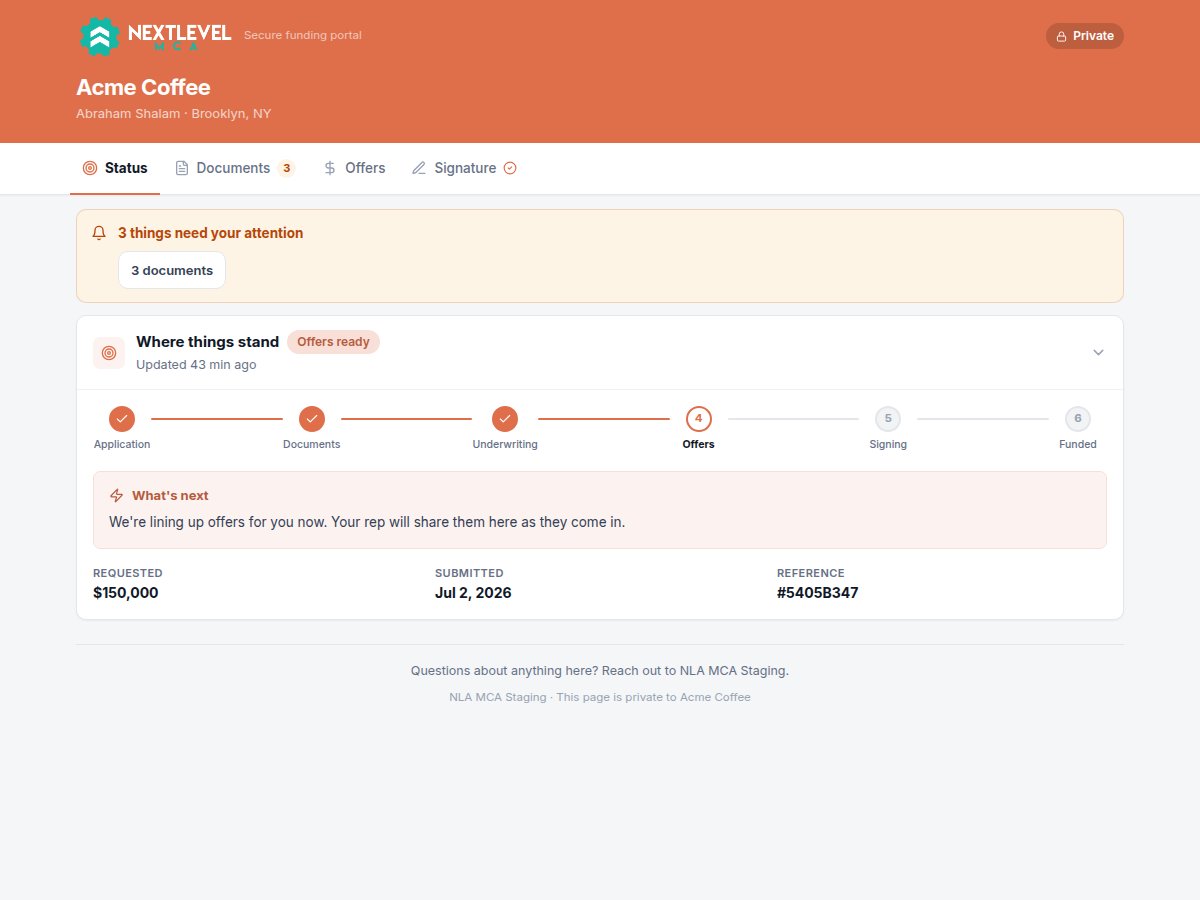
The portal's Status tab: what needs the merchant's attention, and where the deal stands.
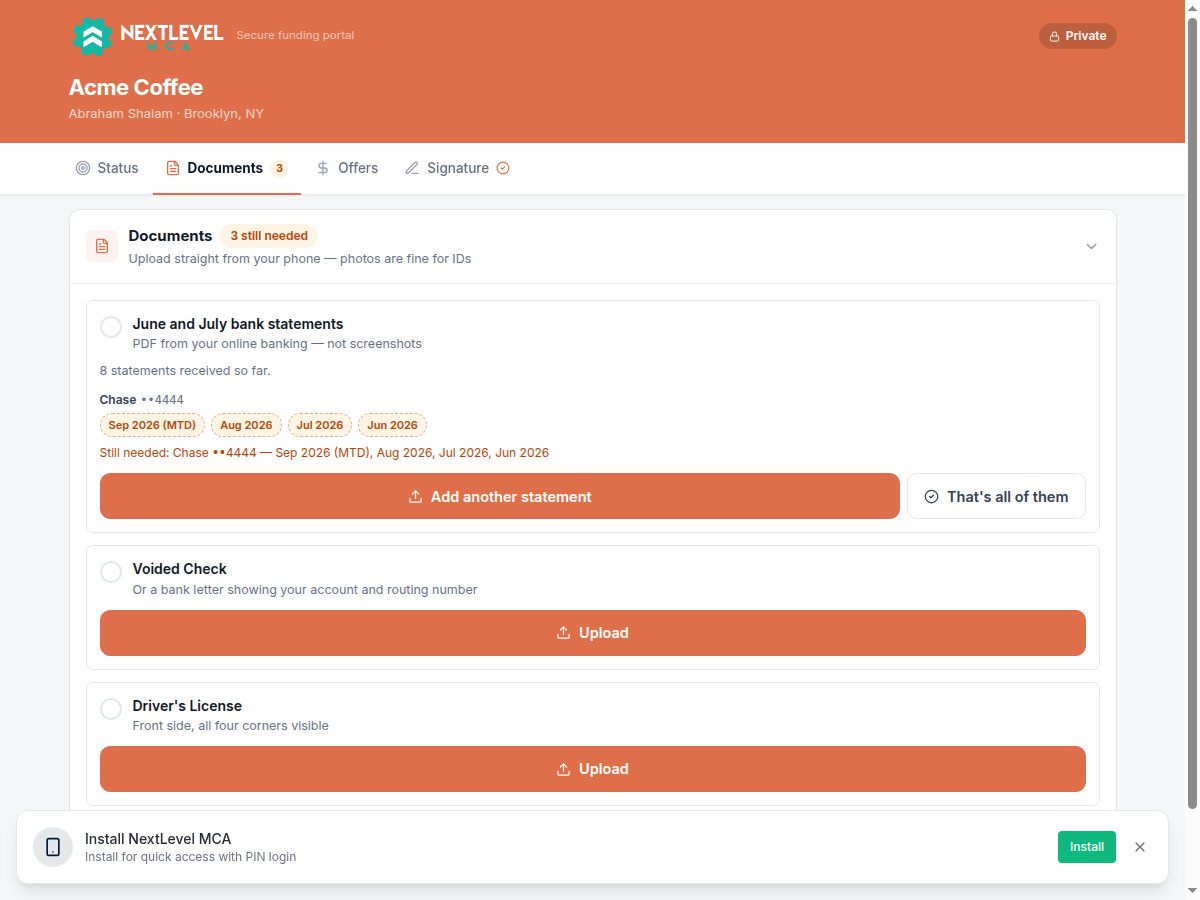
The merchant's Documents tab, listing what was asked for and what has been uploaded.
Sending the link
1
Open Portal link
On the deal, click the Portal link button in the header (the chain-link icon). It’s also on the business’s page. A link is created if the business doesn’t have a live one, and a countdown shows how long it has left.
2
Choose how to send it
- Send by text goes through your CRM.
- Send by email goes from your connected mailbox.
- Or click Copy link and deliver it yourself.
3
Pick the contact and send
For a text or email, pick the contact under Who gets it. The message already contains the link; edit the rest if you like, then click Send text or Send email.
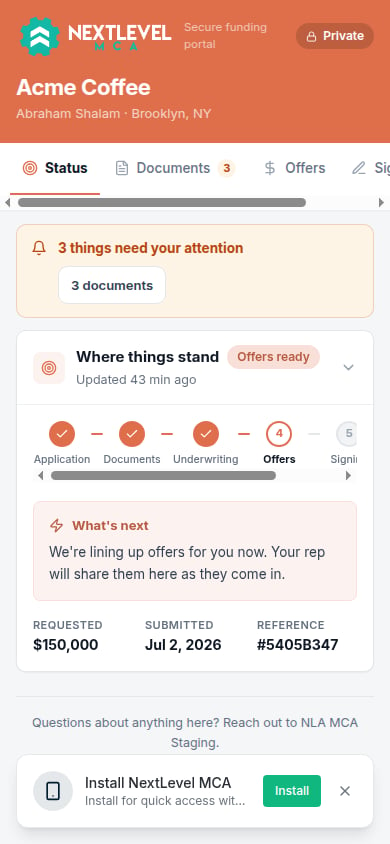
The same portal on a phone.
The 24-hour link
- A portal link works for 24 hours. While it’s live, opening Portal link again shows the same link to copy.
- Each contact you text or email gets their own link, and so does each address a document request or offer is emailed to. That way an expired link is always renewed for the person who had it.
- Regenerate makes a new link and stops every live link for the business at once. Use it if a link went to the wrong person.
- When a merchant opens an expired link, the page says This link has expired and offers Send me a new link. The new link goes to the person the old one was sent to: by text if they’re linked to your CRM, otherwise by email from the deal rep’s mailbox or your default sender. Nothing they uploaded is lost.
- Anyone with a live link can upload documents and view offers, so send it only to the merchant.
Common problems
Send by email is greyed out
Send by email is greyed out
Email goes from a connected mailbox, never through the CRM. Connect one under Settings → Senders, or send by text or copy the link. See Connecting a mailbox.
I can't text a contact
I can't text a contact
The contact needs a mobile number and a link to a CRM contact. The window says which one is missing.
The merchant says the page won't open
The merchant says the page won't open
A link cut short in a text message or copied without its full address shows We can’t open this link. Ask the merchant to tap the link in the original message, or send a new one.
The merchant can't upload a file
The merchant can't upload a file
The portal takes PDFs and photos (PNG, JPG, HEIC) up to 25 MB each. The page tells the merchant if a file is too large or the wrong type.