

Your first visit
The first time you open the app, a Welcome window offers Show me around, which walks you through the Deals page. After that, each screen shows a short tour the first time you reach it. You can replay any of them from the ? menu at the top of the page. See Guided tours.The layout
Inside the CRM, NextLevel MCA’s pages are items in the CRM’s left menu. NextLevel MCA chooses the exact names and grouping, but you’ll find:- Deals: the pipeline board and the deal list.
- Businesses: merchants, with their people, deals and advances.
- Submissions and Offers: everything in flight across all deals.
- Advances: funded deals being paid back, with the renewal-ready ones flagged.
- Lender Commissions and Rep Commissions: what the funder pays your brokerage, and how it splits to the team.
- Lenders: your lender list and each lender’s criteria.
- Settings.
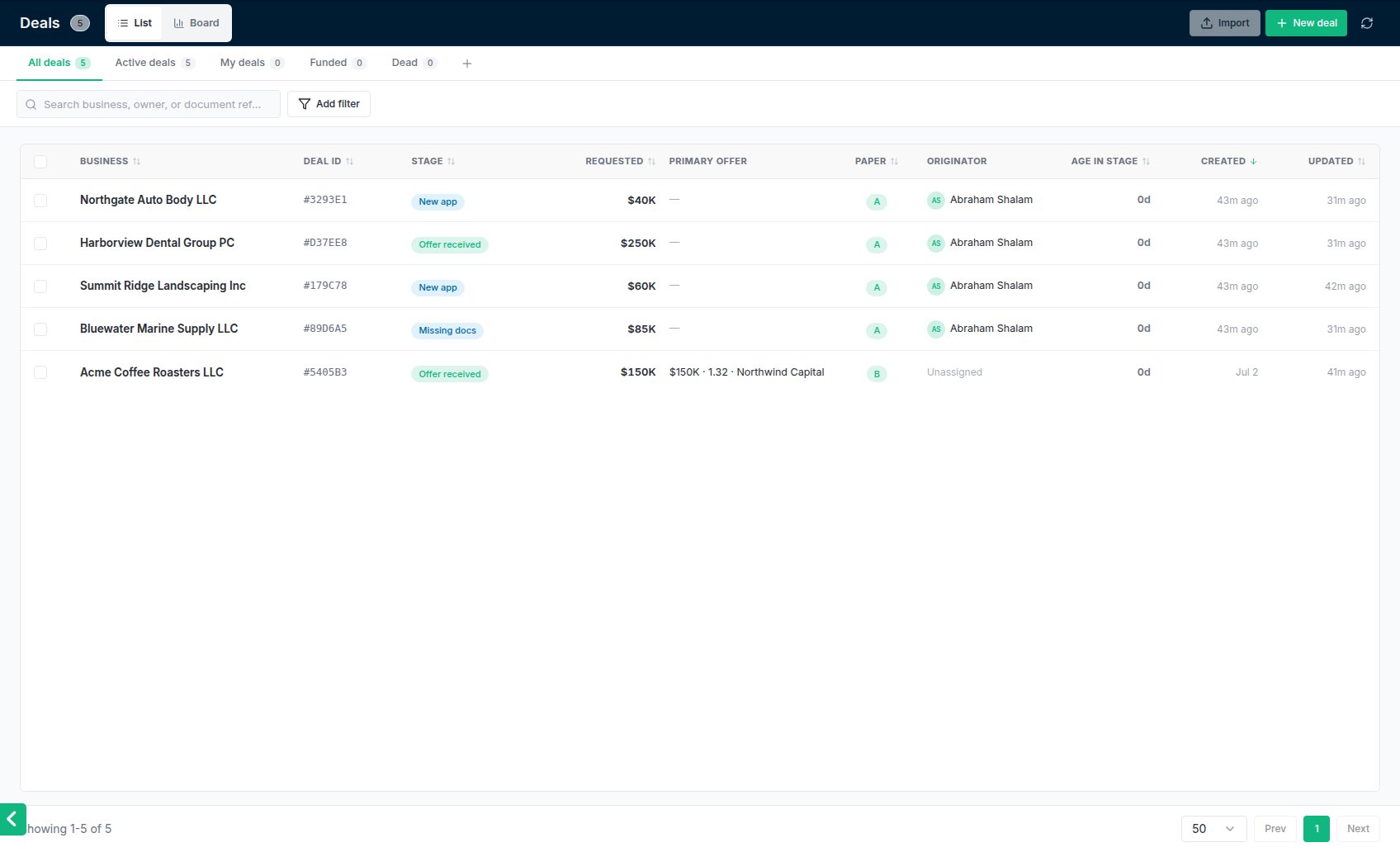
The Deals page: every deal with its stage, primary offer, paper grade and originator.
Your first deal
1
Open a deal
Deals arrive three ways: you click New deal on the Deals page, a merchant fills in your application form, or an automation creates one. The deal starts in the first stage of your pipeline, usually New app. See Creating a deal and The application form.
2
Check the business and the people
On the deal’s People & Business tab, confirm the legal name, EIN and the owner’s details. The EIN matters: lender matching and DataMerch key on it. A business with the same EIN is reused rather than duplicated.
3
Collect the documents
Click Request docs in the deal header to ask the merchant for bank statements, a voided check or ID. They upload through the merchant portal and the files land on the deal. Or drop files straight onto the Documents tab. See Requesting documents.
4
Run the bank statement analysis
On Underwrite, click Analyze statements. A few minutes later you have verified revenue, NSFs, negative days and the existing positions, and lender matching switches from what the merchant said to what the bank says. See Uploading statements and Reading the analysis.
5
Submit
On Submissions, tick lenders in the ranked list and click Submit to selected. The package goes out by email from your mailbox, or straight into the lender’s system when they have an API. See Submitting to lenders.
The deal window
Every deal has the same tabs: Overview, Conversation, People & Business, Documents, Underwrite, Submissions, Offers & Contracts, Notes, Tasks and Activity log. The header shows the business, the deal’s dates and primary offer, and its originator and closer. The buttons on the right are Call, Message, Request docs, Submissions, Portal link, Refresh and a More (⋯) menu. A red dot on Request docs means the merchant still owes you documents. Call is greyed out when there’s no phone number on file.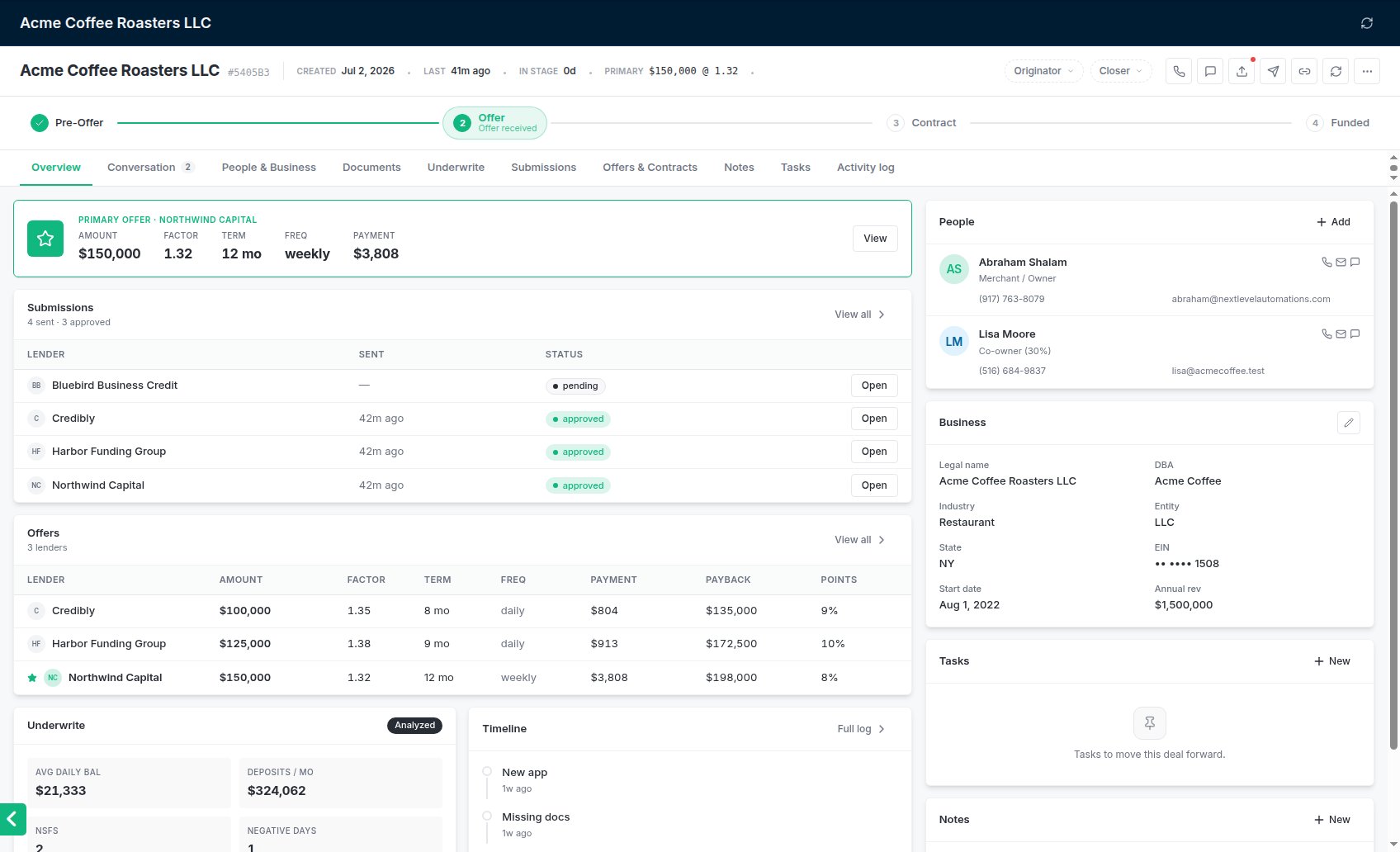
A deal: stage progress across the top, the tabs below, and the header actions on the right.