

- App — the deal workspace your team uses every day
- Portal — what merchants see and do
- CRM — the sidebar app, triggers and actions inside your CRM
- Integrations — lenders, DataMerch and other services you connect
- API — the public API, webhooks and AI assistant tools. Changes within
/v1only add things; anything that would break an integration ships as a new major version, see How the API behaves.
See which deals are missing bank statements
Deals before the offer stage now show whether their bank statements are all there: Missing Oct, No statements or 2 to analyze on the board card, in the list’s new Statements column and next to the business name on the deal. Click Missing documents beside Add filter to see only those deals. On the deal, the flag shows each bank account month by month, and Ask the merchant for October opens a document request that names the months. Send to lenders warns you which statements are missing, and you can still send. Statements uploaded as Other whose names look like statements are listed on the Documents tab, where Mark as bank statements counts them toward the months the deal needs. See Missing statements.Attach files to a lender reply from your computer, or drag them in
The reply box on a lender’s thread got an overhaul. Attach from deal now opens the deal’s files with a search box, with what the lender asked for listed first. Upload, or drag files onto the reply, adds files from your computer: each is saved to the deal’s Documents when you send, so it carries the submission’s document reference and statements go as their watermarked copies. Click its label to pick the type it’s saved as, or to send it without saving. Attached files show as slim chips, with their details in full screen. See Lender email threads.Offers sent as a picture, spreadsheet or PDF are logged for you
Some lenders don’t write their offer in the email: they paste it in as a picture (“Please, see offer below”), attach a spreadsheet, or send a one-page offer PDF. NextLevel MCA now reads those too and logs the offer with the amount, rate and term they show, the same way as an offer written in the email, so it lands on the deal without anyone typing it in. Longer PDFs, such as contracts and applications, aren’t read. See Offers and contracts.Every deal shows its offer, not just what was requested
Deal cards on the board, the list’s new Amount column and the deals on a business page now show one amount per deal: its primary offer when one is picked, otherwise its highest offer, otherwise the amount the merchant requested. A small label says when it’s the highest offer or the requested amount. The board’s column totals, the Dashboard’s pipeline and the Pipeline report add up the same amounts, so they agree with each other and show what lenders are offering. Expect those totals to drop, since offers usually come in below the amount requested. The list’s filter and sort now use Amount too. See Deals and the pipeline.Automatic statement analysis is set per account
- Each account has its own switch, and it starts off. Analyze statements automatically is under Settings → General → Preferences. Until an admin switches it on, new statements wait for someone to click Analyze statements on the deal’s Underwrite tab, including the ones you upload yourself. Each analyzed statement counts toward your usage, so you choose which deals get analyzed.
- Portal uploads follow it too. With the switch on, statements the merchant uploads in the portal are analyzed as they arrive, like the ones you upload.
- API uploads follow the same switch. A bank statement finalized through the API is analyzed when the account analyzes statements automatically. Send
analyze: trueoranalyze: falsetoPOST /v1/documents/{id}/finalizeto decide for one file.
Every offer in a lender’s email, and deals with several advances
- Several offers in one email are all logged, each with its own payment and points: a consolidation and a position, or every option in a lender’s table. The Amount column shows which is which and the lender’s group. A group’s total, or a lender’s list of program limits, is no longer logged as an offer.
- Record a funding from the lender’s email. When a lender writes that it funded and no advance records it, the deal shows Record $20,000 funding (with that amount). A second funding on a deal notifies your team too.
- Several advances read right everywhere: the deal’s header shows everything funded, each advance gets its position, the merchant portal lists each one and lets the merchant accept options that fund together, and the dashboard counts the deal once with both amounts.
- Deleting an advance undoes the funding: its offer is live again, and a deal with no advance left leaves Funded.
- Add offer on the Offers page lists funded deals.
- API and AI assistants can record another advance on a funded deal: send
mark_fundedwithfunded.offer_id. Without it, a funded deal still answersalready_funded.
Record a second funding on the same deal
When you mark an offer funded, NextLevel MCA now asks whether anything else is funding on that deal. Add another funding records it as its own advance with its own commission, which is how a consolidation plus a position should be entered. Close Deal and Keep Open for Stacking are gone.See How do I mark a deal funded?.Lender replies that need a look come to you
When NextLevel MCA isn’t sure what a lender’s reply means, it no longer sits unnoticed in the submission’s details. The deal’s header shows A lender reply needs a look, the lender’s row on the Conversation tab says Needs a look, the email carries a note saying why, and the dashboard’s My day lists these replies under Lender replies to check. The flag clears by itself once someone logs the offer, sets the submission’s status or answers the lender; if there’s nothing to change, click Mark handled on the email. See How replies are read.A lender’s reply that says plainly it’s passing after it approved, such as need to pass here, now also declines the submission and marks its offer declined, as long as no contracts are out. A reply that only turns down a change you asked for, like we’re at max, still leaves the approval alone and comes to you to check.The originator’s manager as closer
A new switch in Settings → Team → Deal assignment, Make the originator’s manager the closer, fills in the closer for you. When a deal gets an originator and has no closer, that rep’s manager becomes the closer, however the deal got its originator: a new deal, a rep’s application link, a CRM workflow, the API or assigning deals. It never replaces a closer someone picked, and it’s off until an admin turns it on. See The manager as closer.Alerts when a lender asks for more after approving
When a lender asks for more after it approved, such as ID verification or a K-1 before funding, the deal’s closer, originator and whoever sent the submission now get a Lender needs more information alert: Forward needs more to close Airmasters. It opens the lender’s email on the deal. Until now these were recorded on the deal but nobody was told. See When a lender needs more information.The highest offer on the board
On the Deals board, a deal with offers but no primary offer now shows its highest offer on the card. Until today the card showed an offer only once someone picked a primary. See Deals and the pipeline.The lender’s offer PDF, right on the offer
When a lender attaches its offer to the approval email as a PDF, such as a reverse consolidation proposal, the app now saves it on the deal and links it to the offer it logged. Nobody has to forward the email to the rep to pitch from.- On the offer. A PDF button next to the lender’s name on Offers & Contracts, and the file name under the primary offer, open it. It’s also on the Documents tab under Other.
- In the notification. The approval notification says the lender’s PDF is on the offer, and opens Offers & Contracts.
- Terms only in the PDF. The lender is marked approved and the PDF goes to Documents. Add the offer from it, and the PDF shows on that offer.
Lender emails look the way they do in your inbox
On a deal’s Conversation tab, a lender’s emails now show as they arrived: their formatting, tables and pictures, including an offer pasted as a screenshot. Attachments show under each email, ready to download. The earlier thread quoted under an email folds away behind Show quoted text, as before.Emails are cleaned before they’re shown, and nothing in an email can run on the page. See Reply to lenders.Lead source, UTM tags and industry in workflows
The New Deal trigger and the Get Deal by Contact and Get MCA Deal By ID actions now give your CRM workflows the deal’s Industry, Lead Source, and the UTM Source, UTM Medium and UTM Campaign of the page the merchant landed on. Use them to route or tag new applications by where they came from.A workflow built before today keeps the version it was built with: remove the trigger or step and add it again to get the new fields. See Workflow triggers.Show your terms on the application form
The PDF authorization disclaimer is now Legal disclaimer, and it moved from Settings → General → Branding to Settings → Application Form → Behavior. Its text is unchanged and still prints above the signatures on the application PDF. Under it, a new Show on the application form switch shows the same text above the signature on the public application form, with a required I have read and agree to the Terms and Conditions above box. The merchant can’t sign until they tick it.- A record of the acceptance. The deal keeps the exact terms the merchant agreed to, when, and from which IP address. The signed application prints them with Terms and Conditions accepted electronically on the date and time underneath, even if you change the text later.
- Off unless you turn it on. Until then the form keeps its short certification box.
Keep a manager to their own team’s deals
Managers see their own deals, their reps’ deals and every deal nobody is assigned to. A new View Unassigned Deals permission, under MCA permissions → Deals, lets you turn off that last part for a manager, so they see only their own and their reps’ deals. It’s on for managers and off for reps unless you change it, so nobody’s view changes until you do. You can also turn it on for a rep who works the unassigned leads, or set it in a role.See Who sees which deals.Roles you can edit, rename and update in one place
Settings → Team has a new Roles tab listing every role, its access level and how many people have it. Before, a role could only be saved from a team member’s window and never changed afterwards.- Edit, rename, duplicate or delete. Built-in roles are view only: duplicate one to make your own version. Deleting a role leaves its people with their permissions, shown as Custom.
- Update everyone who has it. When you change a role’s permissions, the people with it get the change straight away, in NextLevel MCA and in your CRM.
- Each member keeps their role. Apply Template is now Role in the member window, and the members list shows each person’s role. Changing their permissions by hand makes them Custom. The picker for Admin, Manager or Rep is now called Access level.
Send the owner’s signature through the API
When a merchant signs on your own website or system, send the signature image with the deal and it goes on that owner’s line of the application PDF, as if they had signed on our form.- With the deal or later. Add
owner.signaturetoPOST /v1/deals, orsignaturetoPATCH /v1/deals/{id}for any owner on the deal. - E-sign line when you have the details. Send when they signed, plus their IP address and whether they drew or typed it, and the PDF prints Signed electronically by … on … UTC under the signature. Without them it shows the signature, name and date only.
- Never replaces a signature. An owner who has already signed is refused with
409 already_signed. - See who signed.
GET /v1/deals/{id}?include=peoplenow showssignedandsigned_atfor each owner.
Personal Settings, and more room in Settings
Your own settings are now one section, Personal Settings, at the top of the Settings menu, with a tab each for Notifications, My rep card and Mobile PIN, plus My mailbox if you don’t have Settings access. Before, they sat in a separate block at the foot of the menu.- Shorter headers. Each section’s title and description take less space, so its settings start higher on the page.
- Old links still work. The bell’s Preferences, bookmarks and links in emails open the right tab.
A new look for the application form, in three designs
Merchants now get a cleaner application form, and you choose how they move through it under Settings → Application Form → Look & share → Design.- One page, the default for every account: every section on one page under a progress bar, larger fields that are easier to tap on a phone, and a list of anything that needs fixing before the merchant submits.
- Step by step: one section per screen, each checked before moving on, and a review of the answers before signing.
- Quick start: the amount and contact details first, so a merchant who stops early is still saved as a lead. Then tap-to-choose answers, and a signature typed from their name.
- A design per site. Pick a design under Share and the code or link you copy uses it, whatever the account’s choice.
- A simpler settings page. Settings → Application Form now has two tabs. Look & share puts the design, one box for the embed code, your link and reps’ links, and a live preview of the real form side by side. Behavior holds what happens after a merchant applies. The on/off switch and the blank PDF sit at the top.
- White logos stay visible. A white logo made for the old coloured header now shows on a tile in your brand colour.
Add someone who already has a user in your CRM
You can now add a team member who was added in your CRM itself first. Before, Create User failed with an error, so they couldn’t be given access to NextLevel MCA.- Use the email they have in your CRM. Their existing CRM user is linked instead of a new one being made. They get the role and permissions you choose, keep their CRM password and get no invite email. CRM-only users work the same way.
- Only users of your account are linked. Someone who also works in other accounts, or an agency user, can’t be added this way, and the message says so.
New deals get their application, and the send window warns before one goes out without it
A deal you create with New deal now gets its application PDFs right away, and the Submit Deal window tells you when the application is missing or unsigned.- The application is made for you. It appears under Documents a few seconds after you create the deal, unsigned until the owner signs. When the owner signs in the merchant portal, the signed version replaces it. Before, it waited for the signature or for someone to click Regenerate applications, so a deal sent in between went to lenders without an application.
- Warnings when you submit. If the deal has no application, the window says so and offers Create application. If the owner hasn’t signed, it says whether a signature was requested and that lenders get the application unsigned. You can still send.
Approvals without terms are recorded, and unclear lender replies come to you
Lender replies that used to sit quietly on a submission now reach you.- An approval without its terms, such as a portal notice with the offer behind a link, now sets the submission to Approved and notifies the deal’s closer and originator. No offer is logged, because the email has no amount to log: the reply shows Add the offer, so add it from the lender’s email or portal. Before, the submission stayed Sent and the reply only showed Needs review.
- A reply the app isn’t sure about still doesn’t change the submission. If it would have (an offer, a decline, a request for information or a funding), the closer, the originator and whoever sent the submission now get a Lender reply needs a look notification. It’s on for push and email by default; you can change that in your notification preferences.
Two new workflow triggers and a new action in your CRM
Your CRM workflows can now start when a deal changes stage or when its bank statement analysis finishes, and can add files to a deal that already exists.- Deal Stage Changed (trigger): fires every time a deal moves to another pipeline stage, by hand or automatically. Filter by the exact stage name or the phase it moved to.
- Bank Statement Analysis Complete (trigger): fires when a deal’s analysis finishes, with true revenue, average daily balance, negative days, NSF count, MCA positions found, MCA withhold percent and whether there is recovery activity.
- Add Documents to Deal (action): copies files into an existing deal’s Documents from links you map, such as a form’s file upload fields. Leave Deal ID empty to use the contact’s most recent deal.
Rep Commissions turn Ready when the funder pays
Marking a Lender Commission Paid no longer marks the Rep Commissions split from it paid. They move to a new Ready status instead, so you can see who can be paid now and mark each one Paid when you actually pay them.- Ready means the funder has paid your brokerage. It’s set automatically, and goes back to Pending if the Lender Commission is moved off Paid.
- You don’t have to wait: a Pending Rep Commission can still go straight to Paid.
- Totals: Rep Commissions shown as pending on the dashboard and in reports include the Ready ones, since neither has been paid out.
Lenders that email from more than one address
A lender’s emails are recognized by the addresses on its record and their domains. Many lenders also write from somewhere else: a portal, a no-reply address, or a sister company that makes the offer, such as Everest’s Vader Mountain Capital. Those emails used to go unrecognized, so their offers and declines never reached the deal.Each lender now has Also emails from on its Submission tab: add the other addresses or whole domains it writes from, and their emails land on the right deal like any other reply. Nothing is ever sent to them. For a lender connected by API with no submission email, add the domain its emails come from. See Adding a lender.Pipeline value by best offer
The dollar figure at the top of each column on the Deals board now counts each deal at its highest offer, and at its requested amount until it has one, so your pipeline shows what lenders are actually offering rather than what merchants asked for. See Deals and the pipeline.Fill in the application with answers from your website
Merchants who answer a few questions on your website first, such as a qualifier on an ad landing page, no longer type them again in the application. Your web developer passes those answers to the embedded form with one line of script, and the form fills them in.- Only empty fields, never over what the merchant typed, and never the SSN, signature or consent. The merchant can change anything.
- No personal details in web addresses: the answers go from your page to the form inside the merchant’s browser.
- Saved like typed answers: once there’s a name and an email or phone, it becomes an unfinished application with the usual follow-up and resume link.
Count applications from your website, and keep where they came from
The application form embedded on your website now works with Google Analytics and your ad campaigns.- Thank-you page for the whole page: with the embed code, Redirect URL sends the whole page there after a submit, not just the form.
- One id per application: the redirect adds
application_id, the new deal’s id, so your analytics count each application once. Sending the same application again gives the same id. - An event for Google Tag Manager: the embed code sends
mca_application_submittedwith theapplication_id, and your page gets a message it can listen to. - Ad tags on the deal: the
utm_tags and Google, Facebook and Microsoft ad click ids of the page the merchant landed on stay with the deal. Its activity says where it came from,utm_sourcebecomes its lead source, and the API returns them asattribution. A merchant who finishes later from a follow-up link keeps the tags of their first visit.
Managers see their team’s contacts in the CRM
Your CRM shows contacts the way NextLevel MCA shows deals. A manager with Assigned data only (CRM) turned on now sees their own contacts and their team’s, not just their own. A rep sees their own contacts plus the merchants on deals they close, even when someone else owns the contact.- How it works: NextLevel MCA makes managers followers of their reps’ contacts, and closers followers of their merchants. It updates within a minute or two when an owner, a deal’s originator or closer, or a rep’s manager changes, and checks everything again every night.
- Followers someone added by hand are never removed. Only the followers NextLevel MCA added are taken off, and only when they no longer belong.
- New managers start with the setting on. Managers you already have keep their current setting: turn it on under their CRM permissions in Settings → Team → Members when you’re ready, after linking their reps.
- Contacts with nobody assigned stay hidden from everyone with the setting on, managers included. Admins handle those.
Read and reply to lenders on the deal
Every lender you email a deal to now has its email thread on the deal’s Conversation tab, under Lenders, and you can answer it right there. The reply goes from the mailbox the deal went from, in the same thread, so the lender sees one conversation.- The whole thread, read straight from your mailbox: your submission, each reply from anyone at the lender, and emails your team sent from Gmail or Outlook directly. A lender that asked for more information says Needs your reply, and one that has written since anyone opened its thread shows in bold.
- What the lender asked for, item by item, marked on file or missing. Ask the merchant sends a document request for the missing items in the lender’s own words. When the merchant has sent everything, you get a notification and your reply to the lender is ready with the documents attached.
- Attach from the deal: PDFs carry the submission’s document reference and statements go as their watermarked copies. Mark as answered moves the submission back to Sent.
- Not delivered when the email to a lender bounced, so a wrong address doesn’t go unnoticed.
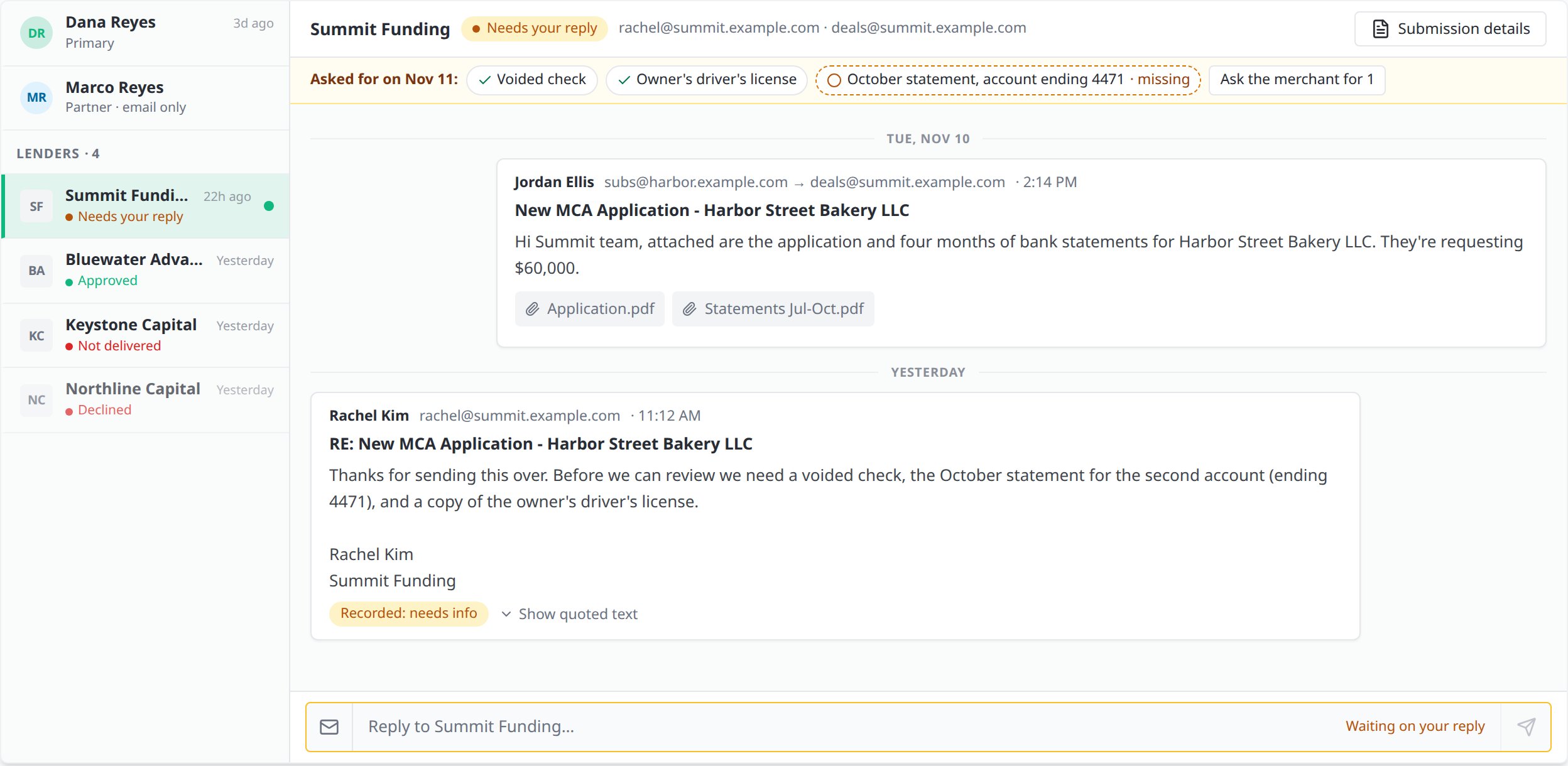
A lender's thread on the Conversation tab
Working hours: choose when your team can see customer data
Admins can now set the hours their team works in Settings → Team → Working hours. Outside those hours people can still sign in, but deals, businesses and merchants are paused until their hours start again.- Account hours for everyone, Monday to Sunday, in your account’s time zone.
- One person’s own hours, for someone on a different shift, or Never paused.
- Locked until unlocked, to pause one person straight away, for example while they’re serving notice. Locking and unlocking are recorded in the activity log.
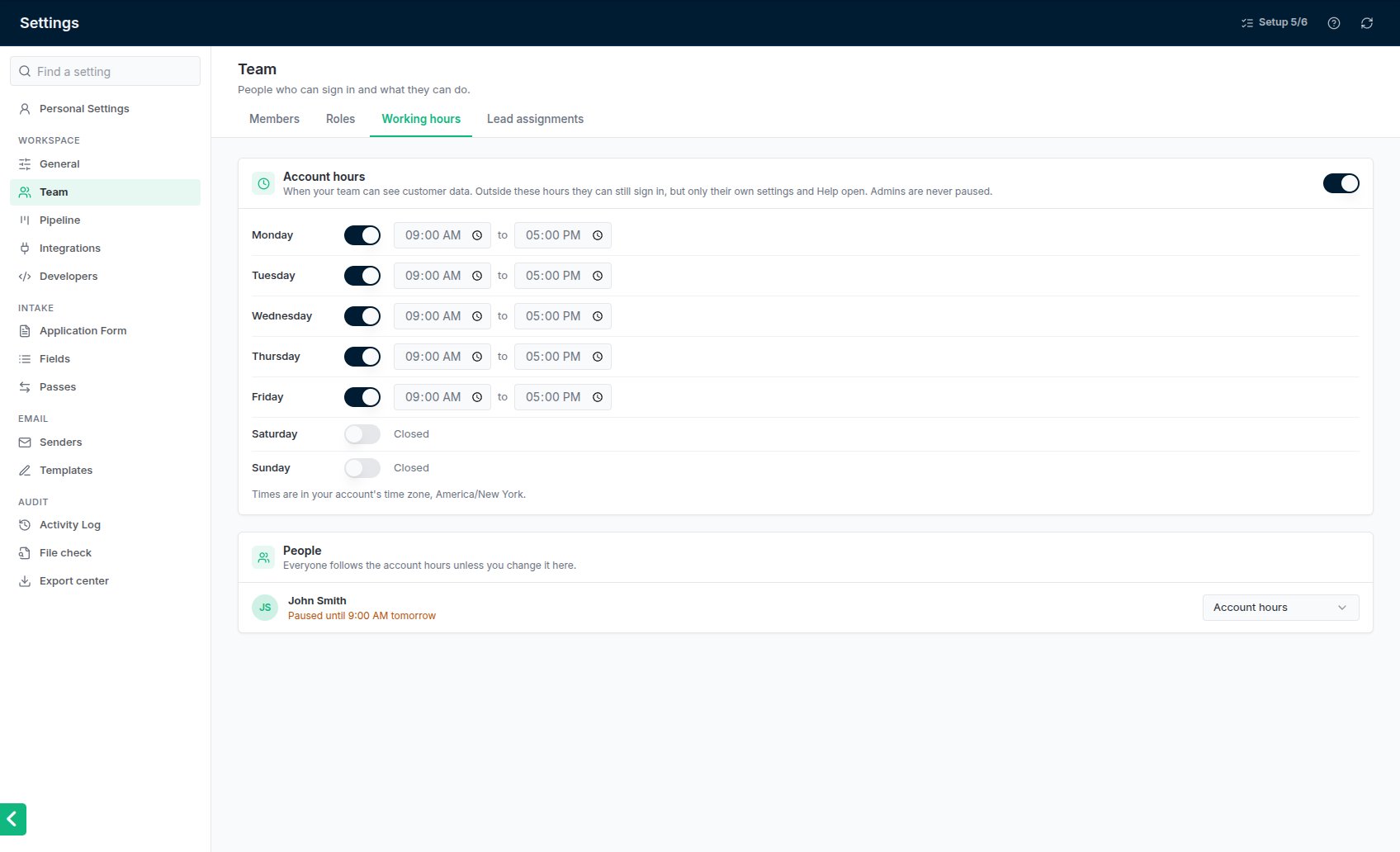
Settings → Team → Working hours
Reports: the full story behind your dashboard
Every card on the dashboard’s Business tab now has See full report, which opens the report behind it on the same period. There are four, in the order an owner reads the business:- Revenue, for admins: Lender Commissions earned on the period’s fundings, what was received, what’s still owed and what’s overdue, and what the house keeps after Rep Commissions. Coming in lists every commission not received yet, overdue first.
- Production: each rep’s new deals, submissions, offers, fundings, conversion and days to fund, with Rep Commissions earned, paid and pending. Click a rep for their deals and a Rep Commission statement to download.
- Lenders: reply rate and how fast each lender answers, offers and their terms against what was asked for, fundings, and Declines by reason, which shows why each lender says no.
- Pipeline: how far the period’s new deals got, which deals are stuck in a stage, why deals are lost, and which have gone quiet.
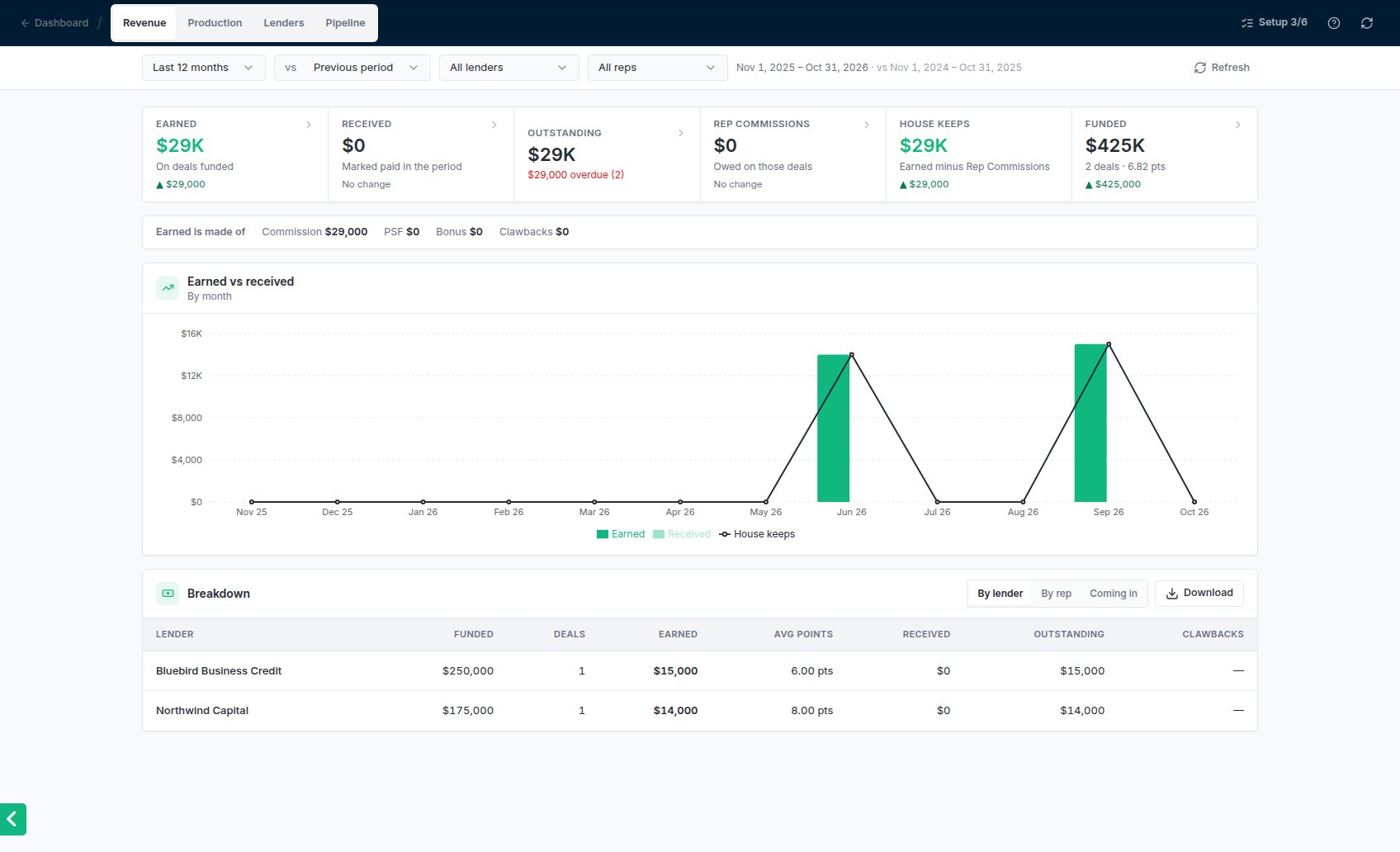
The Revenue report
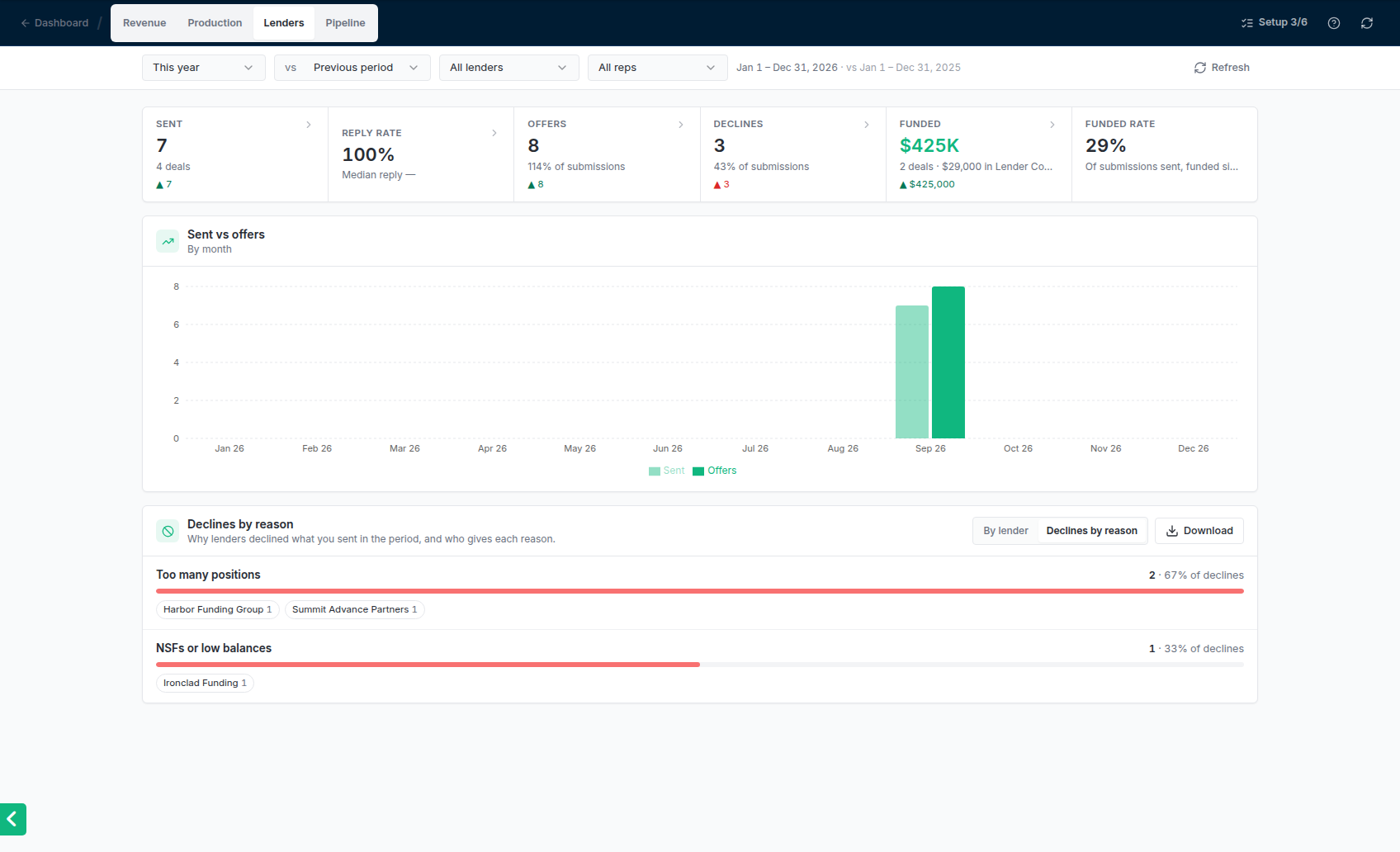
Lenders → Declines by reason
A new dashboard: My day and Business
The dashboard is rebuilt around two views, in the same look as the rest of the app.- My day, for everyone: a To do list of what needs you, most urgent first: lender questions, new offers, merchant uploads, lenders that haven’t replied, accepted offers not marked funded, unfinished applications, open document requests, unsigned contracts, due tasks and, for admins, overdue Lender Commissions. Each row opens the deal on the right tab and clears itself once it’s handled.
- Your own results for the period: funded, Rep Commissions, submissions sent and open deals, plus your pipeline and recent activity on your deals. An admin’s My day also covers deals nobody owns.
- Business, for admins and managers: money first (funded, Lender Commissions, Rep Commissions owed), then deal flow, today’s pipeline, a 6-month funding trend, how each lender replies and funds, and a team leaderboard. Managers see their reps’ deals; reps don’t see Business.
- Pick a period: this month, last month, this quarter or this year, in your account’s time zone.
Export your data from the Export center
Admins can now download their account’s records and files from Settings → Export center: a full backup, spreadsheets to work with, or one slice, like every bank statement or every deal with its submissions.- Start from a preset: full backup, deals with submissions, all bank statements, or commissions, then change anything.
- Excel or CSV, with money and dates as real numbers and dates. Files come as uploaded (never the watermarked copies sent to lenders), grouped by deal or by document type.
- Filter it: by date created, submitted or funded, rep, lender, stage or status.
- Built in the background: you get a notification when it’s ready, and it’s kept for 3 days. Neither the notification nor the email contains the file.
- SSNs stay masked unless you choose to include them in full; that export is marked and recorded.
- Every export is in the activity log: who started it, who downloaded it, and when.
Assign leads in bulk from the CRM
Admins can now give many leads an owner at once. Tick leads on the CRM’s Leads list, or use Select all, and click Assign in the bar above the list.- Share leads between reps: evenly, by share (say 50/30/20), or to the reps with the fewest leads first.
- Choose which leads: all of them, only the ones with no owner, or only one rep’s, which is how you hand out the book of a rep who left.
- Unassign takes the owner off, and Followers adds or removes followers.
- Nothing changes until you confirm. You see how many leads each rep gets, and which are already right. With Select all, the list’s search runs again and must find exactly the leads the CRM showed, or nothing is written.
- Deals follow their lead: deals with no originator get the lead’s new owner. Each rep gets one notification for the batch.
- It runs on its own: you can close the window. Every assignment is listed in Settings → Team → Lead assignments, where you can stop one or undo it.
Team permissions match the CRM
Editing a team member now shows MCA permissions (what they can do in NextLevel MCA) and CRM permissions (what they can do in your CRM) side by side on the left.CRM permissions has the same permissions, with the same names, as the CRM’s own user screen, including the newer ones: Ask AI, AI Studio, knowledge bases, WhatsApp, gift cards and more.- Presets: Rep, Manager and Admin tick a starting set, and you can adjust anything after that.
- The areas an MCA shop uses are shown. Everything else, such as payments, invoicing, products and memberships, sits under More CRM features.
- A search finds any permission.
- Ask AI for everyone: every preset includes it, and new team members get it.
Adding a lender asks where deals go first
The New lender window now starts with what makes a lender usable: its name and Send deals to, the addresses every submission is emailed to. That used to be on the last step, after a contact name and an Email field that people often filled in with the submission address instead.- Your rep at this lender is optional and tucked away, and says what it’s for: your emails can greet them by name, you can copy them, and their replies land on the right deal. Deals never go to the rep’s address.
- Saving without an address warns you that deals can’t be emailed to the lender yet, and the lender list marks such lenders No submission email.
- Replies from anyone at the lender’s domain now match the lender even when no rep is set. Personal addresses such as Gmail still need to match exactly.
Choose which mailboxes send lender submissions
Each mailbox on Settings → Senders now has a Lender submissions switch. Switch it off and that mailbox is no longer offered when anyone submits a deal, so every submission can go from one shared address while reps keep their own mailboxes for everything else.- Submit to lenders starts on your own mailbox, then the workspace default, then the first one, and lists only the mailboxes used for submissions. Submissions sent through the API or the AI assistant go from a mailbox picked the same way.
- Request contracts goes from the mailbox that sent the deal. The lender hears from the address it already knows, and the window shows that mailbox instead of a picker. You only pick one if that mailbox has been disconnected or removed.
Choose how your statement watermark looks
Every bank statement on a deal gets a watermarked copy for lenders, and you can now choose how that watermark looks. Go to Settings → General → Branding → Statement watermark:- Mark: your logo, your business name, or your own text such as CONFIDENTIAL.
- Layout: one mark in the middle of the page, or repeated across it.
- Size (small, medium, large), strength (light, normal, strong) and angle (diagonal or straight).
- Centred and sized to the page. Logos sit in the middle of the page instead of low and to the right, and the empty margins around a logo are trimmed so it shows at a useful size. Long business names shrink to fit instead of running off the page.
- Chase statements are watermarked. Statements locked against editing, which includes every Chase statement, used to go out without a watermark. They now get one, and the statement text stays intact.
- Merchant portal uploads are watermarked, like statements uploaded in the app or on the application form.
- Submit to lenders shows every statement. A statement without a watermarked copy is listed and marked “no watermark” instead of being hidden, and each statement is ticked once, as its watermarked copy where there is one.
Underwrite shows only the checks you use
The DataMerch, PACER and Credit cards on a deal’s Underwrite tab now appear only when that integration is connected and switched on, so the tab no longer shows cards your workspace doesn’t use.- Past results stay. If a deal was checked before an integration was disconnected or turned off, its results still show, read-only.
- Admins (anyone who can change Settings) see a single line naming what isn’t connected yet, with a link to Settings → Integrations. Hide puts it away in that browser. Reps don’t see it.
Owner credit pulls with CRS
Connect your CRS account and pull an owner’s credit from the deal. It’s a soft pull, so it doesn’t affect the owner’s score, and CRS bills your CRS account for each bureau pulled.- Connect under Settings → Integrations → CRS with your CRS API username and password. Admins choose which bureaus every pull uses (Experian, TransUnion, Equifax, any or all) and the score model (VantageScore 4.0 or FICO Score 9).
- Pull from the Credit card on a deal’s Underwrite tab, next to DataMerch and PACER. Each bureau’s score shows with the reasons holding it down, plus utilization, credit history, past-due balances, lates, charge-offs, collections and bankruptcies. Click a bureau’s score to open the full report: accounts, inquiries and public records.
- The qualifying score goes on the owner: the middle of three scores, or the lower of two. It replaces the credit score on the deal, so lender matching uses it, and the deal’s activity log shows the old and new score.
- Authorization: when the owner e-signed your application in the last 120 days, the pull uses that signature. Otherwise you confirm you have their signed credit authorization, and that confirmation is recorded with your name. Make sure your application disclaimer authorizes you to obtain credit reports. Settings → General → Branding reminds you where the disclaimer is edited.
- Who can pull is a new Pull Credit permission: on for admins and managers, off for reps until an admin turns it on under Settings → Team. Anyone who can see the deal can see the results.
Red flags: statements that don’t match the merchant
When a bank statement on a deal belongs to someone else, for example the deal is Acme Coffee but the statements say Great Meals Food Group, you now see it right away instead of only on the Advanced underwriting view.- A red banner at the top of the deal, on every tab, names the problem: “Statement name mismatch: 2 statements are for “Great Meals Food Group”, not Acme Coffee.” See details opens the statement checks.
- Mark as reviewed when the statements really are this merchant’s, for example a parent company or a different legal name. It clears the banner and is logged with your name. A new statement with a different name brings it back.
- Submitting asks you to confirm. Submit to lenders shows the flag and the statements, and Send waits until you tick “I’ve verified these statements belong to this merchant”. Who confirmed, and when, goes in the deal’s activity log.
- Automations wait for a person. Submissions through the API, AI assistants and the CRM’s submit action are refused while a flag is open.
red_flags, and a Red Flag Detected CRM trigger can alert a manager.Your business card on the application
When a merchant opens a rep’s application link, they now see who their rep is and how to reach them: a card with the rep’s photo, name, title, phone, email, a short message and an optional Book a call link. On a computer it sits beside the form; on a phone it’s a strip above the form that opens to call, text or email. The same card shows in the merchant portal for the deal’s rep.- Reps fill in their card under Settings → General → My rep card, with a live preview. The phone shown is the one you enter for the card, or your profile phone.
- Admins turn cards on and choose which details may show under Settings → Application Form → Form behavior → Rep business card, and decide whether the general (non-rep) link shows nothing or the company’s contact details. Cards are off until an admin turns them on.
Signatures on applications
Merchants can now sign the application on the online form. Each signature carries e-sign proof (the time and the IP address), and that proof is printed on the application PDF that goes to lenders.- Request a signature from a deal’s Request documents dialog: tick Signature and pick the owner. They sign in the merchant portal.
- Applications you enter for a merchant ask for their signature automatically when it’s missing.
- Auto-sign (off by default, admins only, Settings → Application Form → Form behavior): unsigned applications show the owner’s typed name. Use it only with the owner’s permission. With it off, unsigned applications say “Not signed”.
Idea Financial, start to finish
Deals go to Idea Financial straight through its API, and the whole process after the offer happens in the app too:- Offers arrive by themselves, with the amount, interest rate, term and product (term loan or line of credit). Idea Financial sends no notifications, so we check for you often: every few minutes at first, and whenever you open the deal.
- Accept an offer in one step. Pick the offer and the final amount and rate (term loans), add the closing documents Idea Financial asks for (matched to the deal’s documents, or uploaded right there), answer its questions, and send it to its review. The offer becomes the deal’s primary offer. Idea Financial keeps one accepted offer at a time, so choosing another replaces the first until the application is in review.
- Fix what’s missing. When Idea Financial says the application is incomplete, update the deal and send the changes, then resubmit.
- Send the contract when it’s ready; the merchant signs on Idea Financial’s side.
- The Submissions table shows one row per lender with the lender’s own status and a Next step button (Review offers, Finish closing, Respond to lender, Send contract, Record funding). The deal’s stage follows the lender’s progress through to Contracts Out.
Help & support, right in your CRM
A round ? button now sits at the top of your CRM, next to the NextLevel MCA bell. It opens a Help & support panel with three tabs:- Ask: an assistant that answers from our Help articles and links the one it used. Tell it something failed and it checks your recent errors and your deals, only as far as you’re allowed to see them, to work out what happened. If it can’t sort it out, it opens a ticket for our team with your conversation attached and gives you the ticket number.
- Help articles: search and open every Help article without leaving the CRM.
- Contact: send our team a message without chatting.
Lender match score
Every lender now gets one score from 0 to 100 on each deal, shown as a ring on the Submissions tab. A lender is recommended when its score reaches your workspace’s threshold (75 to start, under Settings → General → Preferences) and it passes every yes/no rule; lenders that fail a rule show as Disqualified, and you can still submit to them. Click a ring for Why this score?: every criterion, what the lender needs, the deal’s value and whether it passed. Lender industries now come from one list with categories, so “no trucking” matches exactly. The same recommendations come back through the API and AI assistants. See How the match score works, Recommended threshold and Industries and categories.Saved applications and follow-up on unfinished ones
The online application now saves as the merchant types, so they can close it and pick up where they left off. Once they’ve entered a name and an email or phone, they’re added to your CRM as a contact tagged Application started and assigned to the rep whose link they used. If they stop for 30 minutes, the contact is tagged Application abandoned and the Application Abandoned workflow trigger fires, with a link that reopens their application, so your CRM can follow up. When they submit, the tags switch to Application submitted. See Unfinished applications.Notifications
Hear about the moments that matter on your deals without watching the app. A NextLevel MCA bell now sits at the top of your CRM, with a red badge for anything unread. Click it to see what happened and jump straight to the deal.You’re notified when:- a lender approves, sends an offer or new terms, asks for more information, declines or sends contracts;
- a submission fails to send;
- a merchant accepts an offer, signs, uploads documents or completes a document request;
- a new application arrives from your link;
- a deal is assigned or passed to you, or funds;
- a bank statement analysis finishes.
One application form everywhere
The application you fill in for a merchant now uses the same form as the one merchants fill in online, with the fields you choose in Settings → Application Form. Open Applications from your CRM to copy your personal link or fill it in for a merchant; New deal in the app uses the same form. Add the merchant’s documents now, or tick that they’ll send them later and they get a portal link to upload them.Links merchants open (the application, the merchant portal and upload links) now use a neutral address, securefundingportal.com, that doesn’t show NextLevel MCA anywhere: not in the tab, the icon or link previews. Your logo and colours stay on the form. See Application form and share link and Create a deal.PACER court records
Check whether a business or its owners have filed for bankruptcy or are party to a federal civil or criminal case, from the deal’s Underwrite tab. Searches run on your own PACER account, connected under Settings → Integrations, and PACER bills that account (about $0.10 per search). PACER covers federal courts only, so state lawsuits and UCC liens won’t show. See PACER.Help center and changelog
This site now opens on a Help tab written for reps and admins: getting started, deals and the pipeline, underwriting, submitting to lenders, offers and contracts, the merchant portal, email senders, and a tour of Settings. Everything for developers moved under its own tab, and this changelog got tags. Start at Welcome.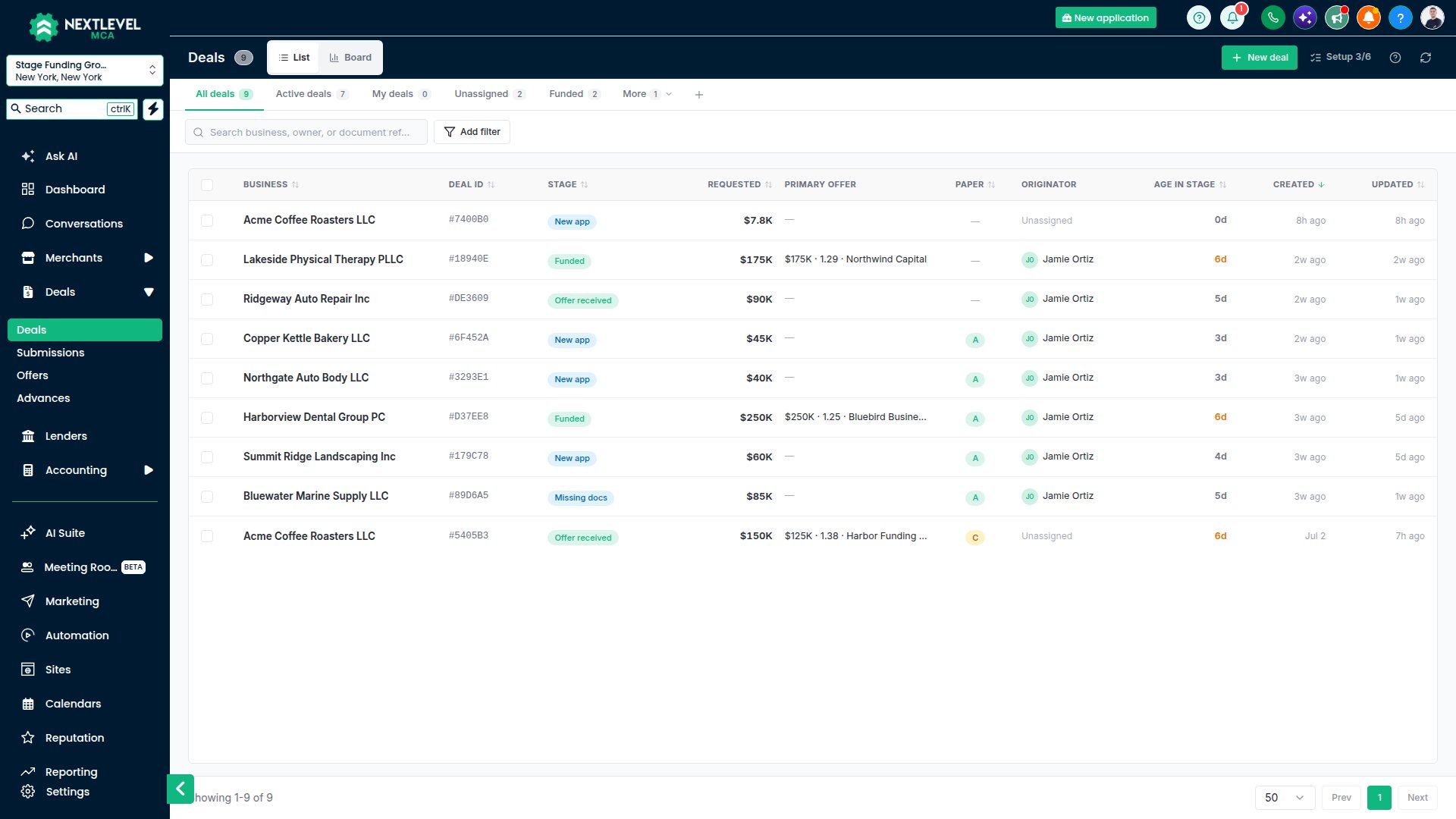
The app inside the CRM
DataMerch
DataMerch is the industry’s shared record of merchant history: defaults, slow pays, stacking and other notes filed by funders. Connect your own DataMerch account under Settings → Integrations and every deal’s Underwrite tab gets a DataMerch card that looks the business up by the EIN on file (or by legal name when there is no EIN) and shows each note with its category and date. With Check every new deal automatically on, the check runs as deals arrive.Credentials are stored encrypted and never shown again. Lookups run on your DataMerch account.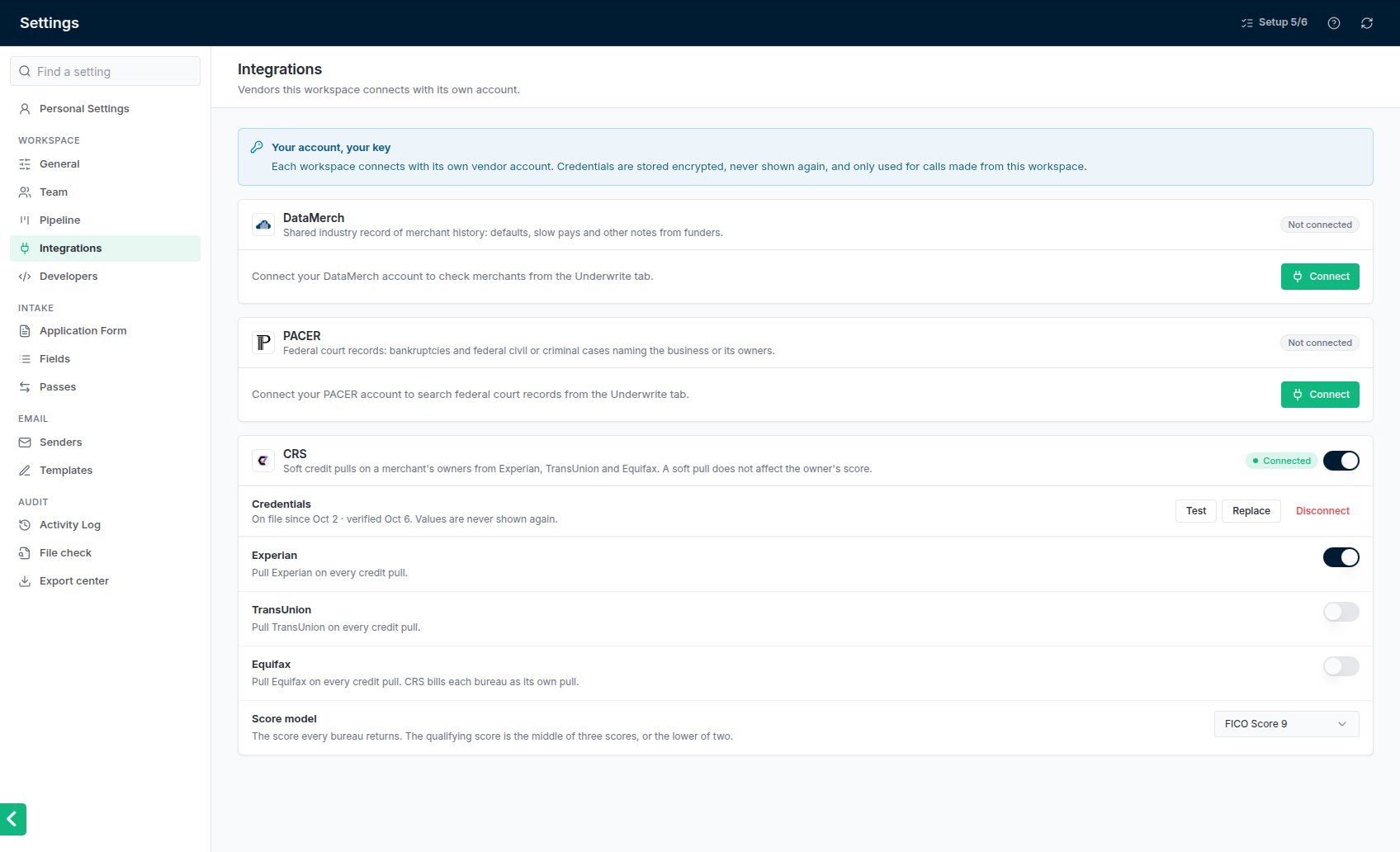
Settings → Integrations
GET /v1/deals/{id}/datamerch, POST /v1/deals/{id}/datamerch/check, and the check_datamerch assistant tool.Portal refresh and the new request-documents dialog
The merchant portal now uses your primary brand colour for its header, names the deal’s originator and closer with their contact details, and lays out wider so documents and offers have room. The logo sits on its own instead of next to a company name.Request documents was rebuilt. Open requests show at the top with Resend and Cancel, items you have already asked for are marked, and a request can go out by text through your CRM, by email from your mailbox, or as a link you copy. The Documents tab shows Waiting on N documents and the header icon carries a red dot until everything is in.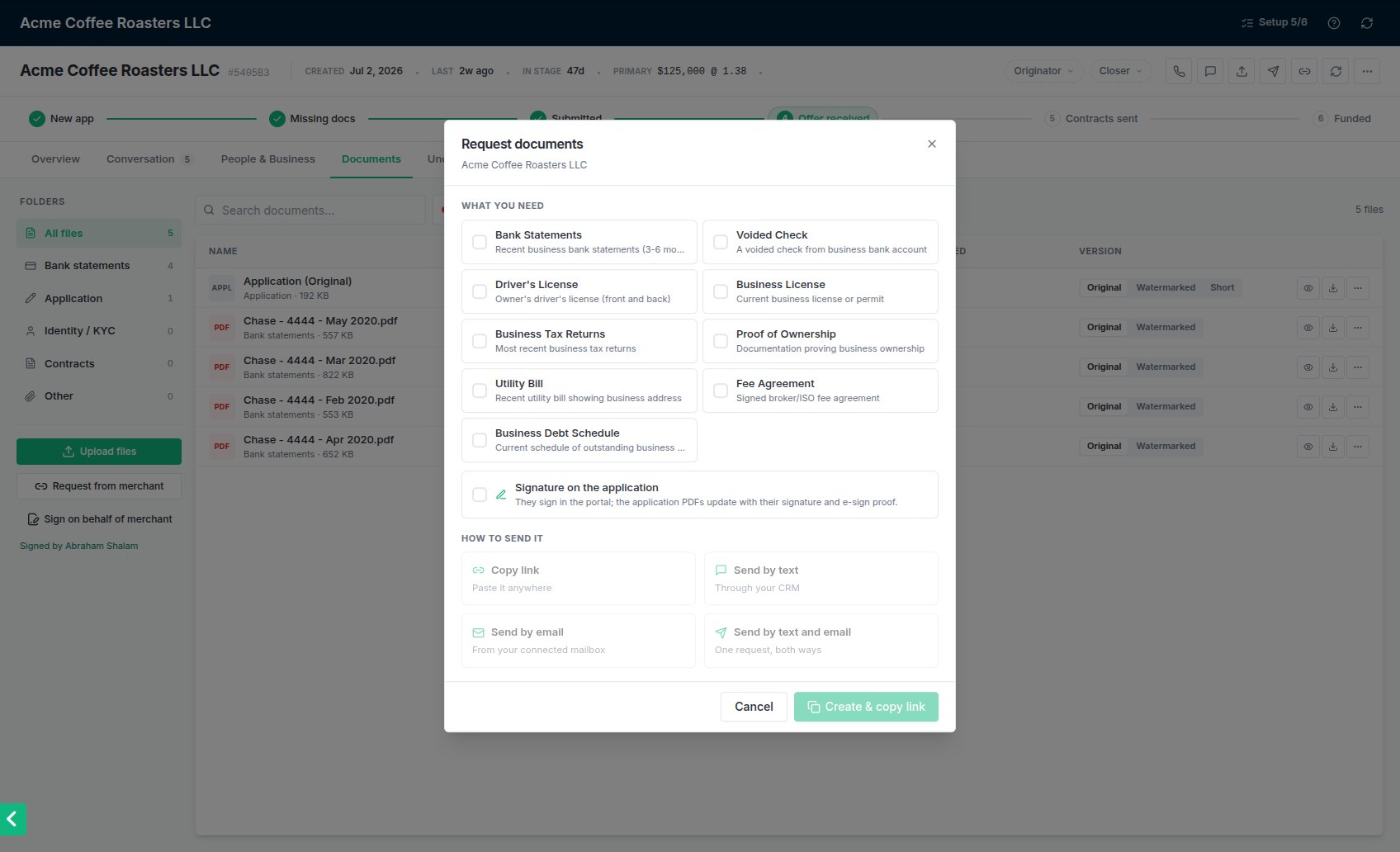
Request documents
Contracts tracked to the lender’s reply
After Request contracts, the offer shows Contracts requested · waiting on the lender. When the lender replies with the contracts attached, the files are filed under Documents → Contracts on their own, the offer flips to Contracts received, and the deal’s rep gets an email saying so. Nobody has to watch an inbox.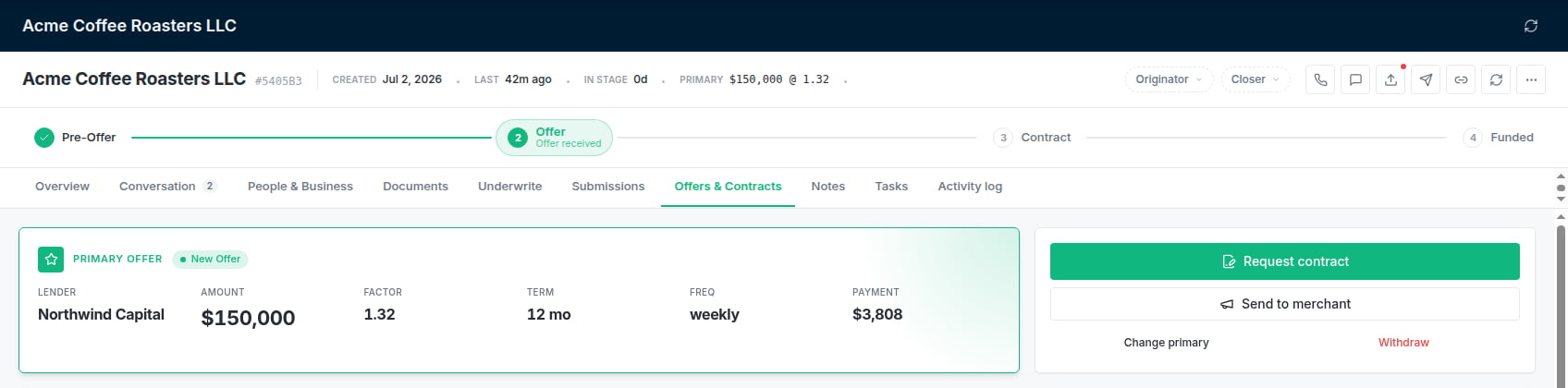
Request contract on the primary offer
Email from your own mailbox
Every email the app sends now leaves from a mailbox your team connects under Settings → Senders: submissions, contract requests, offer pitches, document requests and portal links. Texts go through your CRM. Where you send something yourself, a From picker lets you choose the mailbox and remembers your choice.Set a default mailbox for automated emails when the deal’s rep has no mailbox of their own. Merchant replies to a connected mailbox show up in the deal’s Conversation tab (on by default per sender). If no mailbox is connected, the email options say so instead of failing quietly.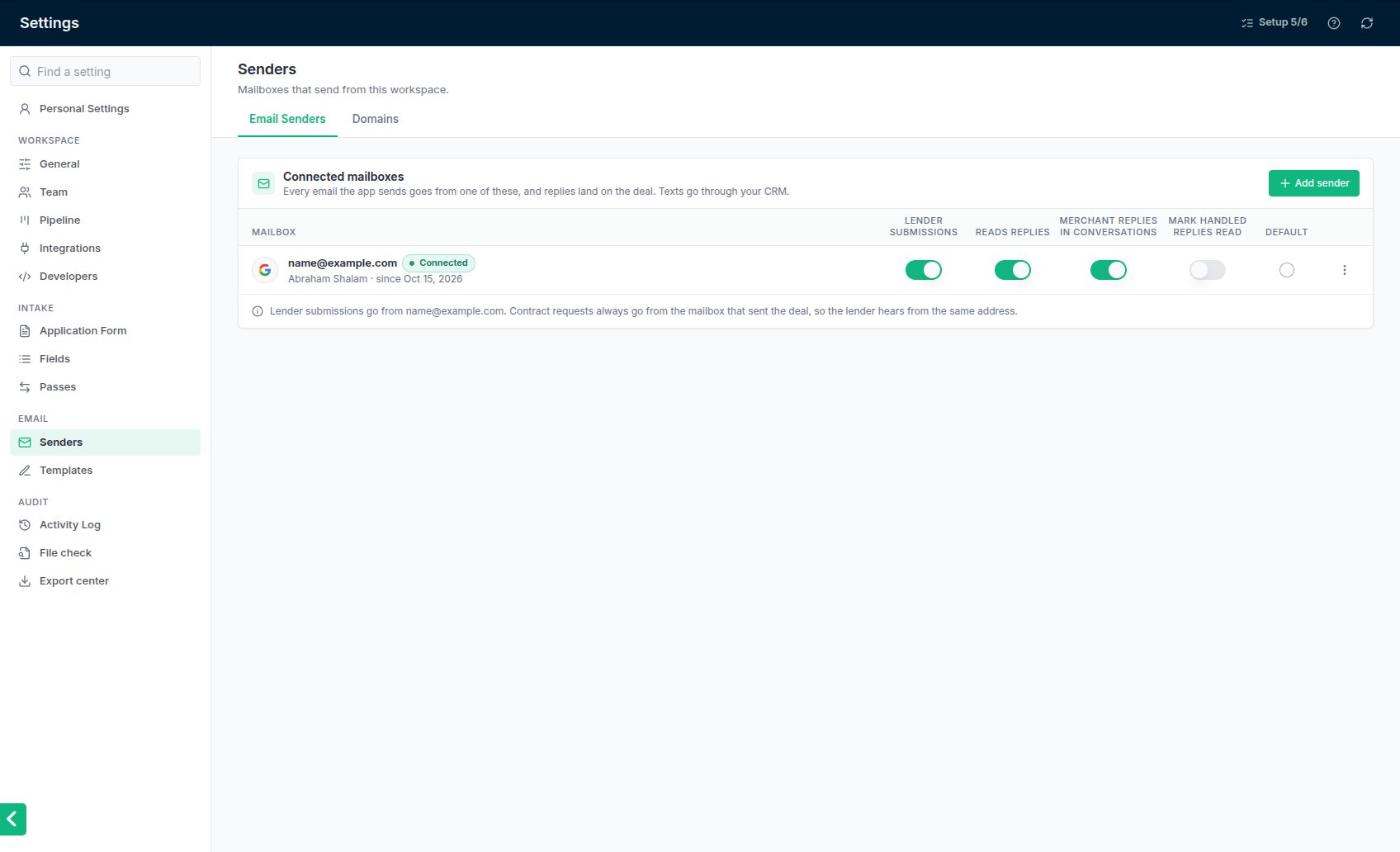
Settings → Senders
Advanced underwriting view
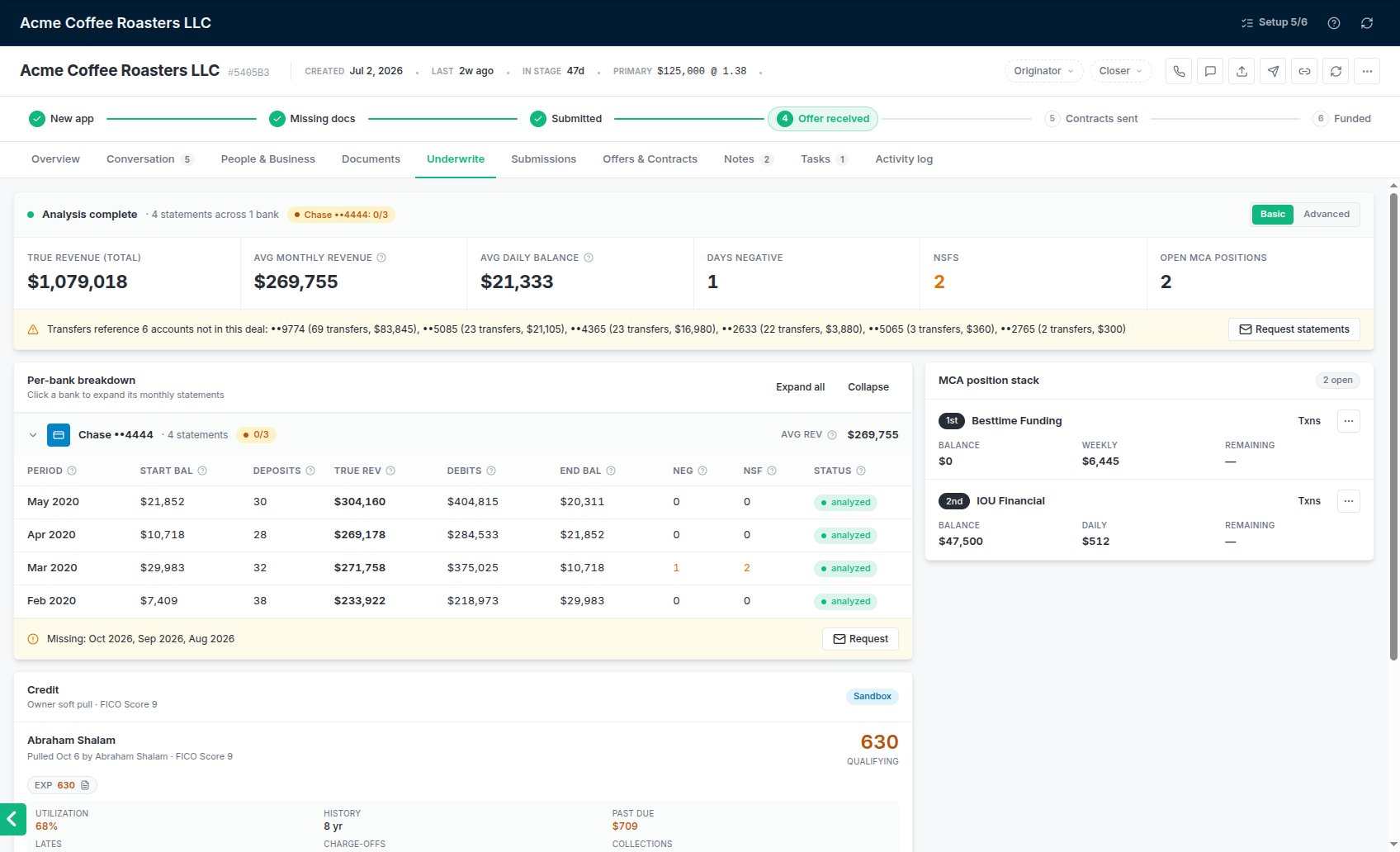
The Underwrite tab has a Basic / Advanced switch. Advanced adds the monthly pulls behind each position, ratios, statement integrity checks, transfers between accounts, flagged transactions, balances and the full ledger, all derived from the analysis already on the deal. A banner calls out accounts the merchant moves money to or from but did not give you, with a one-click request for those statements. Column headers carry help tips explaining each figure.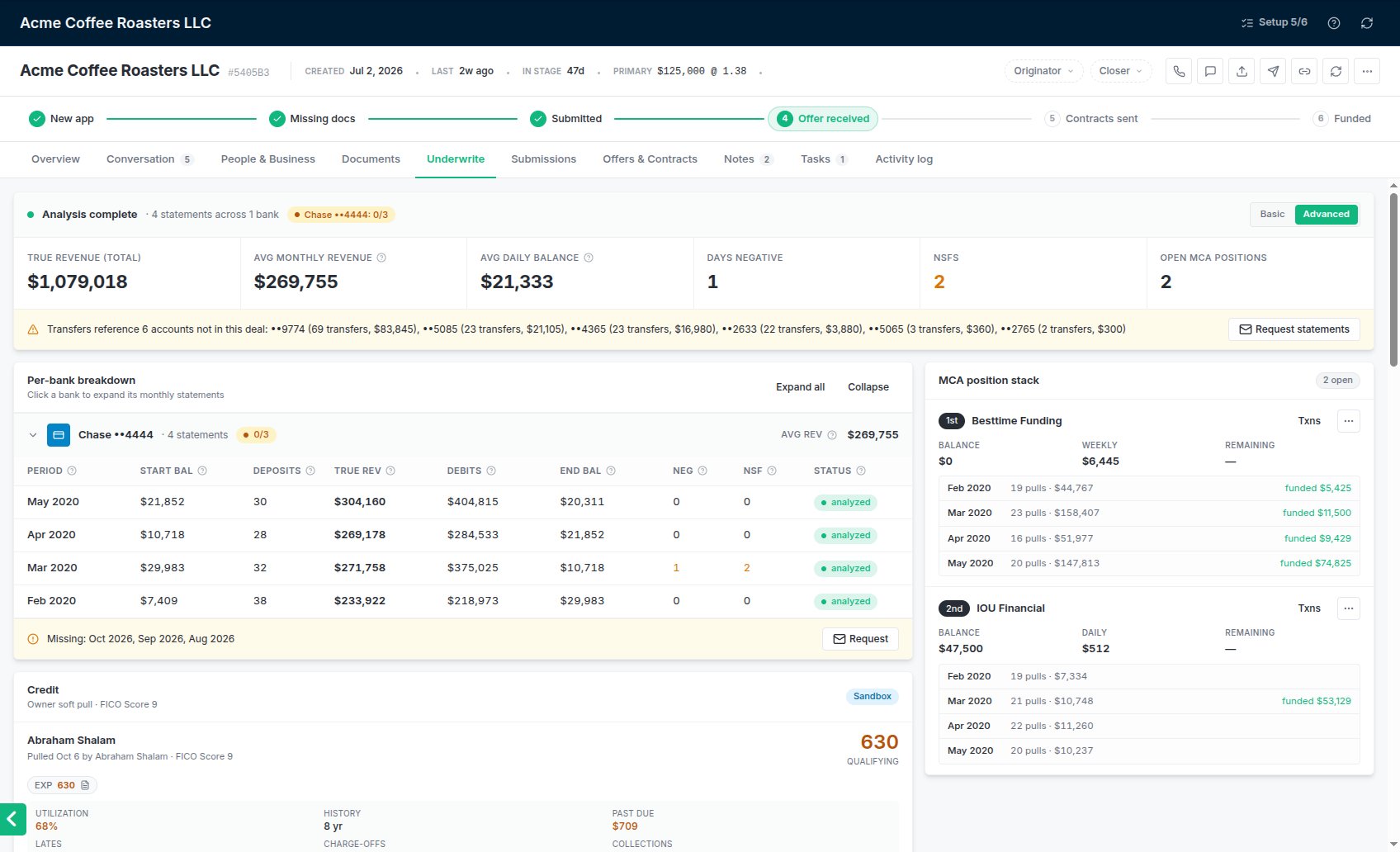
Advanced view
List pages
Sticky column headers on every list page, so the headings stay put as you scroll. The deals list has a Created column and paging. The deal’s Submissions tab lists every lender in the workspace, with filters and search, not only the ones the engine ranked. Filters live in the URL, so a filtered view can be bookmarked or shared.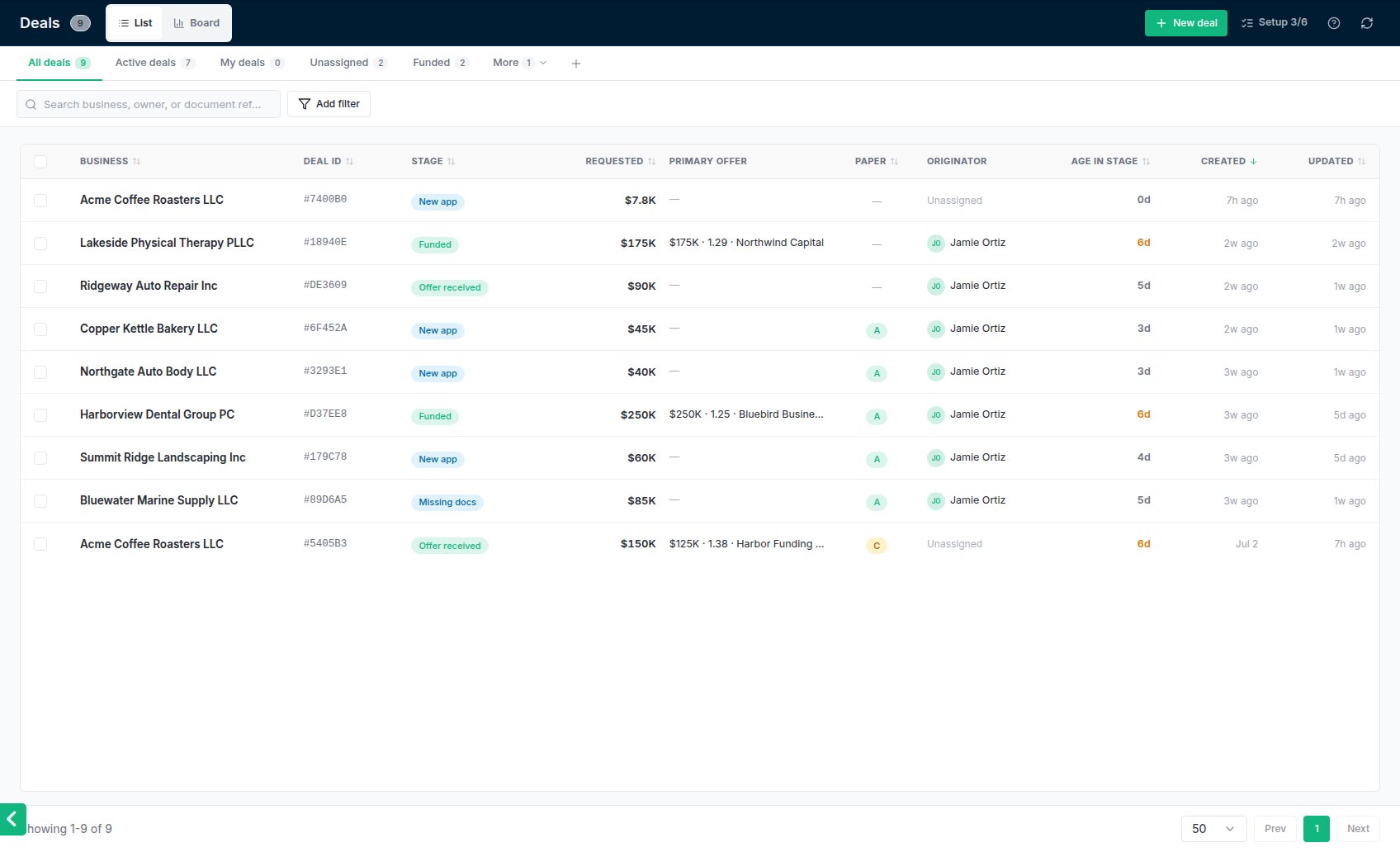
The deals list
Lender API submissions
Lenders that take applications through their own system can be set up under Lenders with a submission method of API. The deal package goes straight into the lender’s system, their status and offers flow back onto the submission, and a pre-flight check tells you what the lender’s system requires before you send. A built-in test funder lets you try the whole path without a real lender. First adapters: Credibly and Bitty Advance.Public API, webhooks and AI assistants
NextLevel MCA can now be built on. A public REST API atapi.nextlevelmca.com/v1 covers businesses, people, deals, documents, lenders, submissions, offers, advances, the merchant portal and webhooks, authenticated with keys you create under Settings → Developers. Webhook subscriptions deliver events such as deal.created and offer.received. An assistant server lets Claude and ChatGPT read and act on your pipeline through the same rules as the API, with sign-in through your workspace. Full documentation under the Developers tab of this site.Lender criteria and matching, rebuilt
Each lender’s record has a criteria editor: eligibility (states, industries, time in business, revenue, positions, NSFs and negative days, credit score, funding range, paper grades), production and terms. On a deal’s Submissions tab every lender is scored against those rules with each check explained, a workspace threshold separates recommended from merely eligible, and a Matching inputs card holds the facts the engine cannot read from documents. Every deal carries a paper grade from A to D, computed from its bank analysis and facts, which lenders can require.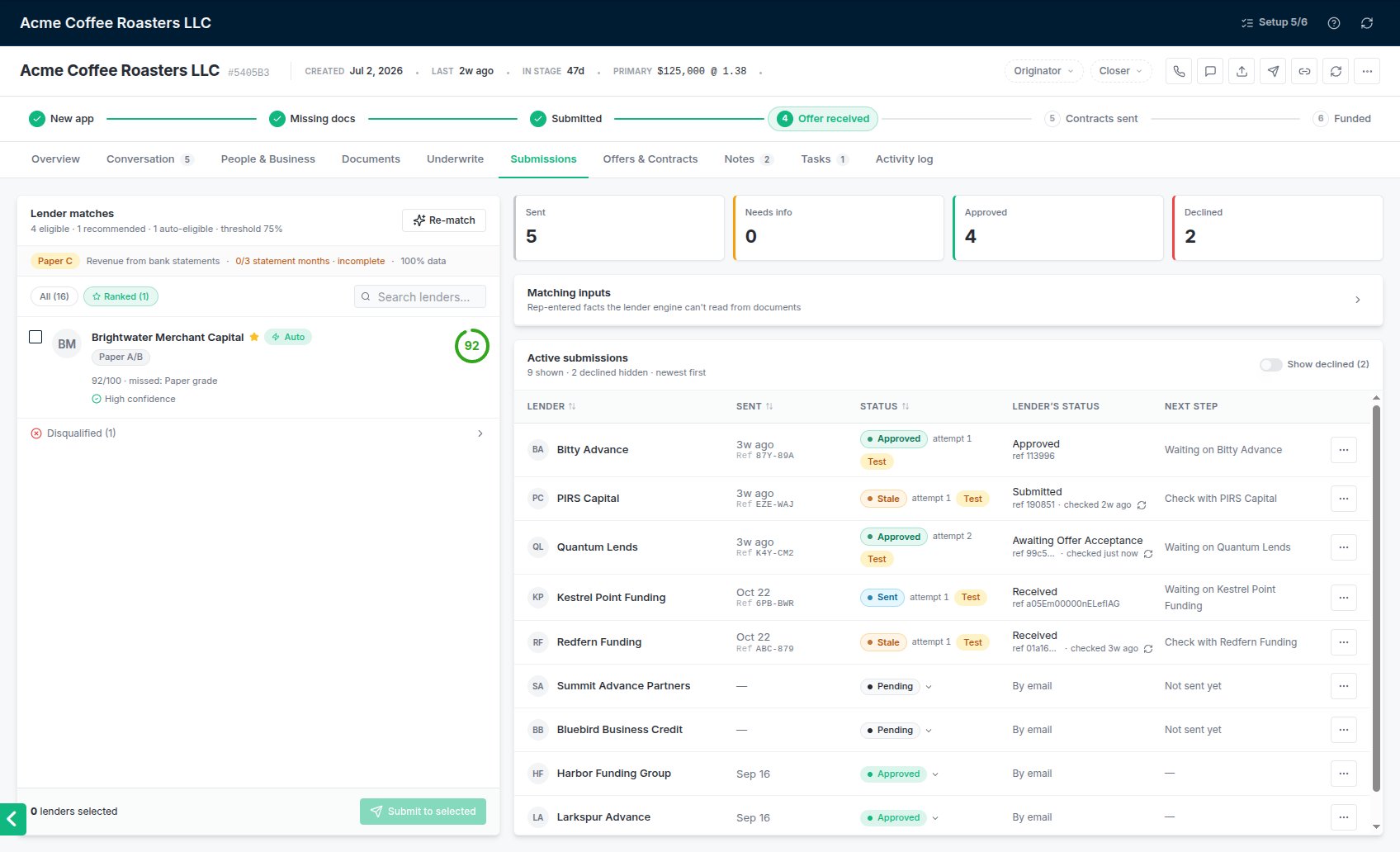
Lender matches, ranked
One merchant portal
Document requests, offers, the application signature and contracts now live on a single secure page for each deal, branded with your logo and colours. Links are good for 24 hours and the page offers the merchant a fresh one when a link expires. What the merchant uploads lands on the deal matched to what you asked for, and every action they take is written to the deal’s activity log.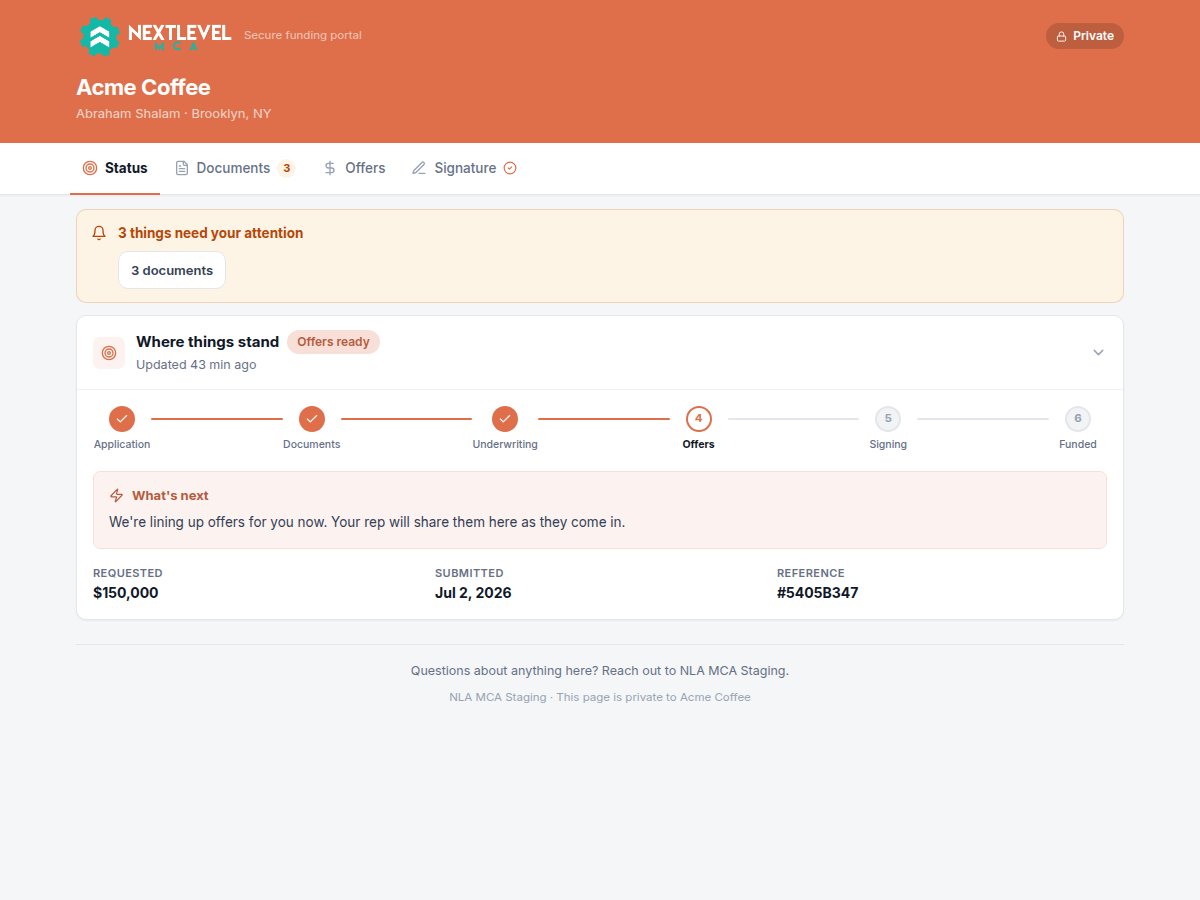
The merchant portal
Conversations and contact linking
Texts and emails with a merchant show in one thread on the deal’s Conversation tab. People are matched to your CRM contacts, so texts go through the CRM and calls start with a click. Notes and tasks on a business or deal sync to the CRM, and a deal or advance opened from the CRM’s contact page deep-links straight into the full app.The new deal workspace
The deal page was rebuilt around ten tabs: Overview, Conversation, People & Business, Documents, Underwrite, Submissions, Offers & Contracts, Notes, Tasks and Activity log, with the stage, originator, closer and the three everyday actions in the header. Businesses and people are records of their own, so a merchant’s history carries across deals. The pipeline is a board with stages grouped into phases, and every list and settings page was restyled to match.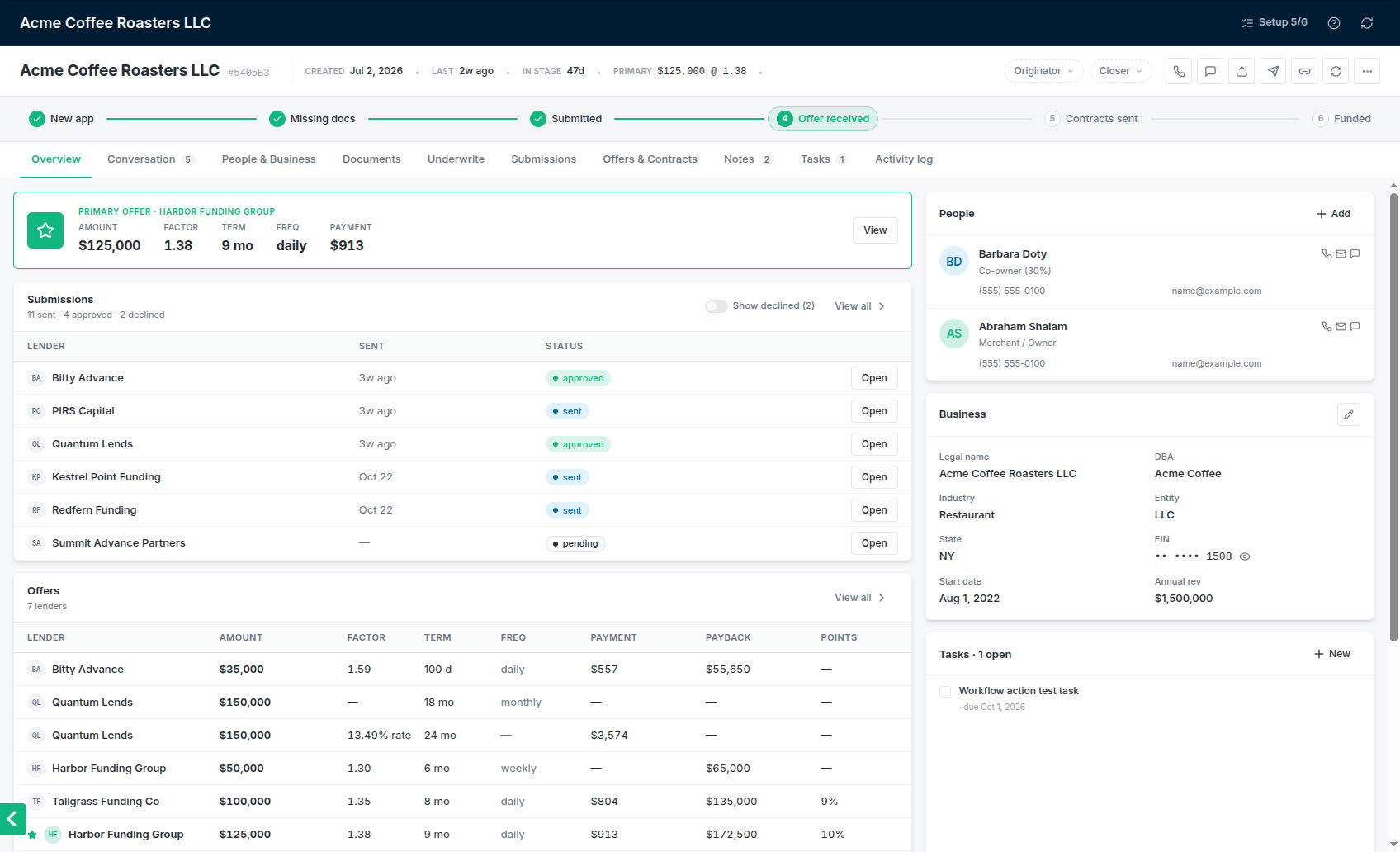
A deal's Overview