

Only admins add and manage CRM-only users.
Add a CRM-only user
1
Click Add member → CRM only
In Settings → Team → Members.
2
Fill in their details
First Name, Last Name and Email are required (your CRM needs a last name on every user). Phone is optional.
3
Tick their CRM permissions
Click CRM permissions on the left. They’re laid out as on your CRM’s own Roles & permissions screen. Nothing is ticked to start with: tick what they need, for example Workflows or Campaigns. Switch on Assigned data only if they should see only the contacts, opportunities and conversations assigned to them.
4
Click Add CRM-only user
Your CRM emails them an invite, and they appear in the list with a CRM only label.
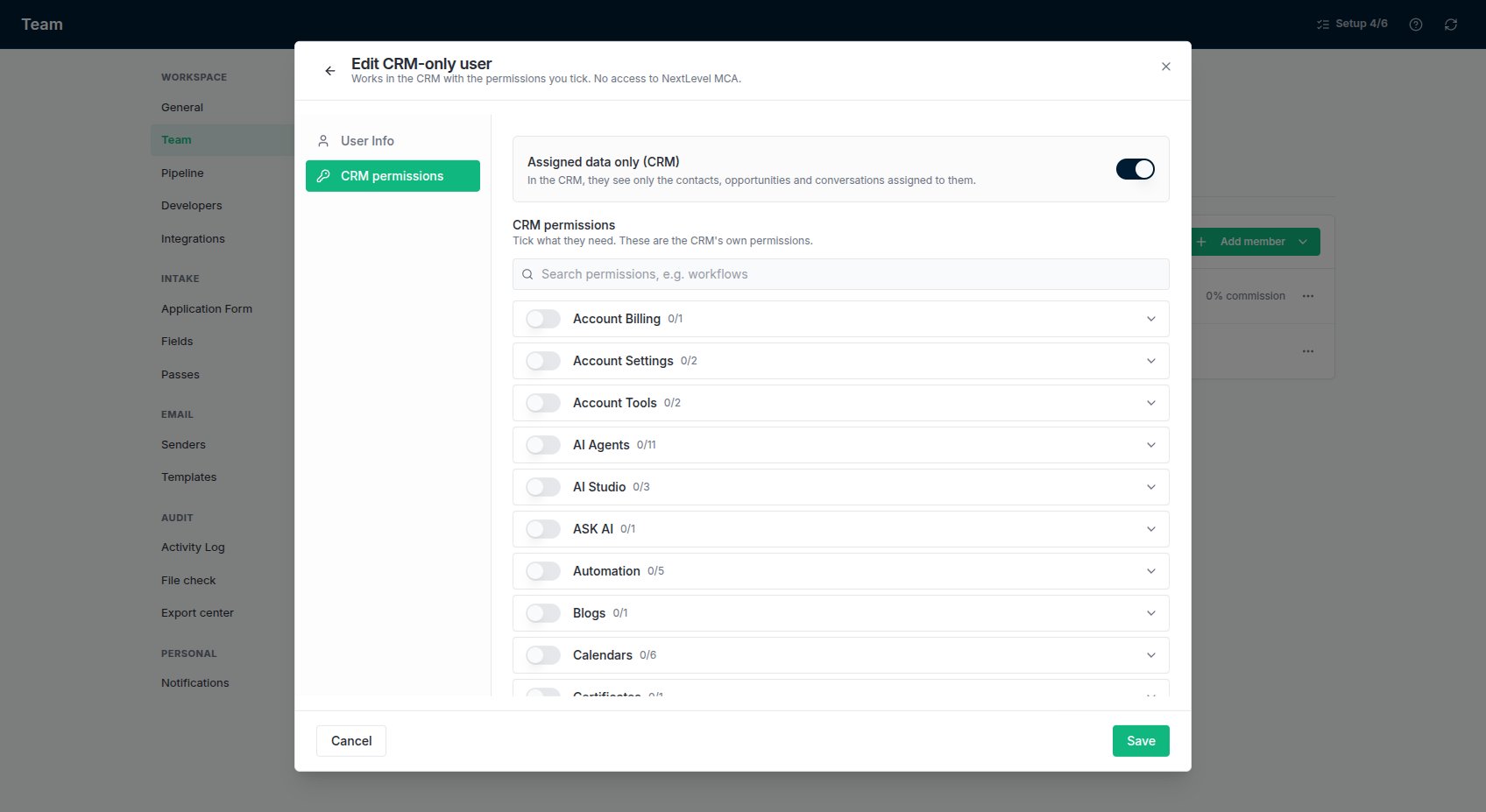
A CRM-only user's window: their details and CRM permissions, and nothing for NextLevel MCA.
Good to know
- How many you can add. Each plan includes some CRM-only users: Starter 1, Growth 2, Scale 3. The header shows how many are used. When they’re all used, CRM only is greyed out: contact support if you need more.
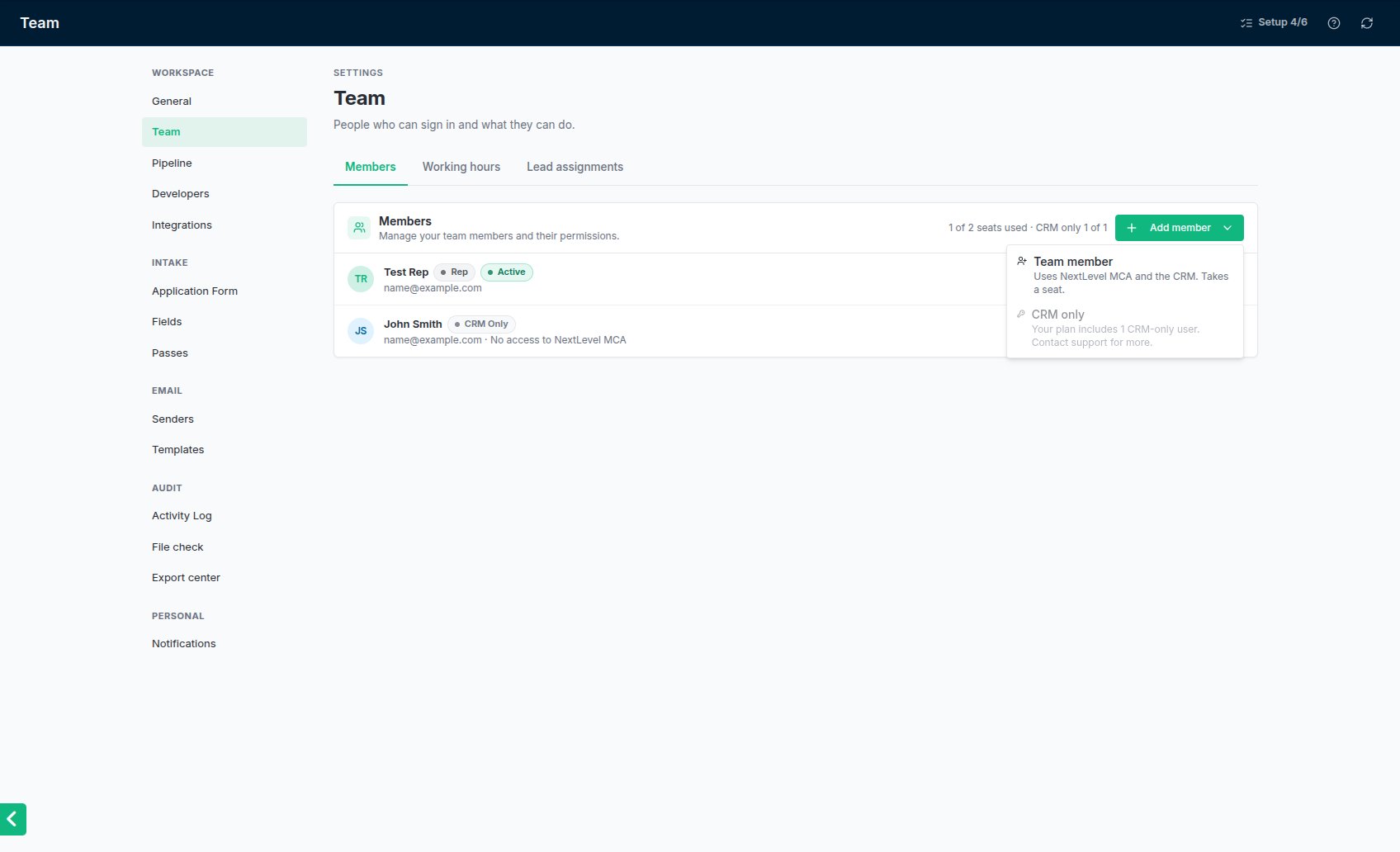
Add member asks admins which kind of person to add. Here CRM only is greyed out because the plan's one CRM-only user is already added.
- They’re always a plain CRM user, never a CRM admin, so they see only what you ticked.
- If they open NextLevel MCA, they see “Your account is set up for CRM work only. Ask an admin if you need access to NextLevel MCA.”
- They can’t be given deals or leads. They aren’t in the pickers for deals or tasks or in Assign on CRM contacts, and assigning them a contact in your CRM doesn’t make them the owner of its deals.
- Edit works as for members, with only their name, Phone, sign-in and CRM permissions.
Switching between team member and CRM only
The same person keeps their CRM user, so their CRM history stays.- Make CRM only. From a team member’s ⋯ menu, click Make CRM only and confirm. They lose access to NextLevel MCA straight away. Their deals stay assigned to them, their connected mailboxes stop sending and receiving, and if they manage reps, those reps have no manager. It needs a free CRM-only spot, and you can’t do it to yourself or to the workspace’s only admin.
- Make team member. From a CRM-only user’s ⋯ menu, click Make team member and pick their role. They can open NextLevel MCA with that role’s permissions and take a seat. Their CRM permissions stay as they are, except that an admin becomes a CRM admin.