

Admins always have full access. Their permissions can’t be customized.
Where permissions live
Open a member’s ⋯ menu and click Edit (or click Add member for someone new). On the left are two kinds of permissions:- MCA permissions: what they can do in NextLevel MCA.
- CRM permissions: what they can do in your CRM. NextLevel MCA sets these on their CRM user for you.
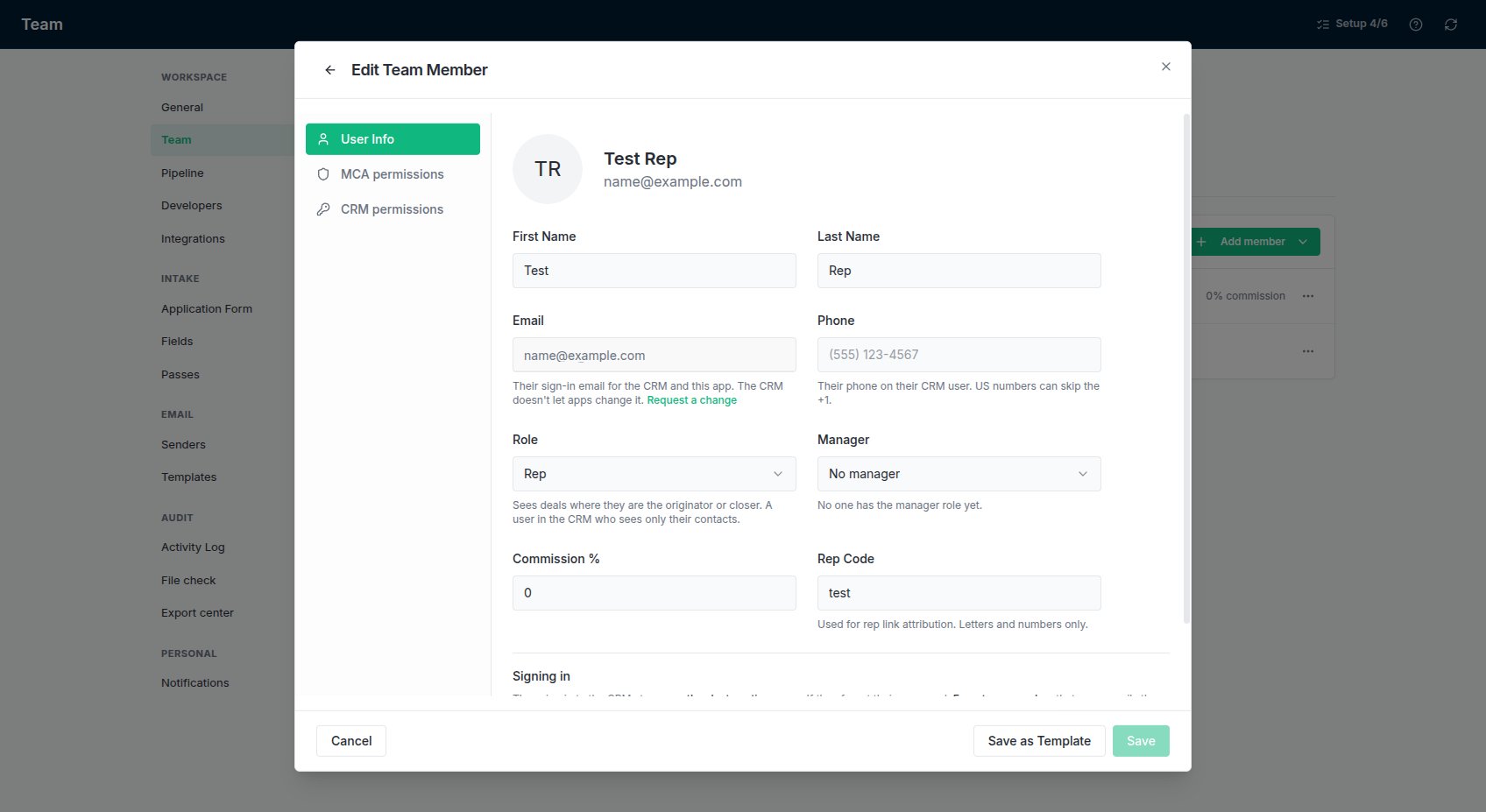
A member's settings, where their MCA and CRM permissions are set.
What each MCA area controls
Manage Fields is the permission that lets someone change workspace settings: fields, the pipeline, the application form, default stips, offer statuses, integrations and developer settings. Shared mailboxes and email templates have their own switches, Manage Email and Manage Templates. Give it only to people who should change how the workspace is set up.
Without View Settings, Settings shows only Personal Settings: Notifications, My mailbox (their own email sender), My rep card and Mobile PIN. Team shows for anyone with View Team.
CRM permissions
CRM permissions shows the same permissions, with the same names, as the CRM’s own user screen, so what you set here is exactly what the person gets there.- At the top, a preset: Rep, Manager or Admin ticks a starting set. Change anything after that and it shows as Custom.
- Always shown are the areas an MCA shop uses: Contacts, Conversations, Opportunities, Calendars, Automation, Marketing, Funnels, Forms & Surveys, Blogs, Ask AI, AI Agents, AI Studio, Account Settings, Integrations, Medias, User Management and Audit Logs.
- Under More CRM features are the rest: the Dashboard (reporting), payments and commerce (payments, transactions, orders, subscriptions, products, taxes, gift cards), memberships and communities, reputation, QR codes, WhatsApp and a few more. The collapsed row says which of them are on.
- Search finds any permission, including ones under More CRM features.
- Rep: contacts, conversations, opportunities (with lead value), viewing calendars and managing appointments, and Ask AI. No workflows.
- Manager: the rep’s set plus bulk actions, calendar groups, viewing workflows and campaigns, forms and surveys, the AI dashboards, viewing users and audit logs, and the reporting dashboard.
- Admin: everything.