

Show, require and print a field
Settings → Fields lists every field on the application, split into sections such as Business Information and Owner Information. For each field you choose:
Req and Form apply to the merchant’s application form and the New Deal form alike. A field you take off the form is never required there. On the merchant’s form, the owner’s first name, last name and email always show and are always required, whatever the switches say, because an application needs to say who it’s from and how to reach them; the owner always signs too. State Incorporated and the existing advance questions are only on the New Deal form.
Change the order
Settings → Fields has a list for each section of the application form: Business, Owner and Financial information. The list is the order the form shows.- Standard fields come in locked groups (marked with a lock), such as Business address (street, city, state and ZIP) or Owners, because they’re laid out together on the form. Drag a group to move it. Click it to see its fields and change their Req, Form, PDF and Short switches, or edit a field’s label and placeholder.
- Custom fields can go anywhere: drag one between any two groups, for example to ask “Have you ever defaulted on a business loan?” right after the business name.
Add your own fields
Add field creates a custom field: you pick its label, placeholder, type, section and visibility, and add options for a choice field. Standard fields keep their type, but you can change their label, placeholder and visibility, and some are always required. Only custom fields can be deleted. Deleting one also removes the data it collected, and it can’t be undone. Custom fields set to show on the form appear where you placed them, on both the merchant’s application form and the New Deal form. A Checkbox field is asked as a Yes / No question; if you made it required, the merchant has to answer it either way. When its placeholder holds the full question (for example “Do you have any current MCA or business loans?”), that question shows under the label. File Upload fields don’t show on the form; documents are uploaded in the form’s Bank Statements section. Answers are on the application PDF wherever the field is set to show in the PDF.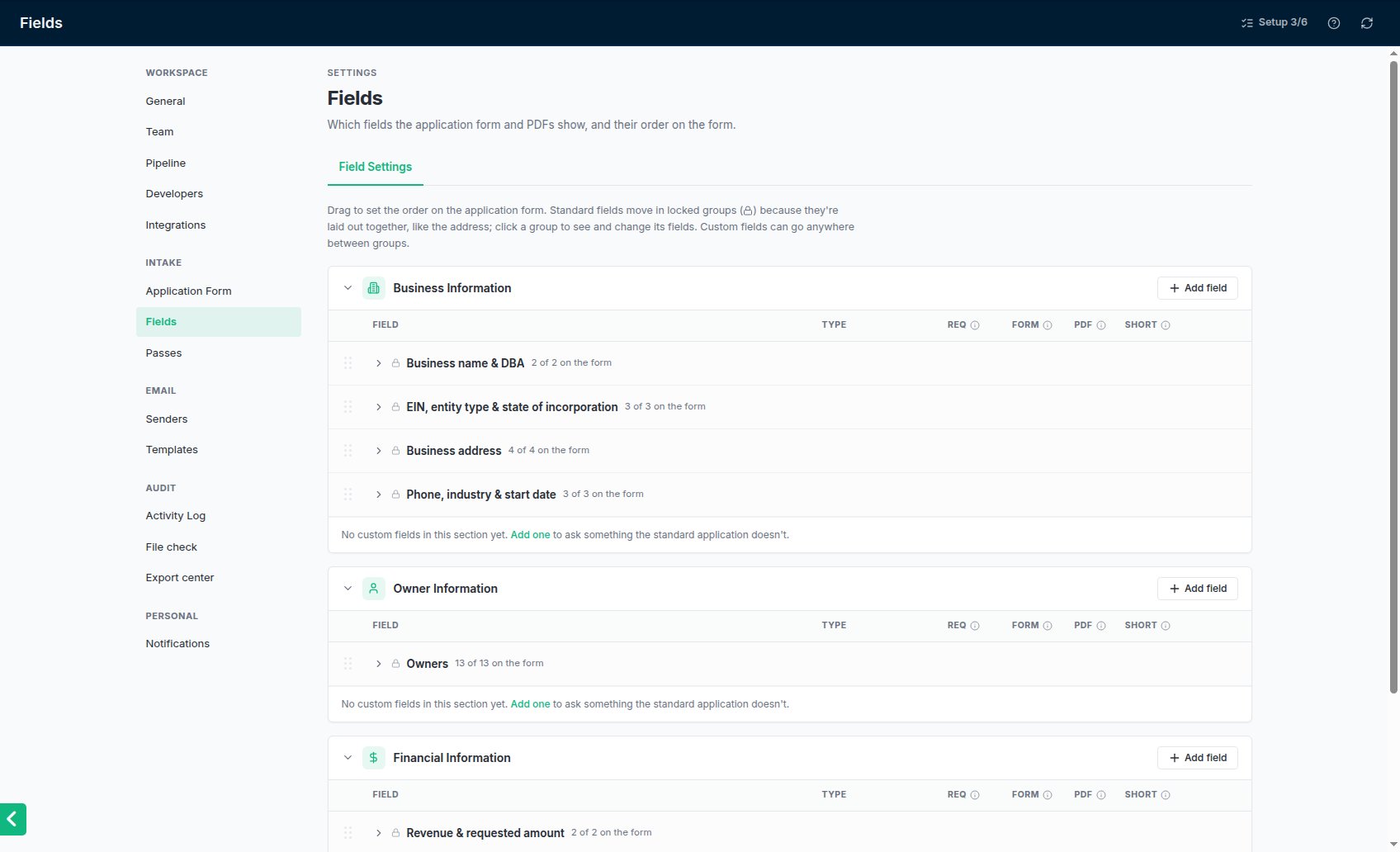
Settings → Fields: which fields the application form and PDFs show, section by section.