> ## Documentation Index
> Fetch the complete documentation index at: https://docs.nextlevelmca.com/llms.txt
> Use this file to discover all available pages before exploring further.
# How do I submit a deal to lenders?
> Pick lenders on a deal's Submissions tab, send the package by email or through a lender's API, and follow each submission.
You send a deal to lenders from the deal's **Submissions** tab. You need the **Submit to Lenders** permission, which reps, managers and admins have by default. To send by email you also need a connected mailbox, see [Email senders](/help/email-senders).
## Send a deal
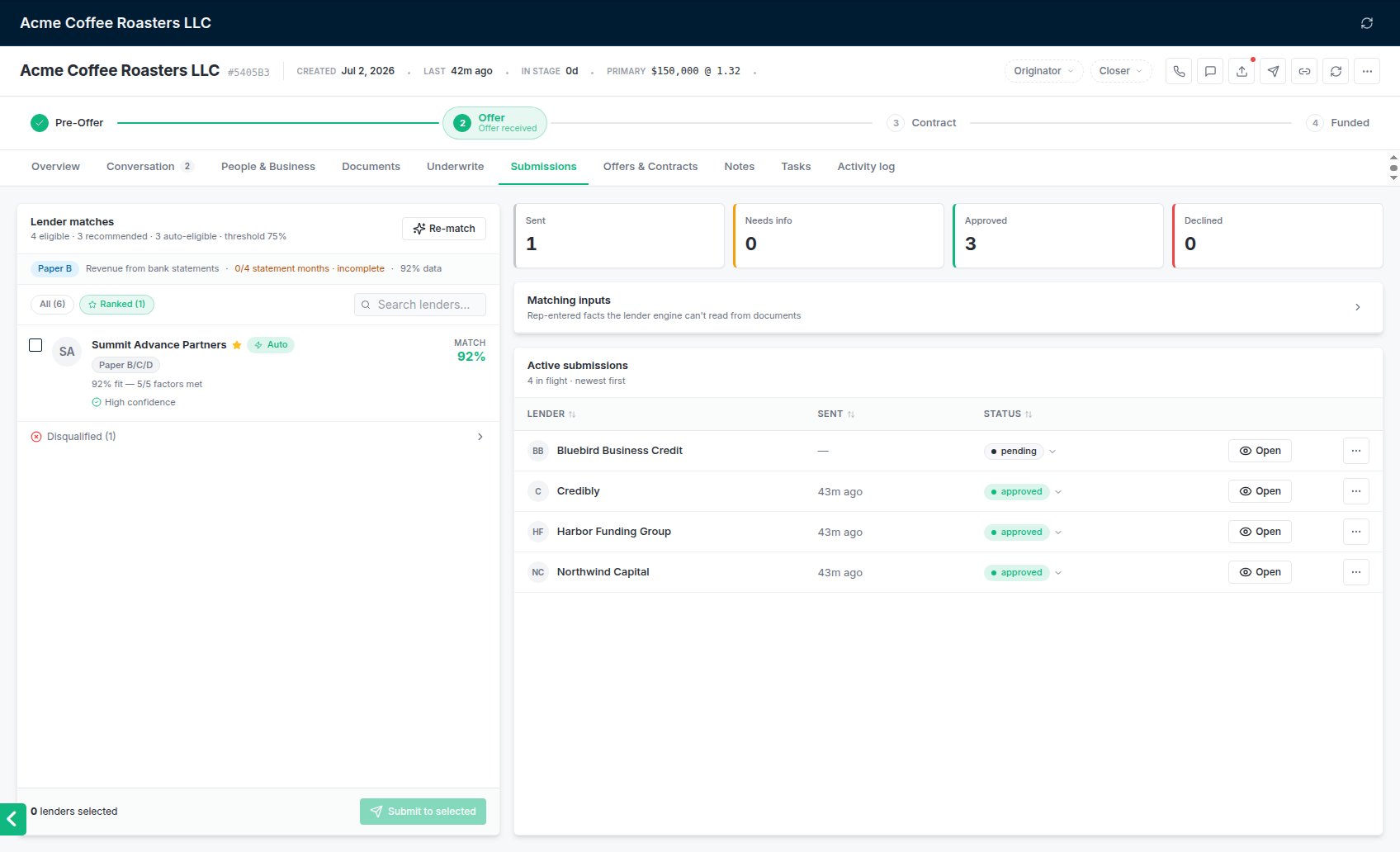
The left side, **Lender matches**, lists every active lender in your workspace. **All** shows them unranked. **Ranked** shows only the lenders recommended for this deal, with a score ring on each. How the score works is in [How lenders are scored](/help/match-score).
Click a lender, or its checkbox, to select it. The footer counts how many you have picked, and **Clear** empties the selection. A lender already submitted on this deal shows a **Submitted** pill and can't be ticked. Send to it again with **Resubmit** instead (see below).
A lender marked **Disqualified** fails one of its own rules for this deal. You can still submit to it.
The **Submit Deal** window opens. What it shows depends on how each lender takes deals: by email, through its API, or a mix.
For email lenders, fill in:
* **Send From**: the connected mailbox the email goes from.
* **CC Team Members**: optional. Tick anyone on your team who should be copied.
* **Email Template**: your workspace's default submission template is picked for you. Admins edit templates under **Settings → Templates → Submissions**. **Custom (no template)** keeps whatever you type.
* **Subject Line** and **Email Body**: edit freely. Placeholders such as the business name are filled in with the deal's details for each lender.
The right side lists the deal's documents. The application and bank statements are ticked for you. Which files go, and the 20 MB email limit, are covered in [Which documents go to lenders](/help/submission-documents).
Click **Send Email** (or **Send** when some lenders take deals by API, or **Submit via API** when they all do). The window then lists each lender with **Emailed**, **Sent via API** or **Failed** and the reason. Click **Close**.
 If DataMerch has notes on this merchant, a red box at the top of the window lists them. Lenders check DataMerch too. You can still send. See [DataMerch](/help/datamerch).
## Email or API
Each lender takes deals one of two ways. You set this on the lender, see [Connecting a lender's API](/help/lender-api-connection).
* **By email.** Each lender gets its own email from the mailbox you picked, sent to every address on the lender's **Submission** tab. The attached PDFs are stamped with a reference for that lender (below).
* **Through the lender's API.** The application details and the documents you ticked go straight into the lender's system. No email is sent to that lender. These lenders show an API badge in the list.
When you tick an API lender, an **API pre-flight** panel appears under the list. It checks the deal against what that lender's system requires. **Submit to selected** stays greyed out until every API lender shows **Ready for** its name. If it says **Missing for** a lender, fill those fields on the deal (or untick the lender), then click **Re-check**.
After sending, API submissions update on their own as the lender responds. Each API row has **Refresh** to check now, **View error** when something went wrong, **Open in funder** when the lender gives a link, and **Retry** for a submission that errored. A **Test** pill means it went to the lender's test system. An error doesn't always mean the lender didn't get it, so click **Refresh** before retrying. **Retry** stays off once the lender has approved it, asked for more information, funded it or made an offer, since it would send them a second application. A **Not confirmed** error means the lender may already have it: ask them before you click **Retry**, which asks you to confirm they don't.
## Record without sending
**Record Submission** in the send window logs the submissions without sending anything. Use it when you sent the package outside the app, for example from your own email. The rows appear in **Active submissions** so replies and offers can be tracked against them. For an API lender, a recorded row shows **Send via API** so you can send it properly later.
## Reference codes
Every emailed submission gets its own document reference, such as **Ref K7M-3QX**. It is printed small at the bottom right of every page of the PDFs that lender received. The reference shows under the sent time in **Active submissions** and in the submission's **Details**. Click it to copy it.
If a package turns up somewhere it shouldn't, type the reference into the search on the **Deals** page. A banner tells you which lender it was sent to and offers **Open deal**. The stored documents on the deal are never changed; only the copies emailed to each lender are stamped. More in [Which documents go to lenders](/help/submission-documents).
## Follow your submissions
The right side of the tab shows counts for **Sent**, **Needs info**, **Approved** and **Declined**, then **Active submissions**: one row per lender with when it was sent, its status, and **Open** for the full details. Declined rows are hidden until you turn on **Show declined**.
Lender replies update these rows automatically. How that works, and how to update a row by hand, is in [Tracking replies and declines](/help/replies-and-declines).
To send to a lender again, open the row's **⋯** menu and choose **Resubmit**. It opens the same window for that one lender. You can't resubmit a submission that is still **Pending**.
## Matching inputs
**Matching inputs**, on the right side of the tab, holds facts the lender scoring can't read from documents: product, desired term and frequency, a paper-grade override, bankruptcy, franchise, prior default, ACH reversals and seasonal business. Only your team sees these. Changes re-rank the lenders. See [How lenders are scored](/help/match-score).
## Common problems
No mailbox is connected, or none is picked in **Send From**. Connect one under **Settings → Senders**, see [Email senders](/help/email-senders). You can still use **Record Submission**.
The lender's record has no submission email. Add one on the lender's **Submission** tab under **Lenders**, then send to that lender again.
The deal was already submitted to that lender. Use **Resubmit** from its row in **Active submissions**.
Your mailbox's connection has expired. Reconnect it, see [Reconnecting a mailbox](/help/reconnect-mailbox), and send again.
The package is over 20 MB even after compression, and nothing was sent. Untick some documents, such as older statements, and send again. See [Which documents go to lenders](/help/submission-documents).
The API pre-flight hasn't passed. Fill the fields it lists as missing, or untick that lender, then click **Re-check**.
This documentation is built and hosted on [Mintlify](https://mintlify.com), a developer documentation platform.
If DataMerch has notes on this merchant, a red box at the top of the window lists them. Lenders check DataMerch too. You can still send. See [DataMerch](/help/datamerch).
## Email or API
Each lender takes deals one of two ways. You set this on the lender, see [Connecting a lender's API](/help/lender-api-connection).
* **By email.** Each lender gets its own email from the mailbox you picked, sent to every address on the lender's **Submission** tab. The attached PDFs are stamped with a reference for that lender (below).
* **Through the lender's API.** The application details and the documents you ticked go straight into the lender's system. No email is sent to that lender. These lenders show an API badge in the list.
When you tick an API lender, an **API pre-flight** panel appears under the list. It checks the deal against what that lender's system requires. **Submit to selected** stays greyed out until every API lender shows **Ready for** its name. If it says **Missing for** a lender, fill those fields on the deal (or untick the lender), then click **Re-check**.
After sending, API submissions update on their own as the lender responds. Each API row has **Refresh** to check now, **View error** when something went wrong, **Open in funder** when the lender gives a link, and **Retry** for a submission that errored. A **Test** pill means it went to the lender's test system. An error doesn't always mean the lender didn't get it, so click **Refresh** before retrying. **Retry** stays off once the lender has approved it, asked for more information, funded it or made an offer, since it would send them a second application. A **Not confirmed** error means the lender may already have it: ask them before you click **Retry**, which asks you to confirm they don't.
## Record without sending
**Record Submission** in the send window logs the submissions without sending anything. Use it when you sent the package outside the app, for example from your own email. The rows appear in **Active submissions** so replies and offers can be tracked against them. For an API lender, a recorded row shows **Send via API** so you can send it properly later.
## Reference codes
Every emailed submission gets its own document reference, such as **Ref K7M-3QX**. It is printed small at the bottom right of every page of the PDFs that lender received. The reference shows under the sent time in **Active submissions** and in the submission's **Details**. Click it to copy it.
If a package turns up somewhere it shouldn't, type the reference into the search on the **Deals** page. A banner tells you which lender it was sent to and offers **Open deal**. The stored documents on the deal are never changed; only the copies emailed to each lender are stamped. More in [Which documents go to lenders](/help/submission-documents).
## Follow your submissions
The right side of the tab shows counts for **Sent**, **Needs info**, **Approved** and **Declined**, then **Active submissions**: one row per lender with when it was sent, its status, and **Open** for the full details. Declined rows are hidden until you turn on **Show declined**.
Lender replies update these rows automatically. How that works, and how to update a row by hand, is in [Tracking replies and declines](/help/replies-and-declines).
To send to a lender again, open the row's **⋯** menu and choose **Resubmit**. It opens the same window for that one lender. You can't resubmit a submission that is still **Pending**.
## Matching inputs
**Matching inputs**, on the right side of the tab, holds facts the lender scoring can't read from documents: product, desired term and frequency, a paper-grade override, bankruptcy, franchise, prior default, ACH reversals and seasonal business. Only your team sees these. Changes re-rank the lenders. See [How lenders are scored](/help/match-score).
## Common problems
No mailbox is connected, or none is picked in **Send From**. Connect one under **Settings → Senders**, see [Email senders](/help/email-senders). You can still use **Record Submission**.
The lender's record has no submission email. Add one on the lender's **Submission** tab under **Lenders**, then send to that lender again.
The deal was already submitted to that lender. Use **Resubmit** from its row in **Active submissions**.
Your mailbox's connection has expired. Reconnect it, see [Reconnecting a mailbox](/help/reconnect-mailbox), and send again.
The package is over 20 MB even after compression, and nothing was sent. Untick some documents, such as older statements, and send again. See [Which documents go to lenders](/help/submission-documents).
The API pre-flight hasn't passed. Fill the fields it lists as missing, or untick that lender, then click **Re-check**.
This documentation is built and hosted on [Mintlify](https://mintlify.com), a developer documentation platform.