> ## Documentation Index
> Fetch the complete documentation index at: https://docs.nextlevelmca.com/llms.txt
> Use this file to discover all available pages before exploring further.
# What's in Settings?
> A map of every Settings tab, what it's for, and where to read more.
Settings is where you set up your workspace. The tabs are grouped in the left column: **Workspace**, **Intake**, **Email**, **Audit** and **Personal**. This page gives one line per tab and links to the full article.
## What you see depends on your permissions
You only see the tabs your role lets you use.
* With Settings access (admins, and anyone whose role includes it) you see every tab below.
* Without Settings access you see **General** with just your **Mobile PIN**, **My mailbox** (your own sender, in place of the full **Senders** tab) and **Notifications**.
* **Team** needs permission to view the team, and **Activity Log** needs permission to view logs. Either can be given without full Settings access.
See [Roles and permissions](/help/roles) for how permissions are set.
## Workspace
* **General**
* **Preferences**: workspace defaults that apply to everyone. The **Advance renewal threshold** (see [Renewals](/help/renewals)), **Bank statements required** and **Month-to-date statement from day** (see [Uploading statements](/help/upload-statements)), and the **Lender recommendation threshold** (see [The recommended threshold](/help/recommended-threshold)).
* **Branding**: your company name, logo, submit button text, PDF authorization disclaimer and the application form colours.
* **Mobile PIN**: install the phone app and set your personal PIN.
* **Team**: who can sign in and what they can do. See [Adding a team member](/help/add-team-member).
* **Pipeline**: your stages, their phases, and the events that move deals between them. See [Deals and the pipeline](/help/deals-and-pipeline) and [Pipeline stage events](/help/pipeline-stage-events).
* **Developers**: **API keys**, **Webhooks** and **Connected apps**, for anyone building on NextLevel MCA. The details are on the **Developers** tab of this site.
* **Integrations**: outside services your workspace connects with its own account, [DataMerch](/help/datamerch), [PACER](/help/pacer) and [CRS credit pulls](/help/credit-pulls). Bank statement analysis isn't set up here; see [Bank statement analysis](/help/bank-statement-analysis).
## Intake
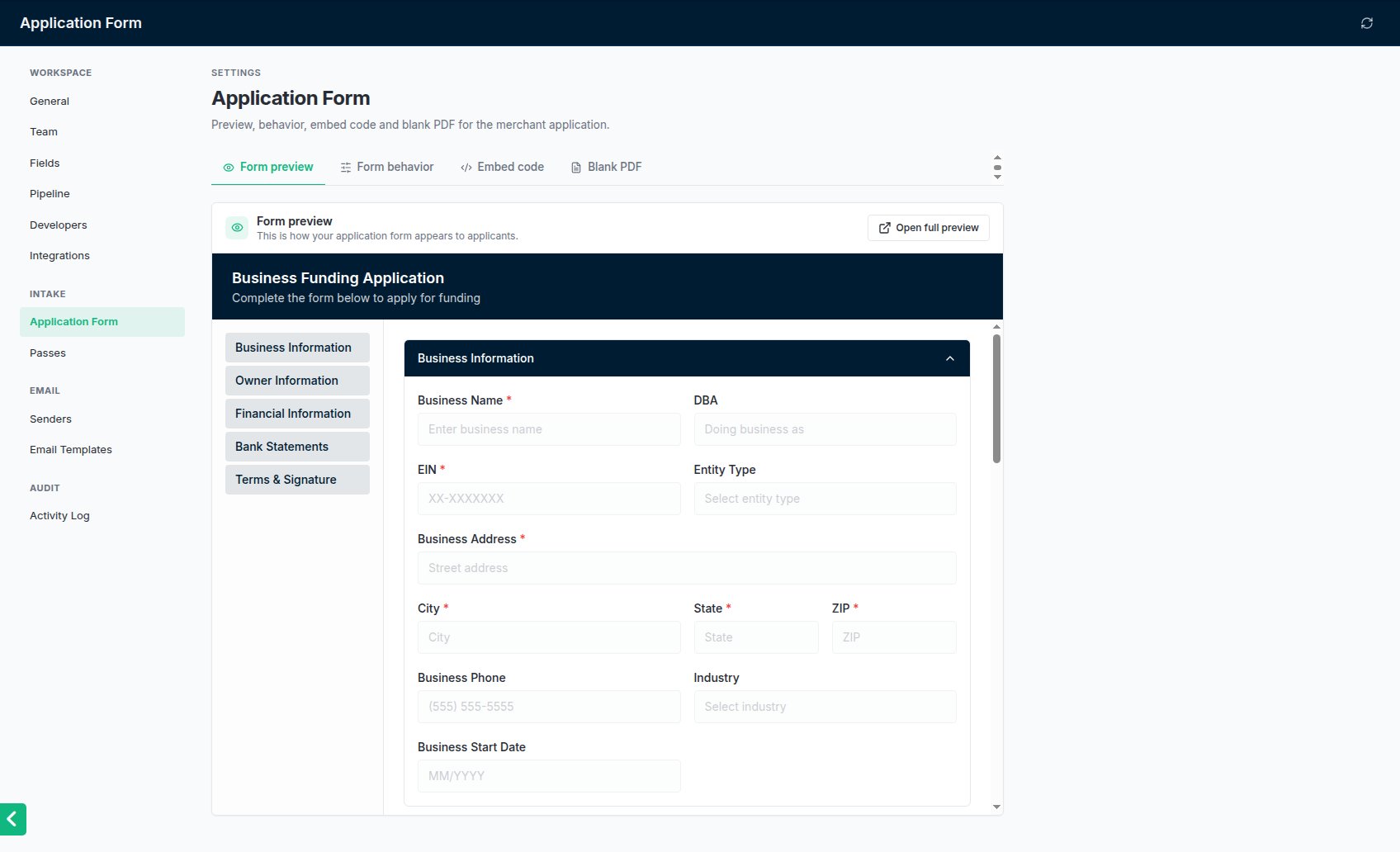
* **Application Form**: preview the merchant application, set how it behaves, copy the embed code and download a blank PDF. See [The application form](/help/application-form). For applications a merchant started but didn't finish, see [Unfinished applications](/help/abandoned-applications).
* **Fields**: which fields the application form and the PDFs show, and their order on the form. See [Fields](#fields) below.
* **Passes**: automatically pass approved deals to another rep when they aren't funded. See [Passes](#passes) below.
 ## Email
* **Senders**: the mailboxes NextLevel MCA sends email from. People without Settings access see **My mailbox** instead, where they connect their own. See [Connecting your mailbox](/help/email-senders) and [The default sender](/help/default-sender).
* **Templates**: the default wording of the emails and texts the app writes for you. See [Templates](#templates) below.
## Audit
* **Activity Log**: a record of everything that changed in the workspace. See [Activity Log](#activity-log) below.
## Personal
* **Notifications**: what you hear about, in the bell and by email. These settings are yours alone. See [Notification preferences](/help/notification-preferences).
## Fields
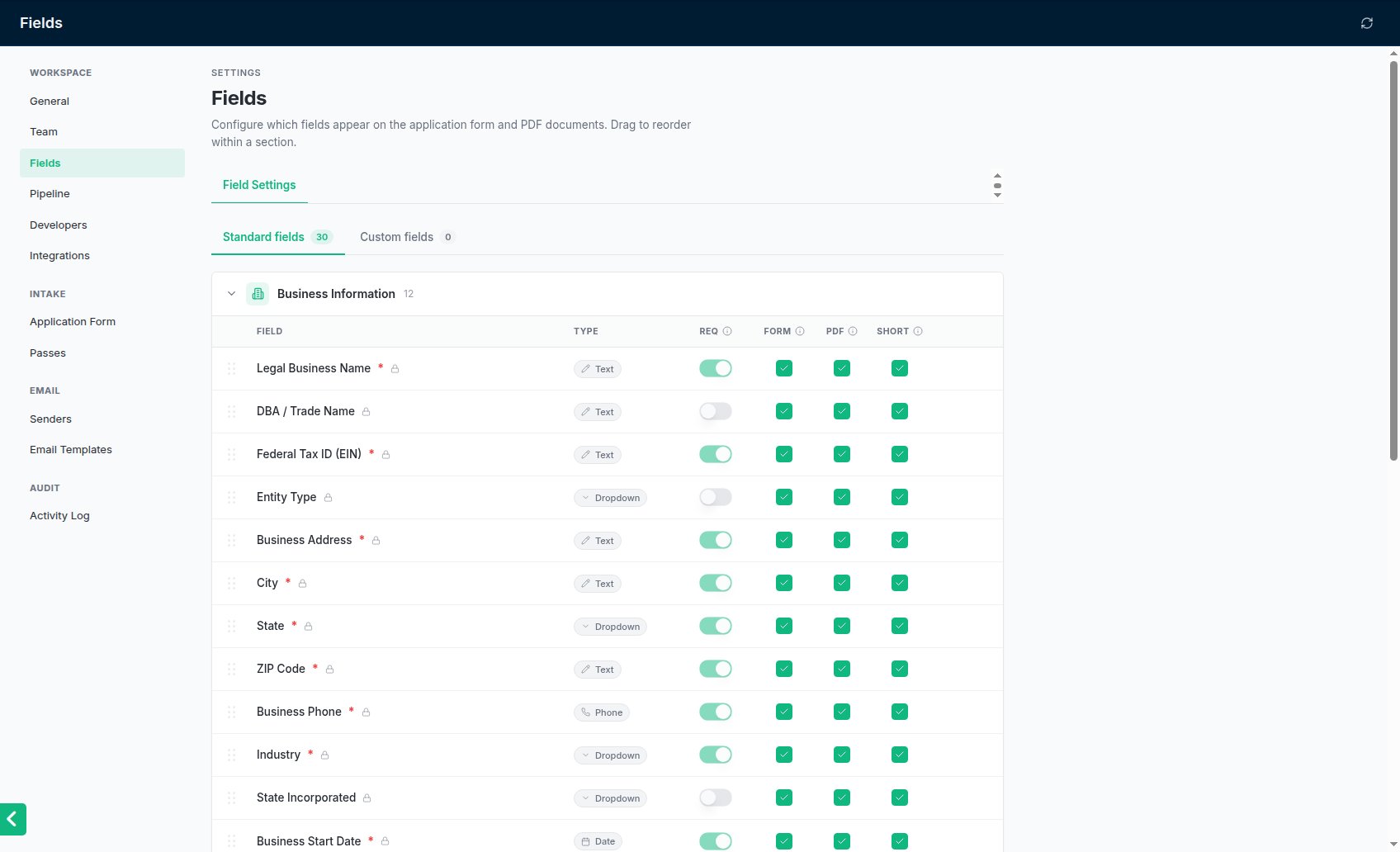
**Settings → Fields** lists every field on the application, split into sections such as **Business Information** and **Owner Information**. For each field you choose:
| Column | What it does |
| - | - |
| **Req** | The field must be filled in before the application can be submitted. |
| **Form** | The field shows on the public application form. |
| **PDF** | The field is included in the full PDF application. |
| **Short** | The field is included in the short PDF summary (key fields only). |
**Req** and **Form** apply to the merchant's application form and the **New Deal** form alike. A field you take off the form is never required there. On the merchant's form, the owner's first name, last name and email always show and are always required, whatever the switches say, because an application needs to say who it's from and how to reach them; the owner always signs too. **State Incorporated** and the existing advance questions are only on the **New Deal** form.
**Settings → Fields** has a list for each section of the application form: **Business**, **Owner** and **Financial** information. The list is the order the form shows.
* **Standard fields come in locked groups** (marked with a lock), such as **Business address** (street, city, state and ZIP) or **Owners**, because they're laid out together on the form. Drag a group to move it. Click it to see its fields and change their **Req**, **Form**, **PDF** and **Short** switches, or edit a field's label and placeholder.
* **Custom fields can go anywhere**: drag one between any two groups, for example to ask "Have you ever defaulted on a business loan?" right after the business name.
Nothing changes until you click **Save changes** on the **Unsaved changes** bar; **Discard** throws your changes away. **Reset to standard order** puts the groups back in their usual order with custom fields at the end. The order applies to the merchant's application form and the **New Deal** form. The application PDF keeps standard fields in their usual places, with custom fields after them.
**Add field** creates a custom field: you pick its label, placeholder, type, section and visibility, and add options for a choice field. Standard fields keep their type, but you can change their label, placeholder and visibility, and some are always required. Only custom fields can be deleted. Deleting one also removes the data it collected, and it can't be undone.
Custom fields set to show on the form appear where you placed them, on both the merchant's application form and the **New Deal** form. A **Checkbox** field is asked as a **Yes / No** question; if you made it required, the merchant has to answer it either way. When its placeholder holds the full question (for example "Do you have any current MCA or business loans?"), that question shows under the label. **File Upload** fields don't show on the form; documents are uploaded in the form's **Bank Statements** section. Answers are on the application PDF wherever the field is set to show in the PDF.
## Email
* **Senders**: the mailboxes NextLevel MCA sends email from. People without Settings access see **My mailbox** instead, where they connect their own. See [Connecting your mailbox](/help/email-senders) and [The default sender](/help/default-sender).
* **Templates**: the default wording of the emails and texts the app writes for you. See [Templates](#templates) below.
## Audit
* **Activity Log**: a record of everything that changed in the workspace. See [Activity Log](#activity-log) below.
## Personal
* **Notifications**: what you hear about, in the bell and by email. These settings are yours alone. See [Notification preferences](/help/notification-preferences).
## Fields
**Settings → Fields** lists every field on the application, split into sections such as **Business Information** and **Owner Information**. For each field you choose:
| Column | What it does |
| - | - |
| **Req** | The field must be filled in before the application can be submitted. |
| **Form** | The field shows on the public application form. |
| **PDF** | The field is included in the full PDF application. |
| **Short** | The field is included in the short PDF summary (key fields only). |
**Req** and **Form** apply to the merchant's application form and the **New Deal** form alike. A field you take off the form is never required there. On the merchant's form, the owner's first name, last name and email always show and are always required, whatever the switches say, because an application needs to say who it's from and how to reach them; the owner always signs too. **State Incorporated** and the existing advance questions are only on the **New Deal** form.
**Settings → Fields** has a list for each section of the application form: **Business**, **Owner** and **Financial** information. The list is the order the form shows.
* **Standard fields come in locked groups** (marked with a lock), such as **Business address** (street, city, state and ZIP) or **Owners**, because they're laid out together on the form. Drag a group to move it. Click it to see its fields and change their **Req**, **Form**, **PDF** and **Short** switches, or edit a field's label and placeholder.
* **Custom fields can go anywhere**: drag one between any two groups, for example to ask "Have you ever defaulted on a business loan?" right after the business name.
Nothing changes until you click **Save changes** on the **Unsaved changes** bar; **Discard** throws your changes away. **Reset to standard order** puts the groups back in their usual order with custom fields at the end. The order applies to the merchant's application form and the **New Deal** form. The application PDF keeps standard fields in their usual places, with custom fields after them.
**Add field** creates a custom field: you pick its label, placeholder, type, section and visibility, and add options for a choice field. Standard fields keep their type, but you can change their label, placeholder and visibility, and some are always required. Only custom fields can be deleted. Deleting one also removes the data it collected, and it can't be undone.
Custom fields set to show on the form appear where you placed them, on both the merchant's application form and the **New Deal** form. A **Checkbox** field is asked as a **Yes / No** question; if you made it required, the merchant has to answer it either way. When its placeholder holds the full question (for example "Do you have any current MCA or business loans?"), that question shows under the label. **File Upload** fields don't show on the form; documents are uploaded in the form's **Bank Statements** section. Answers are on the application PDF wherever the field is set to show in the PDF.
 ## Passes
Passes keep approved deals moving when the rep they belong to doesn't fund them.
Open **Settings → Passes → Configuration** and turn on **Enable passes**.
**Days before pass** is how many days after approval an unfunded deal is passed on. Deals that are funded, closed out or in the Dead column are never passed. **Rotation method** picks the next rep: **Round robin** (in order), **Least deals** (the rep with the fewest open approved deals) or **Random**. Turn on **Return to original rep** to let the deal go back to the first rep once every other rep has had it.
Under **Rotation pool**, every active user starts switched on. Turn off anyone who shouldn't receive passed deals; at least one rep has to stay on. With everyone on, reps added later are included too. Then save.
**Settings → Passes → History** lists every pass: the deal, who it went from and to, how many days after approval it happened, whether it was **Auto** or **Manual**, and the date.
## Templates
**Settings → Templates** has one tab for each email and text the app writes for you:
| Template | Sent to | When |
| - | - | - |
| **Document Request** | The merchant | From a deal's **Request documents** window, by email |
| **Portal Link** | The merchant | From **Send portal link**, by email |
| **Offer Pitch** | The merchant | From an offer's **Pitch** window |
| **Lender Submission** | Lenders | When you submit a deal by email |
| **Contract Request** | The lender | From an offer's **Request contracts** window |
| **Document Request (text)** | The merchant | From a deal's **Request documents** window, by text |
| **Portal Link (text)** | The merchant | From **Send portal link**, by text |
For each one you edit the **Subject line** and the **Body**. Click **Show variables** and then a variable, such as the business name or the owner's first name, to insert it at your cursor. Variables work in the subject too, and they're filled in when the email is sent. **Restore default** puts back the standard wording; nothing changes until you click **Save template**.
**Emails to merchants are branded.** They go out in a layout with your logo, colour and company name from **Settings → Application form**, and end with the sender's signature (their business card when rep cards are turned on). The button variables, **Upload button** and **Portal button**, become a button with the merchant's secure link and a copyable link underneath. If you remove the button, it's added at the end of the email, so a merchant email never goes out without its link.
**Emails to lenders stay plain**: a normal email from the rep's mailbox, with no branding.
**Texts** are plain text sent through your CRM. **Link** becomes the merchant's secure link (added at the end if you remove it). As you type, the editor shows the length and about how many segments the text costs once names and the link are filled in; carriers bill each segment. Texts go out in plain characters (straight quotes and hyphens), and the default texts end with "Reply STOP to opt out.", which helps carriers deliver them. The **Preview** shows the text as the merchant's phone does.
The **Preview** shows the email as the recipient will see it, with sample values and your branding. It updates when you click out of the editor.
## Activity Log
**Settings → Activity Log** records what changed in the workspace, across every deal, lender and setting, and who did it. Search by name, or filter by module and by action. Click any row to see the full details.
This documentation is built and hosted on [Mintlify](https://mintlify.com), a developer documentation platform.
## Passes
Passes keep approved deals moving when the rep they belong to doesn't fund them.
Open **Settings → Passes → Configuration** and turn on **Enable passes**.
**Days before pass** is how many days after approval an unfunded deal is passed on. Deals that are funded, closed out or in the Dead column are never passed. **Rotation method** picks the next rep: **Round robin** (in order), **Least deals** (the rep with the fewest open approved deals) or **Random**. Turn on **Return to original rep** to let the deal go back to the first rep once every other rep has had it.
Under **Rotation pool**, every active user starts switched on. Turn off anyone who shouldn't receive passed deals; at least one rep has to stay on. With everyone on, reps added later are included too. Then save.
**Settings → Passes → History** lists every pass: the deal, who it went from and to, how many days after approval it happened, whether it was **Auto** or **Manual**, and the date.
## Templates
**Settings → Templates** has one tab for each email and text the app writes for you:
| Template | Sent to | When |
| - | - | - |
| **Document Request** | The merchant | From a deal's **Request documents** window, by email |
| **Portal Link** | The merchant | From **Send portal link**, by email |
| **Offer Pitch** | The merchant | From an offer's **Pitch** window |
| **Lender Submission** | Lenders | When you submit a deal by email |
| **Contract Request** | The lender | From an offer's **Request contracts** window |
| **Document Request (text)** | The merchant | From a deal's **Request documents** window, by text |
| **Portal Link (text)** | The merchant | From **Send portal link**, by text |
For each one you edit the **Subject line** and the **Body**. Click **Show variables** and then a variable, such as the business name or the owner's first name, to insert it at your cursor. Variables work in the subject too, and they're filled in when the email is sent. **Restore default** puts back the standard wording; nothing changes until you click **Save template**.
**Emails to merchants are branded.** They go out in a layout with your logo, colour and company name from **Settings → Application form**, and end with the sender's signature (their business card when rep cards are turned on). The button variables, **Upload button** and **Portal button**, become a button with the merchant's secure link and a copyable link underneath. If you remove the button, it's added at the end of the email, so a merchant email never goes out without its link.
**Emails to lenders stay plain**: a normal email from the rep's mailbox, with no branding.
**Texts** are plain text sent through your CRM. **Link** becomes the merchant's secure link (added at the end if you remove it). As you type, the editor shows the length and about how many segments the text costs once names and the link are filled in; carriers bill each segment. Texts go out in plain characters (straight quotes and hyphens), and the default texts end with "Reply STOP to opt out.", which helps carriers deliver them. The **Preview** shows the text as the merchant's phone does.
The **Preview** shows the email as the recipient will see it, with sample values and your branding. It updates when you click out of the editor.
## Activity Log
**Settings → Activity Log** records what changed in the workspace, across every deal, lender and setting, and who did it. Search by name, or filter by module and by action. Click any row to see the full details.
This documentation is built and hosted on [Mintlify](https://mintlify.com), a developer documentation platform.