> ## Documentation Index
> Fetch the complete documentation index at: https://docs.nextlevelmca.com/llms.txt
> Use this file to discover all available pages before exploring further.
# How do I request documents from a merchant?
> Ask the merchant for specific documents by text, email or link, track what's still outstanding, and resend or cancel a request.
A document request asks the merchant for specific items, such as bank statements, a voided check or a driver's license. They upload them through the [merchant portal](/help/merchant-portal), and each item ticks off on the deal as it arrives. Anyone who can edit deals can send one.
## Send a request
On the deal, click the **Request docs** button in the header (the upload arrow). You can also click **Request from merchant** on the **Documents** tab.
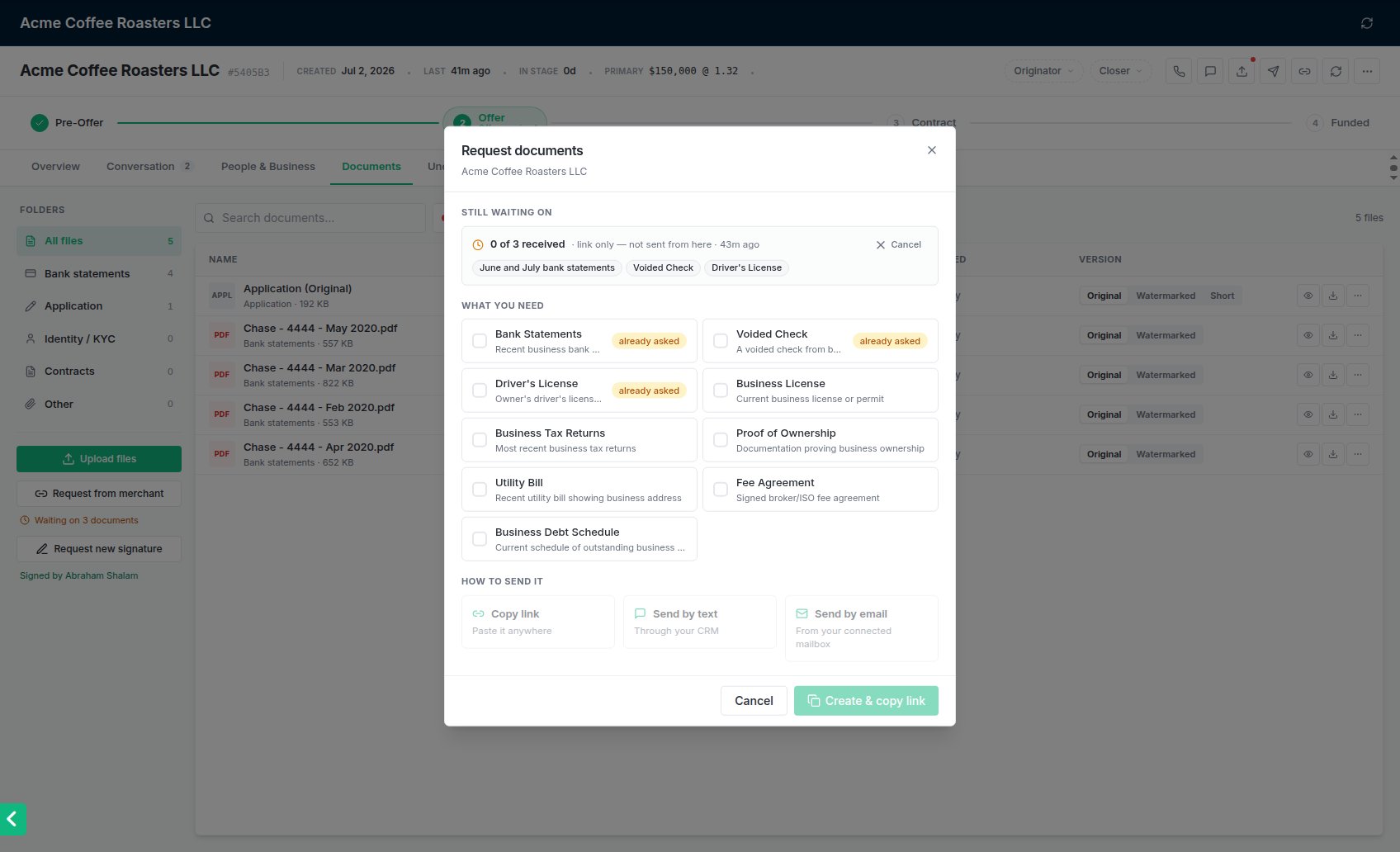
Under **What you need**, tick each document, for example **Bank Statements**, **Voided Check** or **Driver's License**. An item you've already asked for and haven't received yet is marked **already asked**, so you don't ask twice.
Under **How to send it**:
* **Copy link** creates the request and puts the portal link on your clipboard, to paste anywhere. **Create & copy link** at the bottom does the same.
* **Send by text** sends it through your CRM.
* **Send by email** sends it from your connected mailbox.
For a text or email, pick the owner under **Who gets it**, then edit the message if you like.
* The text already contains the link as `{{link}}`, which becomes the merchant's portal link when it sends. Keep it in the message.
* The email is built from your **Document Request** email template and lists the documents you picked. Choose the *From* mailbox and edit the subject and message.
The email goes out in your branded layout with your signature, and carries an **Upload documents securely** button with the merchant's secure link. If your team's template doesn't have the button, it's added at the end, so the link is never missing.
Click **Send text** or **Send email**. The window confirms who it went to.
 ## Tracking what's outstanding
Open requests show at the top of the **Request documents** window under **Still waiting on**: how many items are in (for example *1 of 3 received*), how and when it was sent, and a pill for each item, ticked once received.
While anything is outstanding:
* the **Request docs** button in the deal header has a **red dot**, and its tooltip says how many documents you're waiting on
* the **Documents** tab shows **Waiting on N documents** under the request button
An item ticks off when:
* the merchant uploads it in the portal against that item
* the merchant replies to your request email with it attached, and the attachment is recognised as that document
* for bank statements, the deal's statement coverage is complete, or the merchant clicks **That's all of them** in the portal
When every item is in, the request is complete and the red dot goes away. Documents that arrive land on the deal's **Documents** tab.
## Resend or cancel a request
Each open request under **Still waiting on** has:
* **Resend**, which emails a reminder for the items still outstanding. It only appears for requests sent by email, and needs a connected mailbox.
* **Cancel**, which closes the request. Documents already received stay on the deal.
To chase a request you sent by text or link, send a new one or resend the portal link. See [The merchant portal](/help/merchant-portal#sending-the-link).
## Common problems
Email always goes from a mailbox your team connects, never through the CRM. Connect one under **Settings → Senders**. Texting and the link work without one. See [Connecting a mailbox](/help/email-senders).
The owner needs a mobile number and a link to a CRM contact before you can text them. The window says which is missing. For email, the owner needs an email address.
Portal links last 24 hours. The expired page offers the merchant a fresh one, or you can send a new link yourself. The request stays open either way.
## Related
* [The merchant portal](/help/merchant-portal)
* [Uploading bank statements](/help/upload-statements)
* [Email vs texts](/help/email-vs-texts)
This documentation is built and hosted on [Mintlify](https://mintlify.com), a developer documentation platform.
## Tracking what's outstanding
Open requests show at the top of the **Request documents** window under **Still waiting on**: how many items are in (for example *1 of 3 received*), how and when it was sent, and a pill for each item, ticked once received.
While anything is outstanding:
* the **Request docs** button in the deal header has a **red dot**, and its tooltip says how many documents you're waiting on
* the **Documents** tab shows **Waiting on N documents** under the request button
An item ticks off when:
* the merchant uploads it in the portal against that item
* the merchant replies to your request email with it attached, and the attachment is recognised as that document
* for bank statements, the deal's statement coverage is complete, or the merchant clicks **That's all of them** in the portal
When every item is in, the request is complete and the red dot goes away. Documents that arrive land on the deal's **Documents** tab.
## Resend or cancel a request
Each open request under **Still waiting on** has:
* **Resend**, which emails a reminder for the items still outstanding. It only appears for requests sent by email, and needs a connected mailbox.
* **Cancel**, which closes the request. Documents already received stay on the deal.
To chase a request you sent by text or link, send a new one or resend the portal link. See [The merchant portal](/help/merchant-portal#sending-the-link).
## Common problems
Email always goes from a mailbox your team connects, never through the CRM. Connect one under **Settings → Senders**. Texting and the link work without one. See [Connecting a mailbox](/help/email-senders).
The owner needs a mobile number and a link to a CRM contact before you can text them. The window says which is missing. For email, the owner needs an email address.
Portal links last 24 hours. The expired page offers the merchant a fresh one, or you can send a new link yourself. The request stays open either way.
## Related
* [The merchant portal](/help/merchant-portal)
* [Uploading bank statements](/help/upload-statements)
* [Email vs texts](/help/email-vs-texts)
This documentation is built and hosted on [Mintlify](https://mintlify.com), a developer documentation platform.