> ## Documentation Index
> Fetch the complete documentation index at: https://docs.nextlevelmca.com/llms.txt
> Use this file to discover all available pages before exploring further.
# How do I get started as a rep?
> Find your way around NextLevel MCA and take a deal from new application to submitted.
This is the quick tour for reps, closers and managers: where things are, and the five steps that take a deal from a new application to the lenders. Your admin sets up the workspace; you don't need any setup to follow along.
To open the app and sign in, see [Opening NextLevel MCA from the CRM](/help/open-from-crm).
## Your first visit
The first time you open the app, a **Welcome** window offers **Show me around**, which walks you through the Deals page. After that, each screen shows a short tour the first time you reach it. You can replay any of them from the **?** menu at the top of the page. See [Guided tours](/help/guided-tours).
## The layout
Inside the CRM, NextLevel MCA's pages are items in the CRM's left menu. NextLevel MCA chooses the exact names and grouping, but you'll find:
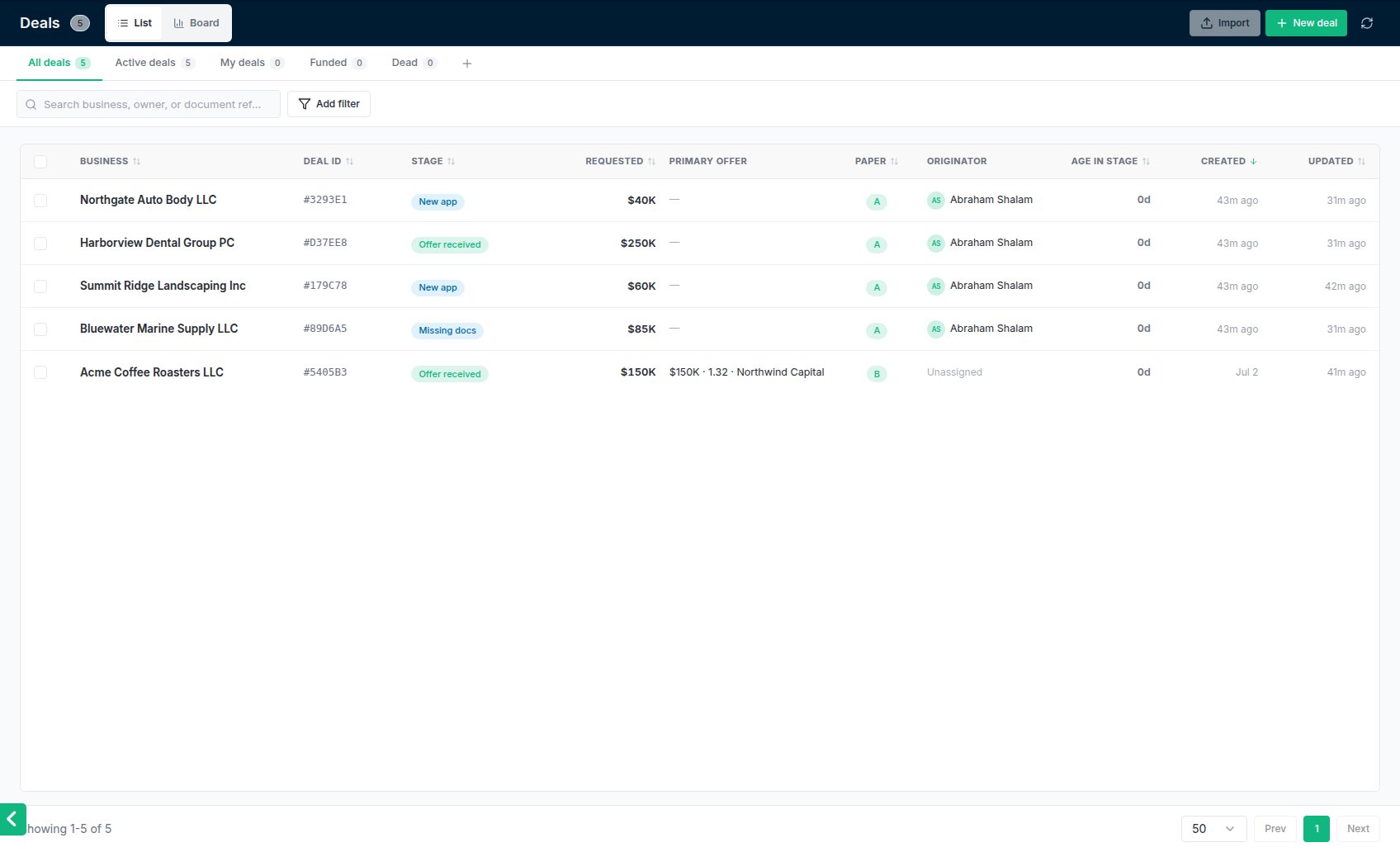
* **Deals**: the pipeline board and the deal list.
* **Businesses**: merchants, with their people, deals and advances.
* **Submissions** and **Offers**: everything in flight across all deals.
* **Advances**: funded deals being paid back, with the renewal-ready ones flagged.
* **Lender Commissions** and **Rep Commissions**: what the funder pays your brokerage, and how it splits to the team.
* **Lenders**: your lender list and each lender's criteria.
* **Settings**.
On the phone app the same pages sit in the bar at the bottom of the screen. What you see depends on your role and permissions; a rep may not see Lender Commissions or Settings at all. See [Roles](/help/roles).
 ## Your first deal
Deals arrive three ways: you click **New deal** on the Deals page, a merchant fills in your application form, or an automation creates one. The deal starts in the first stage of your pipeline, usually **New app**. See [Creating a deal](/help/create-deal) and [The application form](/help/application-form).
On the deal's **People & Business** tab, confirm the legal name, EIN and the owner's details. The EIN matters: lender matching and DataMerch key on it. A business with the same EIN is reused rather than duplicated.
Click **Request docs** in the deal header to ask the merchant for bank statements, a voided check or ID. They upload through the merchant portal and the files land on the deal. Or drop files straight onto the **Documents** tab. See [Requesting documents](/help/request-documents).
On **Underwrite**, click **Analyze statements**. A few minutes later you have verified revenue, NSFs, negative days and the existing positions, and lender matching switches from what the merchant said to what the bank says. See [Uploading statements](/help/upload-statements) and [Reading the analysis](/help/underwrite).
On **Submissions**, tick lenders in the ranked list and click **Submit to selected**. The package goes out by email from your mailbox, or straight into the lender's system when they have an API. See [Submitting to lenders](/help/submitting-to-lenders).
## The deal window
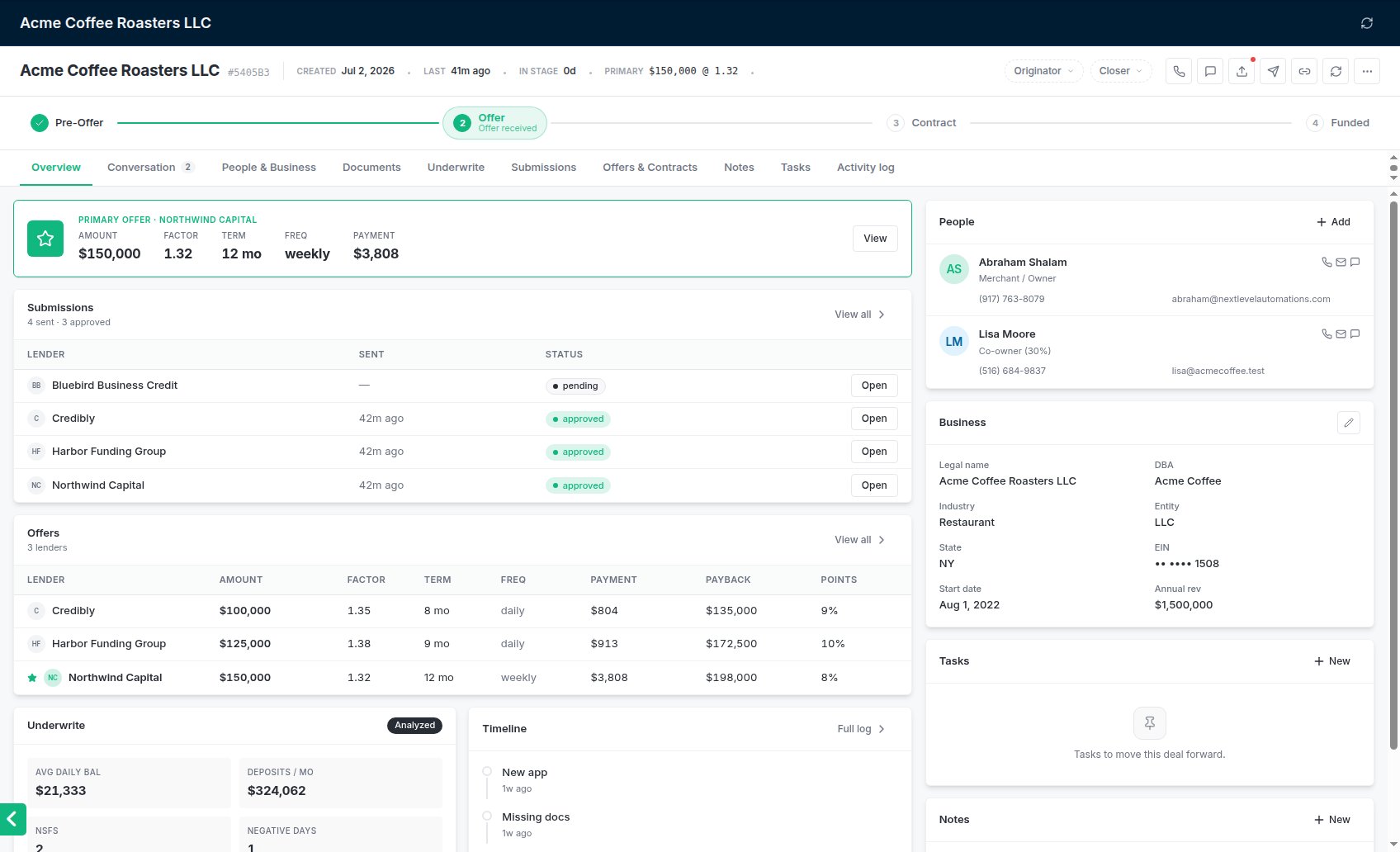
Every deal has the same tabs: **Overview**, **Conversation**, **People & Business**, **Documents**, **Underwrite**, **Submissions**, **Offers & Contracts**, **Notes**, **Tasks** and **Activity log**.
The header shows the business, the deal's dates and primary offer, and its originator and closer. The buttons on the right are **Call**, **Message**, **Request docs**, **Submissions**, **Portal link**, **Refresh** and a **More** (⋯) menu. A red dot on **Request docs** means the merchant still owes you documents. **Call** is greyed out when there's no phone number on file.
## Your first deal
Deals arrive three ways: you click **New deal** on the Deals page, a merchant fills in your application form, or an automation creates one. The deal starts in the first stage of your pipeline, usually **New app**. See [Creating a deal](/help/create-deal) and [The application form](/help/application-form).
On the deal's **People & Business** tab, confirm the legal name, EIN and the owner's details. The EIN matters: lender matching and DataMerch key on it. A business with the same EIN is reused rather than duplicated.
Click **Request docs** in the deal header to ask the merchant for bank statements, a voided check or ID. They upload through the merchant portal and the files land on the deal. Or drop files straight onto the **Documents** tab. See [Requesting documents](/help/request-documents).
On **Underwrite**, click **Analyze statements**. A few minutes later you have verified revenue, NSFs, negative days and the existing positions, and lender matching switches from what the merchant said to what the bank says. See [Uploading statements](/help/upload-statements) and [Reading the analysis](/help/underwrite).
On **Submissions**, tick lenders in the ranked list and click **Submit to selected**. The package goes out by email from your mailbox, or straight into the lender's system when they have an API. See [Submitting to lenders](/help/submitting-to-lenders).
## The deal window
Every deal has the same tabs: **Overview**, **Conversation**, **People & Business**, **Documents**, **Underwrite**, **Submissions**, **Offers & Contracts**, **Notes**, **Tasks** and **Activity log**.
The header shows the business, the deal's dates and primary offer, and its originator and closer. The buttons on the right are **Call**, **Message**, **Request docs**, **Submissions**, **Portal link**, **Refresh** and a **More** (⋯) menu. A red dot on **Request docs** means the merchant still owes you documents. **Call** is greyed out when there's no phone number on file.
 **Conversation** shows texts and emails with the merchant in one thread. Texts go through your CRM; emails go from your connected mailbox. If the email option is greyed out, nobody on the workspace has connected a mailbox yet. See [Email or text?](/help/email-vs-texts).
## Staying on top of your deals
When a lender replies, a merchant signs or a deal funds, you get a notification in the NextLevel MCA bell at the top of your CRM. You can also get pop-up alerts on your computer or phone. See [The notifications bell](/help/notification-bell) and [Desktop notifications](/help/desktop-notifications).
This documentation is built and hosted on [Mintlify](https://mintlify.com), a developer documentation platform.
**Conversation** shows texts and emails with the merchant in one thread. Texts go through your CRM; emails go from your connected mailbox. If the email option is greyed out, nobody on the workspace has connected a mailbox yet. See [Email or text?](/help/email-vs-texts).
## Staying on top of your deals
When a lender replies, a merchant signs or a deal funds, you get a notification in the NextLevel MCA bell at the top of your CRM. You can also get pop-up alerts on your computer or phone. See [The notifications bell](/help/notification-bell) and [Desktop notifications](/help/desktop-notifications).
This documentation is built and hosted on [Mintlify](https://mintlify.com), a developer documentation platform.