> ## Documentation Index
> Fetch the complete documentation index at: https://docs.nextlevelmca.com/llms.txt
> Use this file to discover all available pages before exploring further.
# How do I export my data?
> Download your records and files from the Export center: a full backup, spreadsheets, or one slice.
The Export center downloads your account's records and files in one zip: a full backup, spreadsheets to work with, or just the part you need, like every bank statement or every deal with its submissions. It's for admins only.
 ## Make an export
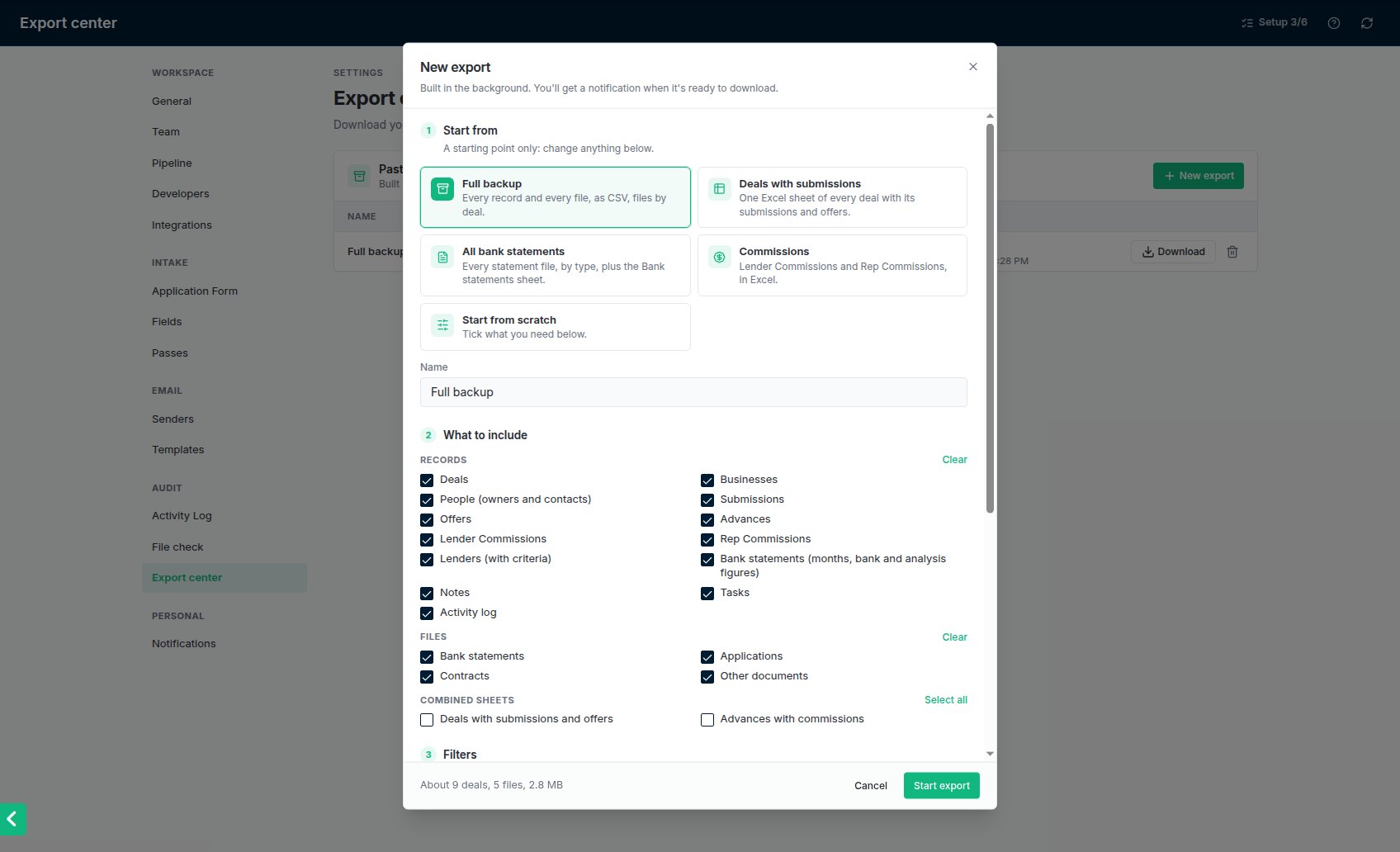
Go to **Settings → Export center** (under **Audit**) and click **New export**.
A preset only ticks the boxes for you; you can change anything after.
* **Full backup:** every record and every file.
* **Deals with submissions:** one sheet of every deal with its submissions and offers.
* **All bank statements:** every statement file, plus a sheet of the statements and their bank statement analysis figures.
* **Commissions:** Lender Commissions and Rep Commissions.
Tick the records you want (deals, businesses, people, submissions, offers, advances, Lender Commissions, Rep Commissions, lenders, bank statements, notes, tasks, the activity log), any files, and any combined sheets.
Filter by date (created, submitted or funded), rep, lender, pipeline stage, or submission, offer and advance status. Filters follow the links: filtering to one lender gives that lender's submissions, offers and advances, and the deals they belong to.
Choose **Excel** (one workbook, a sheet per record type) or **CSV** (one file per record type). If you included files, choose whether they're grouped **by deal** or **by document type**. The bottom of the window shows roughly how big the export will be. Click **Start export**.
The export is built in the background, so you can leave the page. You get a notification when it's ready.
## Download it
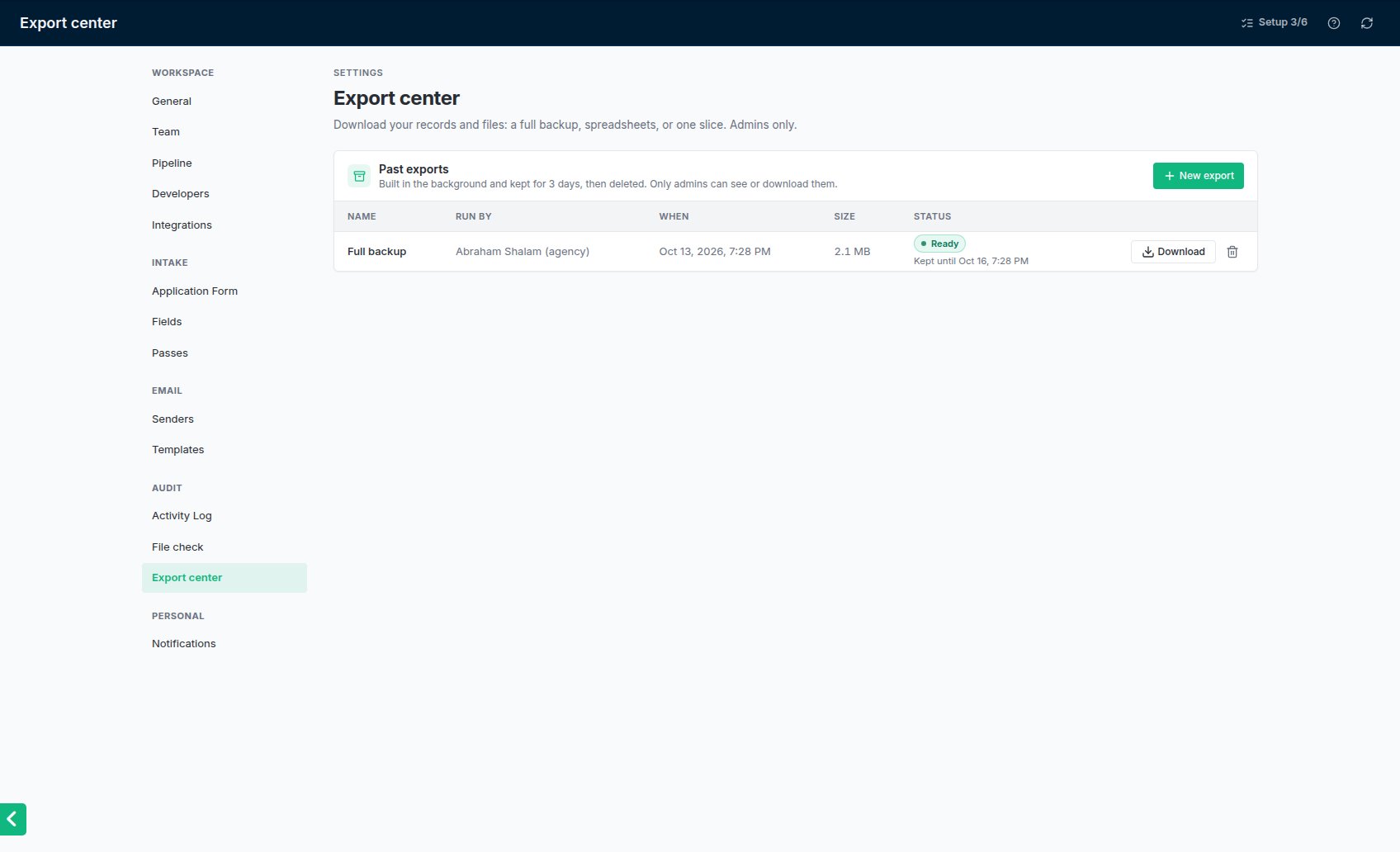
Click **Download** next to the export in **Settings → Export center**. Downloads only work for admins signed in to your account; the notification and email never contain the file or a link to it.
An export is kept for **3 days**, then deleted. You can delete it sooner with the bin icon. The list keeps a record of every export that was made, and who made it.
## Make an export
Go to **Settings → Export center** (under **Audit**) and click **New export**.
A preset only ticks the boxes for you; you can change anything after.
* **Full backup:** every record and every file.
* **Deals with submissions:** one sheet of every deal with its submissions and offers.
* **All bank statements:** every statement file, plus a sheet of the statements and their bank statement analysis figures.
* **Commissions:** Lender Commissions and Rep Commissions.
Tick the records you want (deals, businesses, people, submissions, offers, advances, Lender Commissions, Rep Commissions, lenders, bank statements, notes, tasks, the activity log), any files, and any combined sheets.
Filter by date (created, submitted or funded), rep, lender, pipeline stage, or submission, offer and advance status. Filters follow the links: filtering to one lender gives that lender's submissions, offers and advances, and the deals they belong to.
Choose **Excel** (one workbook, a sheet per record type) or **CSV** (one file per record type). If you included files, choose whether they're grouped **by deal** or **by document type**. The bottom of the window shows roughly how big the export will be. Click **Start export**.
The export is built in the background, so you can leave the page. You get a notification when it's ready.
## Download it
Click **Download** next to the export in **Settings → Export center**. Downloads only work for admins signed in to your account; the notification and email never contain the file or a link to it.
An export is kept for **3 days**, then deleted. You can delete it sooner with the bin icon. The list keeps a record of every export that was made, and who made it.
 ## What's in the zip
* **records/**: your spreadsheets. Money and dates open as numbers and dates.
* **files/**: the files your merchants and team uploaded, as they were uploaded. Watermarked copies made for lenders are not included.
* **README.txt**: when the export was made, by whom, with which filters, and how many rows each sheet holds.
A very large export is split into several zips (part 1 of 3, and so on), each of which opens on its own. Your records are in part 1, and a deal's files are never split across two zips.
If a file couldn't be found, the export still finishes and lists it in **missing-files.csv**.
## SSNs and dates of birth
By default an export shows only the last 4 digits of each SSN, and no dates of birth. To include them in full, tick **Include full SSNs and dates of birth** and confirm. That export is marked **Contains SSNs**, and the activity log records who made it. Keep the file somewhere safe and delete it when you're done.
## Good to know
* One export runs at a time in your account. You can cancel one that's still building.
* Starting, downloading, cancelling and deleting an export are all recorded in **Settings → Activity log** (filter by **Export**).
* An export can be up to 10 GB. For anything bigger, narrow the date range and export in pieces.
This documentation is built and hosted on [Mintlify](https://mintlify.com), a developer documentation platform.
## What's in the zip
* **records/**: your spreadsheets. Money and dates open as numbers and dates.
* **files/**: the files your merchants and team uploaded, as they were uploaded. Watermarked copies made for lenders are not included.
* **README.txt**: when the export was made, by whom, with which filters, and how many rows each sheet holds.
A very large export is split into several zips (part 1 of 3, and so on), each of which opens on its own. Your records are in part 1, and a deal's files are never split across two zips.
If a file couldn't be found, the export still finishes and lists it in **missing-files.csv**.
## SSNs and dates of birth
By default an export shows only the last 4 digits of each SSN, and no dates of birth. To include them in full, tick **Include full SSNs and dates of birth** and confirm. That export is marked **Contains SSNs**, and the activity log records who made it. Keep the file somewhere safe and delete it when you're done.
## Good to know
* One export runs at a time in your account. You can cancel one that's still building.
* Starting, downloading, cancelling and deleting an export are all recorded in **Settings → Activity log** (filter by **Export**).
* An export can be up to 10 GB. For anything bigger, narrow the date range and export in pieces.
This documentation is built and hosted on [Mintlify](https://mintlify.com), a developer documentation platform.