> ## Documentation Index
> Fetch the complete documentation index at: https://docs.nextlevelmca.com/llms.txt
> Use this file to discover all available pages before exploring further.
# How do I connect my Gmail or Outlook mailbox?
> Connect the Gmail or Outlook mailbox NextLevel MCA sends your emails from and reads lender replies in.
Every email NextLevel MCA sends goes from a mailbox your team connects: submissions to lenders, contract requests, offer pitches, document requests, portal links and emails from the **Conversation** tab. Until a mailbox is connected, those email options show **No mailbox connected** and nothing is emailed. Texts are different: they go through your CRM. See [Why texts go through the CRM and email goes from your mailbox](/help/email-vs-texts).
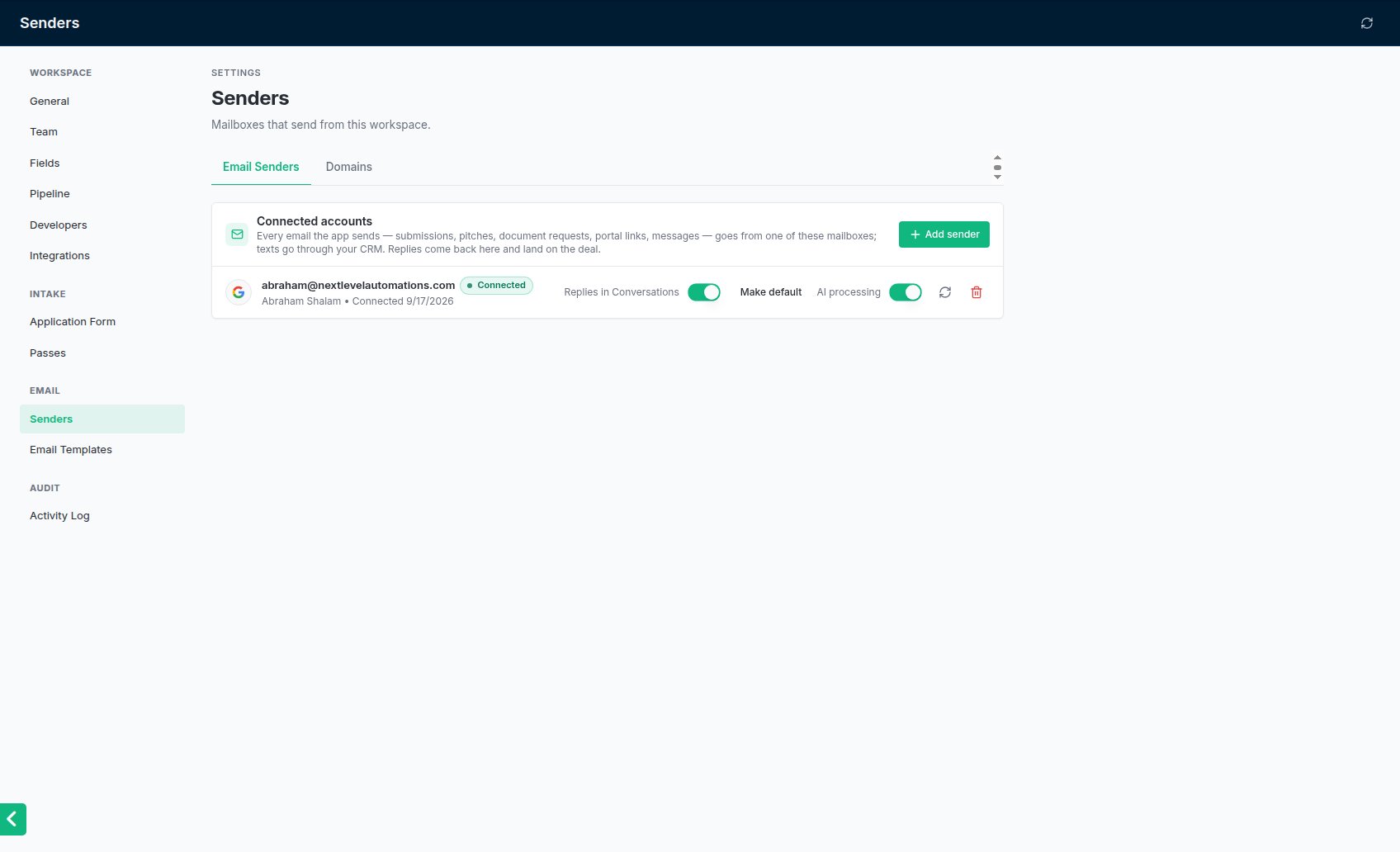
Anyone can connect their own mailbox. Admins, and anyone with Settings access, see every mailbox in the workspace under **Settings → Senders**. Everyone else sees **Settings → My mailbox**, with only their own.
## Connect a mailbox
Go to **Settings → Senders** (or **Settings → My mailbox** if that is what you see).
Click **Add sender** (or **Connect mailbox**). The **Connect Email Account** window opens.
Click **Sign in with Google** for Gmail and Google Workspace addresses, or **Sign in with Outlook** for Outlook and Microsoft 365 addresses. A sign-in window opens.
Sign in with the address you want to send from and approve the access it asks for. NextLevel MCA never sees your password.
The window closes, you see *Google account connected* (or *Outlook account connected*), and the mailbox appears in the list marked **Connected**.
Admins can click the **Test connection** button (the circular arrow) on a mailbox at any time. It says whether the mailbox is connected and working, or disconnected and needs reconnecting.
 ## Each person should connect their own
A mailbox belongs to whoever connected it. That matters because NextLevel MCA picks mailboxes by owner: the email dialogs start on your own mailbox, and automated emails go from the deal rep's mailbox. If an admin connects a rep's address for them, it counts as the admin's mailbox. So each team member should sign in with their own address, and replies to what they send land in their own inbox.
## What happens next
* **Replies are read.** New mailboxes are checked every few minutes for replies to what the app sent. A lender's reply to a submission can log the offer or the decline, and contracts attached to a reply are filed on the deal. See [Replies and declines](/help/replies-and-declines).
* **Merchant replies show on the deal.** A merchant's reply appears in the deal's **Conversation** tab.
* **Automated emails need a mailbox too.** If your team shares one address for automated emails, set it as the default. See [Choosing the default sender](/help/default-sender).
## Settings on each mailbox (admins)
On **Settings → Senders**, each mailbox row has:
| Setting | What it does |
| - | - |
| **Replies in Conversations** | Shows merchant replies received in this mailbox in the **Conversation** tab. On by default. |
| **AI processing** | Reads this mailbox for lender and merchant replies. On by default. With it off, replies to this mailbox are not read at all, so offers and declines are not logged from them. |
| **Make default** | Makes this the mailbox automated emails use when the deal rep has none. See [Choosing the default sender](/help/default-sender). |
| **Remove sender** (bin icon) | Stops using the mailbox. The emails already logged on your deals stay. |
## Common problems
Your browser may have blocked the sign-in window. Allow pop-ups for NextLevel MCA and try again. The sign-in link is only good for 10 minutes, so start again if you left it open.
Google and Microsoft drop connections from time to time. Click **Reconnect** and sign in again with the same address. See [Reconnecting a disconnected mailbox](/help/reconnect-mailbox).
Check the mailbox is **Connected** and that **AI processing** is on for it. Only replies that arrive in a connected mailbox are read.
Remove it with the bin icon and connect the right one. Signing in with a different address adds a second mailbox; it does not replace the first.
This documentation is built and hosted on [Mintlify](https://mintlify.com), a developer documentation platform.
## Each person should connect their own
A mailbox belongs to whoever connected it. That matters because NextLevel MCA picks mailboxes by owner: the email dialogs start on your own mailbox, and automated emails go from the deal rep's mailbox. If an admin connects a rep's address for them, it counts as the admin's mailbox. So each team member should sign in with their own address, and replies to what they send land in their own inbox.
## What happens next
* **Replies are read.** New mailboxes are checked every few minutes for replies to what the app sent. A lender's reply to a submission can log the offer or the decline, and contracts attached to a reply are filed on the deal. See [Replies and declines](/help/replies-and-declines).
* **Merchant replies show on the deal.** A merchant's reply appears in the deal's **Conversation** tab.
* **Automated emails need a mailbox too.** If your team shares one address for automated emails, set it as the default. See [Choosing the default sender](/help/default-sender).
## Settings on each mailbox (admins)
On **Settings → Senders**, each mailbox row has:
| Setting | What it does |
| - | - |
| **Replies in Conversations** | Shows merchant replies received in this mailbox in the **Conversation** tab. On by default. |
| **AI processing** | Reads this mailbox for lender and merchant replies. On by default. With it off, replies to this mailbox are not read at all, so offers and declines are not logged from them. |
| **Make default** | Makes this the mailbox automated emails use when the deal rep has none. See [Choosing the default sender](/help/default-sender). |
| **Remove sender** (bin icon) | Stops using the mailbox. The emails already logged on your deals stay. |
## Common problems
Your browser may have blocked the sign-in window. Allow pop-ups for NextLevel MCA and try again. The sign-in link is only good for 10 minutes, so start again if you left it open.
Google and Microsoft drop connections from time to time. Click **Reconnect** and sign in again with the same address. See [Reconnecting a disconnected mailbox](/help/reconnect-mailbox).
Check the mailbox is **Connected** and that **AI processing** is on for it. Only replies that arrive in a connected mailbox are read.
Remove it with the bin icon and connect the right one. Signing in with a different address adds a second mailbox; it does not replace the first.
This documentation is built and hosted on [Mintlify](https://mintlify.com), a developer documentation platform.